
Anima Ref Adapter: Generate a Character from One Reference Image in ComfyUI
A new adapter for the anime image model Anima picks up a character's look, and partly their style, from a single reference image. Pose, background and composition still come from your prompt. It works for original characters too, with no lengthy training or descriptions.
What it's about
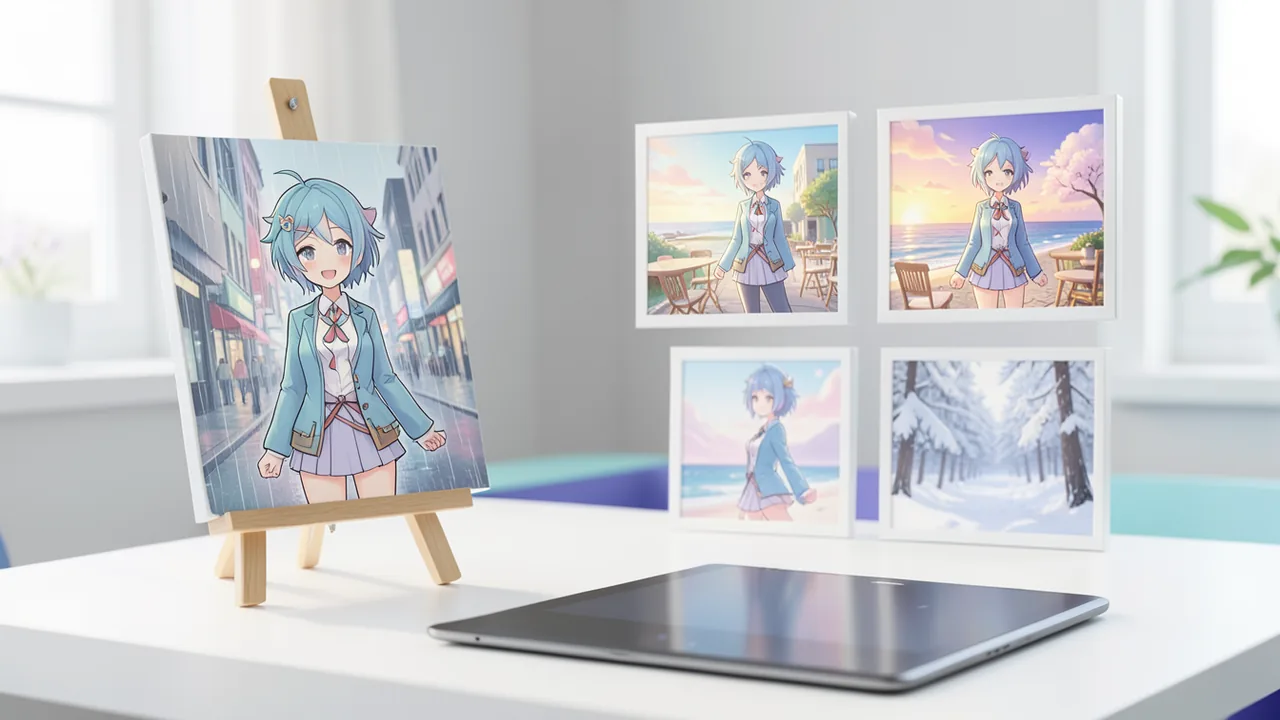
Under the name "Anima Reference Adapter," the developer "ElectronGirl" has released a ComfyUI extension that teaches the anime image model Anima to work with a character reference. You supply a single reference image and write a prompt that describes only the scene. The adapter keeps who is drawn (hair, eyes, clothing, accessories) and some of how it is drawn. Pose, background and composition come from the prompt instead. You don't need a character name, an artist tag or appearance tags. That's why it also works for original, invented characters. One Reddit user sums it up like this: one reference image, and the same character is generated, with no long descriptions or custom training.
The release consists of ComfyUI nodes (code, Apache-2.0), the adapter weights on Hugging Face and a technical report. The author explicitly calls it a pilot release.
How it works
The reference image is encoded into a latent space (the compressed representation the model works in). This latent is fed to the model as the second frame of a short "2-frame clip," and it goes in clean, with no noise (timestep 0). One trick prevents plain tracing: the RoPE coordinates (the transformer's positional encoding) of the reference image are shifted by one image height. That way the model can't copy the reference pixel for pixel, so it doesn't copy the pose. An aligned temporal reference, by contrast, would copy the pose too.
A LoRA (small add-on weights that adapt a model after the fact) with rank 32 and 45.9 million parameters learns to read this reference frame. It is only active when a reference is present. Training used pairs of the same character in different scenes, generated by Anima itself; the name, artist and appearance tags were removed from the target prompt. There is also separate guidance for text and reference, combined with Adaptive Projected Guidance (APG), which is meant to keep colors under control even at high reference strength.
Installation and nodes
Clone the folder into ComfyUI/custom_nodes and put the file anima_ref_adapter_pilot_r32.safetensors in ComfyUI/models/loras/. You also need Anima Base v1.0, the Qwen3-0.6B text encoder and the Qwen-Image VAE. Both example workflows use "Patch Sage Attention" from ComfyUI-KJNodes; without SageAttention you can bypass the node (Ctrl+B).
Three nodes are included:
| Node | Purpose |
|---|---|
| Anima Ref Adapter Loader | Attaches the adapter LoRA to the Anima model; leave ref_offset_h at 1.0 |
| Anima Ref Latent | Fits the reference with a white border and encodes it via the VAE, including a half-size variant |
| Anima Ref Guider | Guider for SamplerCustomAdvanced with cfg, ref_guidance and apg/rescale |
Recommended settings
| Setting | Recommendation |
|---|---|
| Base model | Anima Base v1.0 (the Turbo LoRA works too and is loaded before it) |
| Compute precision | bf16, since Anima overflows in fp16 |
| Sampler | Euler, 28–30 steps, simple; SamplerSPEED's half-resolution stage is unreliable |
| cfg | 4.5 |
| ref_guidance | 4.5–6; higher gives more character detail and style, but more saturation |
| Correction | apg or rescale (phi 0.5) |
| Prompt | Quality + gender + solo + scene tags |
For the gallery, the author also used Anima LoRAs (Context Detailer at about 0.3, Base Slider at about 0.6) and Anima Safe PAG. The seeds were reportedly not cherry-picked. The author also shows results for characters that were excluded from training, such as Tohru or Meiko, compared with prompts without the adapter and with prompts that spell out the appearance tags.
What you need to try it
The source gives no hardware figures. Anima is a fairly small model with a 0.6B text encoder, and the adapter file is tiny at 45.9 million parameters. Realistically, you'll want a recent GPU with several GB of VRAM (a rough estimate, not from the source) and a working ComfyUI install. You'll need disk space for the base model, text encoder, VAE and adapter. Whether it runs on a Mac or on CPU isn't stated in the source.
Limitations
- Identity transfers much better than style; heavily painterly styles barely come through.
- Small patterns, scars, earrings and unusual skin tones are often lost; large garments can drift in color.
- Occasionally the reference character also shows up as an object in the scene.
- Training used only Anima-generated images, so the adapter inherits its biases.
Takeaway
Until now, getting a specific character meant either training your own LoRA or writing long appearance tags, which is tedious for original characters. An adapter that needs only one image lowers that barrier considerably. What's unclear is how robust it is beyond the examples shown; the gallery comes from the author herself, and independent comparisons are missing. One important point for use: the weights are licensed for non-commercial use only, because they derive from the CircleStone model. The roadmap lists separate references for character and style, a larger dataset of 2,000 characters in three artist styles each, better transfer of painterly styles, and training for half-resolution samplers.
Sources
- r/StableDiffusion github.com
Try it yourself: Anima Reference Adapter
Explained step by step, no prior knowledge needed – on your own computer or free in your browser.
What can I do with it?
The adapter extends the anime image model Anima with a character reference. You provide an image of a character and describe only the scene, for example "full body, walking, city, night, rain." The result is the same character, with a similar hairstyle, eye color and clothing, in a new pose and setting. This works for characters you invented yourself, because neither a name nor appearance tags are needed. Identity transfers better than style; very painterly styles and small details such as scars or earrings are often lost. This is a pilot release trained on 300 characters, so expect some outliers.
Who is it worth it for?
Interesting for anyone generating anime images in ComfyUI who needs the same character across many scenes, such as for comics, character design or role-playing. Less suitable for commercial projects (weights are non-commercial only) and for anyone after realistic or heavily painterly styles.
Ideas: What you can do with it
Load an image of your main character as the reference and generate scenes like a café, beach or classroom using scene tags alone. That gives you drafts for panels without training your own LoRA.
With a portrait of your tabletop RPG character, you can create images of adventure scenes, such as in the snow or in a library. The look stays largely consistent.
For Discord servers, streams or fan projects, you can generate variations of a mascot in different situations. Keep the non-commercial license in mind.
Try how a draft looks in different poses and settings, and spot weaknesses in the design.
The same character in multiple scenes for hobby visual novels, as raw material for later refinement.
What your computer needs
There is exactly one adapter file (anima_ref_adapter_pilot_r32.safetensors), trained on Anima Base v1.0. The Anima Turbo LoRA works too and can be loaded before it to use fewer steps.
- Anima runs in bf16 (ModelComputeDtype); in fp16 it overflows.
- The source gives no concrete VRAM figures; the adapter itself is small at about 46 million parameters.
- The reference image is processed as a second frame, which costs extra compute compared with normal generation.
- SageAttention is optional; without it you can bypass the patch node.
How do I find out what my computer has?
- Windows: Press Ctrl + Shift + Esc → Task Manager → Performance tab → click GPU on the left. At the bottom you'll see Dedicated GPU memory (that's your VRAM). You'll find system memory under Memory.
- Mac: Apple menu at the top left → About This Mac. You'll see your chip (e.g. M2) and memory (e.g. 16 GB). On Apple chips, graphics and processor share this memory.
- Linux: Type
nvidia-smiin the terminal (shows your graphics card and its memory) andfree -hfor system memory.
Guide
This model runs with its developers' own program (ElectronGirl/ComfyUI-Anima-Ref-Adapter on GitHub). The commands below come from the Model Card and the developers' instructions.
Windows 10 / 11
Windows 10 / 11: not officially tested. The source says nothing about Windows. ComfyUI normally runs there with NVIDIA cards, but the adapter has not been explicitly tested.
- Check the prerequisites. You need Python 3.10 or newer, Git and, for NVIDIA cards, a current driver. Open PowerShell and check the versions. The model is an add-on (LoRA) for ComfyUI, a graphical interface for image models.
python --version git --version nvidia-smi - Get ComfyUI. Download ComfyUI and switch to its folder. If you already have ComfyUI, skip this step.
git clone https://github.com/comfyanonymous/ComfyUI.git cd ComfyUI - Create the environment and install. A venv is an isolated Python environment. First install PyTorch to match your GPU (instructions on pytorch.org), then the ComfyUI packages. If PowerShell reports a script error, allow scripts for this session with the first command.
Set-ExecutionPolicy -Scope Process -ExecutionPolicy Bypass python -m venv .venv .venv\Scripts\Activate.ps1 pip install -r requirements.txt - Install the adapter nodes. The adapter's nodes go into the custom_nodes folder. Without them, the reference image won't work.
cd custom_nodes git clone https://github.com/ElectronGirl/ComfyUI-Anima-Ref-Adapter.git cd .. - Download the adapter weights. The file is only about 0.09 GB and goes into models\loras.
pip install -U huggingface_hub hf download ElectronGirl/anima-ref-adapter anima_ref_adapter_pilot_r32.safetensors --local-dir models\loras - Get the Anima base model. Download Anima base v1.0, the Qwen3-0.6B text encoder and the Qwen-Image VAE from the Hugging Face page circlestone-labs/Anima. Put them in models\diffusion_models, models\text_encoders and models\vae.
- Optional: install KJNodes. The example workflows use "Patch Sage Attention" from ComfyUI-KJNodes. Install it in custom_nodes, or bypass the node later in ComfyUI with Ctrl+B.
cd custom_nodes git clone https://github.com/kijai/ComfyUI-KJNodes.git cd .. - Start ComfyUI. Launch the program and open the address shown in your browser (usually http://127.0.0.1:8188). Reload the page with Ctrl+F5.
python main.py - Open the workflow and generate your first image. Load custom_nodes\ComfyUI-Anima-Ref-Adapter\workflows\anima_ref_adapter.json in ComfyUI. Pick a reference image with a character and enter only the scene as the prompt. Recommended: Euler, 28 steps, cfg 4.5, ref_guidance 4.5, correction apg, bf16.
masterpiece, best quality, score_7, newest, highres, absurdres, safe, 1girl, solo, upper body, sitting, eating, cake, cafe, indoors - Result. ComfyUI produces an image showing the character from your reference image in the scene from your prompt.
macOS
macOS: not officially tested. The source says nothing about macOS. ComfyUI generally runs on Apple silicon too, but whether the adapter runs cleanly there is untested. Expect slow generation.
- Check the prerequisites. You need Python 3.10 or newer, Git and the Xcode command line tools. If needed, install them with the first command. The model is an add-on (LoRA) for ComfyUI, a graphical interface for image models.
xcode-select --install python3 --version git --version - Get ComfyUI. Download ComfyUI and switch to its folder. If you already have ComfyUI, skip this step.
git clone https://github.com/comfyanonymous/ComfyUI.git cd ComfyUI - Create the environment and install. A venv is an isolated Python environment. First install PyTorch for Mac (instructions on pytorch.org), then the ComfyUI packages.
python3 -m venv .venv source .venv/bin/activate pip install -r requirements.txt - Install the adapter nodes. The adapter's nodes go into the custom_nodes folder. Without them, the reference image won't work.
cd custom_nodes git clone https://github.com/ElectronGirl/ComfyUI-Anima-Ref-Adapter.git cd .. - Download the adapter weights. The file is only about 0.09 GB and goes into models/loras.
pip install -U huggingface_hub hf download ElectronGirl/anima-ref-adapter anima_ref_adapter_pilot_r32.safetensors --local-dir models/loras - Get the Anima base model. Download Anima base v1.0, the Qwen3-0.6B text encoder and the Qwen-Image VAE from the Hugging Face page circlestone-labs/Anima. Put them in models/diffusion_models, models/text_encoders and models/vae.
- Optional: KJNodes. The example workflows use "Patch Sage Attention" from ComfyUI-KJNodes. SageAttention is probably not available on Mac. So bypass the node in ComfyUI with Ctrl+B (the Cmd key may differ).
cd custom_nodes git clone https://github.com/kijai/ComfyUI-KJNodes.git cd .. - Start ComfyUI. Launch the program and open the address shown in your browser (usually http://127.0.0.1:8188). Reload the page.
python main.py - Open the workflow and generate your first image. Load custom_nodes/ComfyUI-Anima-Ref-Adapter/workflows/anima_ref_adapter.json in ComfyUI. Pick a reference image with a character and enter only the scene as the prompt. Recommended: Euler, 28 steps, cfg 4.5, ref_guidance 4.5, correction apg, bf16.
masterpiece, best quality, score_7, newest, highres, absurdres, safe, 1girl, solo, upper body, sitting, eating, cake, cafe, indoors - Result. ComfyUI produces an image showing the character from your reference image in the scene from your prompt.
Linux
Linux: supported. Runs through ComfyUI, ideally with an NVIDIA GPU (the author trained on an NVIDIA card). Other cards aren't mentioned in the source.
- Check the prerequisites. You need Python 3.10 or newer, Git and, for NVIDIA cards, a current driver. Check the versions with the commands. The model isn't a standalone program; it's an add-on (LoRA) for ComfyUI, a graphical interface for image models.
python3 --version git --version nvidia-smi - Get ComfyUI. Download ComfyUI and switch to its folder. If you already have ComfyUI, skip this step.
git clone https://github.com/comfyanonymous/ComfyUI.git cd ComfyUI - Create the environment and install. A venv is an isolated Python environment that keeps your system clean. First install PyTorch to match your GPU (instructions on pytorch.org), then the ComfyUI packages.
python3 -m venv .venv source .venv/bin/activate pip install -r requirements.txt - Install the adapter nodes. The adapter's nodes go into the custom_nodes folder. The adapter isn't a normal LoRA: it needs these nodes, otherwise the reference image won't be wired in properly.
cd custom_nodes git clone https://github.com/ElectronGirl/ComfyUI-Anima-Ref-Adapter.git cd .. - Download the adapter weights. The file is only about 0.09 GB and goes into models/loras.
pip install -U huggingface_hub hf download ElectronGirl/anima-ref-adapter anima_ref_adapter_pilot_r32.safetensors --local-dir models/loras - Get the Anima base model. The adapter needs Anima base v1.0, the Qwen3-0.6B text encoder and the Qwen-Image VAE. Download them from the Hugging Face page circlestone-labs/Anima. Put them in the matching ComfyUI folders: model in models/diffusion_models, text encoder in models/text_encoders, VAE in models/vae.
- Optional: install KJNodes. The example workflows use the "Patch Sage Attention" node from ComfyUI-KJNodes. Install it (repo kijai/ComfyUI-KJNodes) in custom_nodes. Or bypass the node later in ComfyUI with Ctrl+B.
cd custom_nodes git clone https://github.com/kijai/ComfyUI-KJNodes.git cd .. - Start ComfyUI. Launch the program and open the address shown in your browser (usually http://127.0.0.1:8188). Reload the page with Ctrl+F5 so the new nodes appear.
python main.py - Open the workflow and generate your first image. Load the file custom_nodes/ComfyUI-Anima-Ref-Adapter/workflows/anima_ref_adapter.json in ComfyUI. Pick your own reference image (one character, e.g. an anime picture of your own). Enter only the scene as the prompt, with no name or appearance, and click "Queue." Recommended: Euler, 28 steps, cfg 4.5, ref_guidance 4.5, correction apg, compute precision bf16.
masterpiece, best quality, score_7, newest, highres, absurdres, safe, 1girl, solo, upper body, sitting, eating, cake, cafe, indoors - Result. ComfyUI produces an image showing the character from your reference image in the scene from your prompt.
What to do after your first result
- Try other scene tags, e.g. "full body, walking, city, street, night, rain". Don't write a character name or appearance tags in the prompt.
- With ref_guidance between 4.5 and 6 you get more character detail, but also more color saturation. Leave ref_offset_h in the adapter node at 1.0.
- For higher quality, you can optionally use Anima Safe PAG (anima_ref_adapter_pag.json) and the detailer/slider LoRAs from the gallery settings.
- Note: the weights are licensed for non-commercial use only. Small patterns and earrings are often lost.
Try it
masterpiece, best quality, score_7, newest, highres, absurdres, safe, 1girl, solo, upper body, sitting, eating, cake, cafe, indoorsmasterpiece, best quality, score_7, newest, highres, absurdres, safe, 1boy, solo, full body, walking, hands in pockets, city, street, night, rainmasterpiece, best quality, score_7, newest, highres, absurdres, safe, 1girl, solo, portrait, closed eyes, smile, cherry blossoms, petals, windmasterpiece, best quality, score_7, newest, highres, absurdres, safe, 1boy, solo, full body, standing, snow, forest, winterTips for better results
- Don't put a character name, artist tags or appearance tags in the prompt, only quality, gender, solo and the scene.
- Start with cfg 4.5 and ref_guidance 4.5; higher values (up to 6) bring more detail, but also more saturation.
- Use the correction "apg" or "rescale" (phi 0.5) to tame color oversaturation.
- Optionally, the Context Detailer LoRA (~0.3), Base Slider LoRA (~0.6) and Anima Safe PAG can help; load regular LoRAs before the adapter loader.
If something goes wrong
Node errors after installation: restart ComfyUI and reload the browser tab with Ctrl+F5.
Missing Patch Sage Attention: install ComfyUI-KJNodes or bypass the node with Ctrl+B.
Black or broken images: use bf16 instead of fp16, since Anima overflows in fp16.
You also need Anima Base v1.0, the Qwen3-0.6B text encoder and the Qwen-Image VAE from the circlestone-labs/Anima repo.
Avoid the SamplerSPEED sampler with its half-resolution stage; it is unreliable.
The weights can only be used non-commercially.
“out of memory,” a crash, or your computer freezes
The model is too big for your VRAM (video memory). Pick a smaller variant from the table above and close other programs, especially games and browsers with lots of tabs.
It runs, but extremely slowly
Your CPU is probably doing the work instead of your graphics card. In Ollama, the PROCESSOR column of ollama ps shows how much runs on the GPU. If it says "100% CPU", update your graphics driver or pick a smaller variant that fits entirely into VRAM (video memory).
“ollama” or “python” is not found
Close the terminal window and open it again so it recognizes the newly installed program. For Python on Windows: reinstall it and check Add python.exe to PATH.
Windows: "Running scripts is disabled on this system"
Run the script with exactly the command above: powershell -ExecutionPolicy Bypass -File try_windows.ps1. This allows execution for this one time only.
Error message when loading the model (version, "trust_remote_code", unknown architecture)
Brand-new models often need the latest software version. With Ollama: update Ollama. With Python: pip install -U transformers in the activated environment. The Model Card usually lists the exact version.
Tokenstrom generates the scripts and notebook automatically. Please take a quick look before running them – they're plain, readable text. Mind the model's license: custom license (see Model Card).
Ask the AI assistant
Questions about this article, installation or background? Our assistant knows this page and runs on our own machine, not in someone else's cloud.
The Assistant is an AI (Gemma 4) and can make mistakes – please check important details against the source. Questions are used only to generate an answer and are deleted after one hour. Please don't enter any personal data.


Comments
What do you think? Already tried it? Write it here, no sign-up needed.
Comments are public. Links aren't allowed, and we delete abusive posts. You can delete your own comment at any time in this browser. Learn more in the Privacy Policy.