
WeChat open-sources WeVisOne-VL: one small vision model to find, count, read and cut out
WeChat's vision team at Tencent has open-sourced WeVisOne-VL. It comes in two sizes, with 2 and 4 billion parameters. It finds people and objects from a description, counts things, reads text and cuts out subjects down to the pixel. That's one model doing a job that usually takes four separate tools.
What's going on
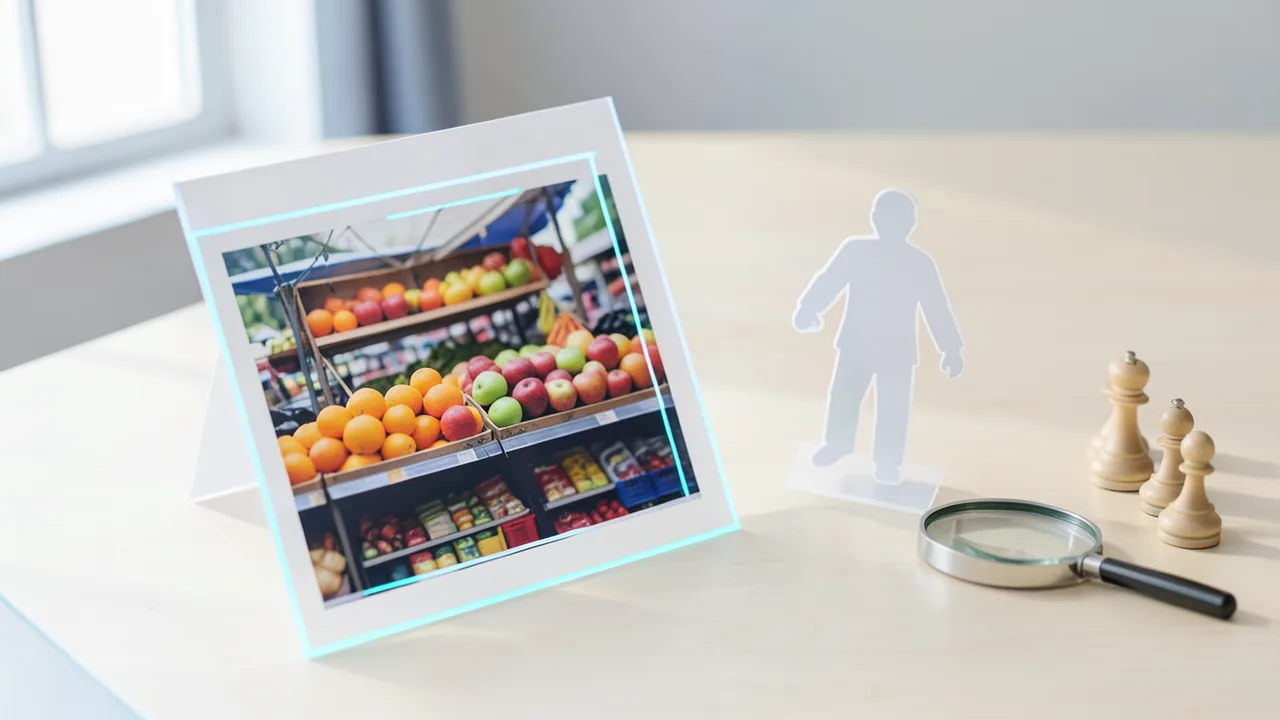
The vision team at WeChat, the messaging platform run by Chinese tech giant Tencent, has open-sourced a new image model called WeVisOne-VL. The goal is to fold all the small, repetitive steps of image work into one model. It can find a specific person, count the goods on a shelf, read the text on a package and cut out the main subject with a transparent background.
There are two variants with 2 and 4 billion parameters, so both are small enough for ordinary hardware. A report on the Chinese product platform woshipm.com (author "亨亨", channel "产品变量") says the model gets 32 percent more answers right on the test dataset than comparable models. That figure comes from the official materials and hasn't been independently verified yet. You can try both sizes in your browser without installing anything:
- 2B version: huggingface.co/spaces/hugging-apps/wevisone-vl-2b
- 4B version: huggingface.co/spaces/hugging-apps/wevisone-vl-4b
Code, weights and developer docs are at github.com/Tencent/WeVisOne-VL.
The problem: lots of specialist tools for small jobs
The author points to two weak spots in today's image workflows. First, most vendors are focused on big general-purpose models, so specialist models for these niche tasks are improving slowly. Second, there's a tool for every individual task, but in a real workflow you still have to switch between programs, select the object again each time and check the results by hand.
WeVisOne-VL returns different outputs depending on the task: positions as coordinates, counts, recognized text, segmentation masks (outlines that separate an object from the background) and alpha mattes for cutouts. The developers say they trained it on more than 100 million annotated images and about 3.6 billion bounding boxes.
What the hands-on test shows
The author tried the model through the online demo:
- Finding people: Given a photo of a children's band, the model was asked to find "boys holding a microphone". It returned two boxes, exactly around the two boys holding microphones in the middle of the frame. To get there, it had to put together the object, the person and the action of "holding".
- Recognizing what isn't there: In the same image, it was asked for "boys holding a violin". There's no violin in the picture, and the model replied with
<ref>boys holding violin</ref><box>none</box>. It didn't mistake a guitar for a violin. The author stresses that this is harder than recognizing an object, because many models mark some region even when there's nothing to find. In day-to-day work, that leads to wrong crops, wrong counts and wrong data being passed along. - Counting: On a photo of a chessboard, the model was asked to count the white pieces. It returned 16 boxes and a total of 16, which is correct. Because every piece is marked individually, you can easily check whether anything was missed, counted twice or mixed up. In an official example, a fruit stand with apples and oranges spread across several baskets, the report says almost all the comparison models got it wrong while WeVisOne-VL counted correctly.
- Text recognition (OCR): The tests covered shop signs, food packaging, receipts and information boards. The author notes that dedicated OCR models like DeepSeek-OCR, Xiaomi-OCR-0 or Baidu's Unlimited OCR 2 are strong, but they can only read text. WeVisOne-VL can also look for one specific piece of text, such as just the words "SMALL ALLEY" on a café sign.
- Segmentation: With several remote controls on a table, the model was asked to select the leftmost one and the third from the right. It traced the outlines of both correctly.
- Matting: According to the report, the model cut out chickens in a pen without mistakes, while competing models made errors. On an iceberg, it kept far more detail than methods that only work at the pixel level. The toughest case was a hot-air balloon carrying the partly hidden word "Daikin" in cursive script. Cutting it out takes text recognition, telling it apart from the other balloons and matting, all at once. The author calls the result "astonishing".
How the model works
WeVisOne-VL wasn't built from scratch. It's a further-trained version of Qwen3-VL, Alibaba's vision-language model. The pipeline has three stages:
- Understanding: A vision encoder turns the image into features the model can compute with. These features go into the language model together with the text instruction, and the language model decides who or what is meant and where it is.
- A unified output format: Every task is framed as structured output: object name plus box coordinates, multiple boxes or points plus a count, or text plus position. Coordinates get their own special tokens. That's why one model can handle so many tasks. They all rest on the same core skills: understand the description, pin down the object, give its position.
- Pixel decoder: For segmentation and matting, the model emits a special
<OBJ>token after each box. This token passes the object's internal representation to a decoder. The decoder reads the box and several layers of image features and computes a pixel-accurate outline or a transparency map. Matting keeps soft transitions such as fine hair or semi-transparent edges. The decoder has only about 9.6 million parameters and reuses the main model's image features, so you don't need a separate large segmentation model like SAM (Meta's "Segment Anything").
The division of labor is clear. The language part decides which object to work on, and the pixel part decides how to extract it cleanly. If the wrong object gets picked, the error is up front. If the object is right but the hair looks messy, the decoder is to blame.
Training against false detections
The team uses a "data engine" that links object descriptions, boxes, outlines and transparency data. Training ran in several stages. First the model learned the unified output format, then small objects and crowded scenes, then the pixel tasks. Finally, localization was refined with reinforcement learning, a reward-based method where the model scores points for correct results.
The "not in the image" case got targeted training. The model shouldn't mark objects that don't exist, and it shouldn't miss or confuse objects that do. To measure this, the team built its own benchmark, WeRef-Bench, which tracks among other things how often the model correctly answers "not present".
The developers name two weaknesses themselves. Complex occlusion, transparent objects and vague instructions remain hard. And the model produces its structured output directly, without visibly "thinking out loud" first (chain of thought). That makes it faster, but possibly less thorough on tricky cases.
Real-world use
The report says it's most useful for content teams and online retailers. They can pull people or products out of images by description and hand them off for layout or background swaps, filter material in image archives by position data, count stock and read details off packaging. For batch work there's an official inference package. Each call takes an image, a task type (for example matting) and a target description (for example "person"). You get back an alpha matte and an image with a transparency channel. A script can work through entire folders, or you can run it as an HTTP service inside existing systems. Your own application still has to handle orchestration, file naming and quality control.
The author also suggests letting AI agents like Claude Code or Codex call the model. The agent plans the work and searches folders, and WeVisOne-VL does the actual image work. He argues that's more precise and cheaper than having the big agent model do everything.
What you need to try it
The easiest option is the Hugging Face demos, which need no hardware of your own. The source gives no concrete hardware requirements for running it locally. As a rough estimate, the 2B variant should run on GPUs with 4 to 6 GB of VRAM, and the 4B variant should be comfortable with about 8 to 10 GB at full precision. With quantization, which stores the model's numbers at lower precision, both would need less, but it's unclear whether that's officially supported. High-resolution images need more memory. Installation and system requirements are covered in the GitHub repository. The source doesn't mention ready-made Ollama or GGUF packages.
The bigger picture
WeVisOne-VL reflects a trend. Instead of ever-larger general-purpose models, we're seeing small specialist models that reliably handle one clearly defined workflow. The most interesting part is getting precise object search, OCR and real matting with transparency into a model of 2 to 4 billion parameters. Until now, that usually took a vision-language model, an OCR model and SAM. The targeted training on "not present" matters a lot in practice, because false detections are one of the biggest problems in automated workflows.
Some caveats remain. The 32 percent lead and the comparison images come from the developers and their demo material. The report is partly unclear about exactly which competing models were compared. The article doesn't mention the license, so if you plan to use the model commercially, check it on GitHub. And the developers themselves admit weaknesses with occlusion, transparent objects and vague instructions.
Sources
- Merkliste: woshipm.com woshipm.com
Try it yourself: WeVisOne-VL-4B
Explained step by step, no prior knowledge needed – on your own computer or free in your browser.
What can I do with it?
WeVisOne-VL is a compact vision-language model you control with text instructions. It finds people or objects from a description (say, "the man in the red hat") and returns their position as box coordinates. It counts many similar objects and marks each one individually, reads text from photos and can look for one specific piece of text. It also traces outlines and cuts out subjects with transparency, fine hair included. One standout feature: it honestly answers "none" when what you're looking for isn't in the image. According to the developers, heavy occlusion, transparent objects and vague instructions are still hard. It isn't meant for free-form image descriptions or chatting about images. General models like Qwen3-VL are better for that.
Who is it worth it for?
It's worth it if you regularly process lots of images: online retailers, social media and content teams, photographers with large archives, and developers who want to automate image processing. If you only need to cut out a photo now and then, the online demo or a regular image editor will do.
Ideas: What you can do with it
Put your product photos in a folder and have a script cut out each product with a transparent background. You can drop the results straight onto new backgrounds for your shop, flyers or social media.
Take a picture of a shelf or a box and let the model count the items. Since every item is marked individually, you can see right away whether the count is correct.
Upload photos of receipts and have the text extracted. You can then paste it into a spreadsheet or have a language model sort it by amount.
Have the model search lots of photos for a description such as "dog on a meadow". It reports images without a match as "none", so you can filter your archive quickly.
On vacation photos or food packaging, the model can look for one specific line of text, such as the best-before date, and show you where it is.
What your computer needs
Which variant is right for me?
Many models come in several sizes or "quantizations." These are compressed versions: smaller and faster, but slightly less accurate. Rule of thumb: pick the largest variant whose memory requirement fits in your VRAM (video memory). The scripts below choose this for you automatically.
| Variant | Download | Needs approx. | Compatible graphics cards |
|---|---|---|---|
Q2_K |
1.8 GB | 3 GB | almost any graphics card with 4 GB or more (e.g. GTX 1650, RTX 3050) |
Q3_K_M |
2.2 GB | 3.5 GB | almost any graphics card with 4 GB or more (e.g. GTX 1650, RTX 3050) |
Q4_K_M Default |
2.7 GB | 4 GB | almost any graphics card with 4 GB or more (e.g. GTX 1650, RTX 3050) |
Q5_K_M |
3.2 GB | 5 GB | e.g. RTX 2060, RTX 3050 8 GB, RX 6600 |
Q6_K |
3.6 GB | 5 GB | e.g. RTX 2060, RTX 3050 8 GB, RX 6600 |
Q8_0 |
4.7 GB | 6.5 GB | e.g. RTX 3060 Ti, RTX 4060, RTX 5060, RX 7600 |
F16 |
8.8 GB | 11 GB | e.g. RTX 3060 12 GB, RTX 4070, RTX 5070, RX 7700 XT |
There are two sizes. The 2B variant is faster and needs less VRAM, so it suits entry-level GPUs and laptops. The 4B variant should be more accurate on hard tasks and is the better choice if you have about 8 GB of VRAM or more. The source gives no concrete hardware figures. Test both in the Hugging Face demos first, then decide.
- The online demos on Hugging Face run on someone else's servers, so you don't need a GPU of your own.
- The source gives no official VRAM figures. As an estimate, 2B needs about 4 to 6 GB and 4B about 8 to 10 GB of VRAM at full precision.
- Large, high-resolution images need much more VRAM than small ones.
- The matting decoder is tiny at about 9.6 million parameters, and you don't need to load an extra SAM model.
- The source doesn't mention ready-made GGUF or Ollama packages. The intended route is the official Python inference package from the GitHub repository.
How do I find out what my computer has?
- Windows: Press Ctrl + Shift + Esc → Task Manager → Performance tab → click GPU on the left. At the bottom you'll see Dedicated GPU memory (that's your VRAM). You'll find system memory under Memory.
- Mac: Apple menu at the top left → About This Mac. You'll see your chip (e.g. M2) and memory (e.g. 16 GB). On Apple chips, graphics and processor share this memory.
- Linux: Type
nvidia-smiin the terminal (shows your graphics card and its memory) andfree -hfor system memory.
Guide
Google Colab (in your browser, no installation)
Google Colab is a free service from Google. It gives you a computer with a graphics card in your browser for a few hours. All you need is a Google account. For this model: runs for free – The free Tesla T4 GPU with 15 GB is enough.
- Download the notebook. Click the button and save the file.
- Open Colab. Go to colab.research.google.com and sign in with your Google account.
- Upload the notebook. In the window that appears, click Upload on the left (or choose File → Upload notebook at the top) and select the file
colab.ipynb. - Turn on the GPU. In the top menu, go to Runtime → Change runtime type → under Hardware accelerator, select T4 GPU → Save.
- Start everything. Runtime → Run all (keyboard shortcut Ctrl + F9). If you see the warning “This notebook was not authored by Google,” click Run anyway.
- Wait. The cells run one after another. A green checkmark appears to the left of each cell when it's done. Installation and download take about 5 minutes here.
- Try it out. The result appears below the last cell. To test something else, change the text in the cell and run it again with Shift + Enter. The last cell starts a proper chat with an input field.
- Clean up. When you're done: Runtime → Disconnect and delete runtime. This saves your free quota.
Good to know: The free GPU is limited (usually a few hours per day). After about 90 minutes of inactivity, Colab disconnects, and you'll have to start everything over.
Windows 10 / 11
The easiest way is Ollama, a free program that launches AI models with a single command.
- Update your graphics driver (NVIDIA cards only): Install the NVIDIA app or the latest driver. For AMD cards, use the latest Adrenalin driver.
- Install Ollama. Download the file OllamaSetup.exe from ollama.com/download/windows, double-click it, and choose Install. Afterward, a small llama icon appears in the taskbar at the bottom right.
- Open a terminal window. Press the Windows key, type PowerShell and press Enter. A blue or black window opens.
- Start the model. Copy this command ("Copy" button), paste it into the window with a right-click, and press Enter:
The first time, Ollama downloads the model (2.7 GB (about 4 min at 100 Mbit/s)). After that, it's instant.ollama run hf.co/mradermacher/WeVisOne-VL-4B-GGUF:Q4_K_M - Start typing. Once
>>> Send a messageappears, type your question and press Enter. Type/byeto end the chat.
Not enough memory? Pick a smaller variant from the table above, e.g. ollama run hf.co/mradermacher/WeVisOne-VL-4B-GGUF:Q2_K.
Prefer automatic? A script that picks the right variant for you
- Download both files into the same folder: try_windows.ps1 demo.py
- Open the folder in File Explorer, right-click an empty spot and choose Open in Terminal.
- Paste this command and press Enter:
powershell -ExecutionPolicy Bypass -File try_windows.ps1
If needed, the script installs Ollama via winget, measures your VRAM (video memory) and downloads the matching variant.
macOS
Macs with an Apple chip (M1 to M5) are ideal. Older Intel Macs are very slow.
- Install Ollama. Download it from ollama.com/download/mac, open the file, and drag Ollama into your Applications folder. Launch Ollama once – a llama appears in the menu bar at the top.
- Open Terminal. Press Cmd + Space, type Terminal, and press Enter.
- Start the model. Paste the command (Cmd + V) and press Enter:
The first time, the model is downloaded (2.7 GB (about 4 min at 100 Mbit/s)).ollama run hf.co/mradermacher/WeVisOne-VL-4B-GGUF:Q4_K_M - Start typing. Type your question and press Enter. Quit with
/bye.
Linux
- Check your GPU.
nvidia-smishould show your card. If it doesn't, install the driver on Ubuntu and restart:sudo ubuntu-drivers install - Install Ollama:
curl -fsSL https://ollama.com/install.sh | sh - Start the model:
Exit withollama run hf.co/mradermacher/WeVisOne-VL-4B-GGUF:Q4_K_M/bye. Useollama psto check whether the model is running on the GPU. - Or let it pick the right variant automatically:
bash try_linux.sh
# mit Python/transformers statt Ollama:
MODE=hf bash try_linux.sh
Try it
Find everyone wearing glasses.Count the oranges in this image and mark each one.Read all the text on this package.Where on the sign does it say "Opening hours"?Cut out the woman in the black coat and save her with a transparent background.Tips for better results
- Pick the right task type (find, count, OCR, segment, matte), because the model returns a different output format for each task.
- Describe objects unambiguously by features or position, such as "the remote on the far left" rather than just "remote".
- When counting, use the individual boxes to quickly check whether anything was counted twice or missed.
- For batch jobs, you can ask an AI agent like Claude Code to write a script that cuts out a whole folder and lists any suspicious images.
If something goes wrong
The model is trained on English and Chinese. Short English target descriptions like "person" or "white chess pieces" often give the most reliable results.
If the model outputs "none", that isn't necessarily an error. It's telling you that what you asked for isn't in the image. If needed, check whether your description was too narrow.
The source doesn't mention the license. Check it in the Tencent/WeVisOne-VL GitHub repository before any commercial use.
For batch processing, you have to handle file names, error logs and human review yourself. The model only delivers the image results.
According to the developers, transparent objects like glass, heavy occlusion and vague instructions lead to errors more often.
“out of memory,” a crash, or your computer freezes
The model is too big for your VRAM (video memory). Pick a smaller variant from the table above and close other programs, especially games and browsers with lots of tabs.
It runs, but extremely slowly
Your CPU is probably doing the work instead of your graphics card. In Ollama, the PROCESSOR column of ollama ps shows how much runs on the GPU. If it says "100% CPU", update your graphics driver or pick a smaller variant that fits entirely into VRAM (video memory).
“ollama” or “python” is not found
Close the terminal window and open it again so it recognizes the newly installed program. For Python on Windows: reinstall it and check Add python.exe to PATH.
Windows: "Running scripts is disabled on this system"
Run the script with exactly the command above: powershell -ExecutionPolicy Bypass -File try_windows.ps1. This allows execution for this one time only.
Error message when loading the model (version, "trust_remote_code", unknown architecture)
Brand-new models often need the latest software version. With Ollama: update Ollama. With Python: pip install -U transformers in the activated environment. The Model Card usually lists the exact version.
Tokenstrom generates the scripts and notebook automatically. Please take a quick look before running them – they're plain, readable text. Mind the model's license: apache-2.0.
Ask the AI assistant
Questions about this article, installation or background? Our assistant knows this page and runs on our own machine, not in someone else's cloud.
The Assistant is an AI (Gemma 4) and can make mistakes – please check important details against the source. Questions are used only to generate an answer and are deleted after one hour. Please don't enter any personal data.



Comments
What do you think? Already tried it? Write it here, no sign-up needed.
Comments are public. Links aren't allowed, and we delete abusive posts. You can delete your own comment at any time in this browser. Learn more in the Privacy Policy.