
Clef: Cloudflare's 27B model makes decisions instead of writing text
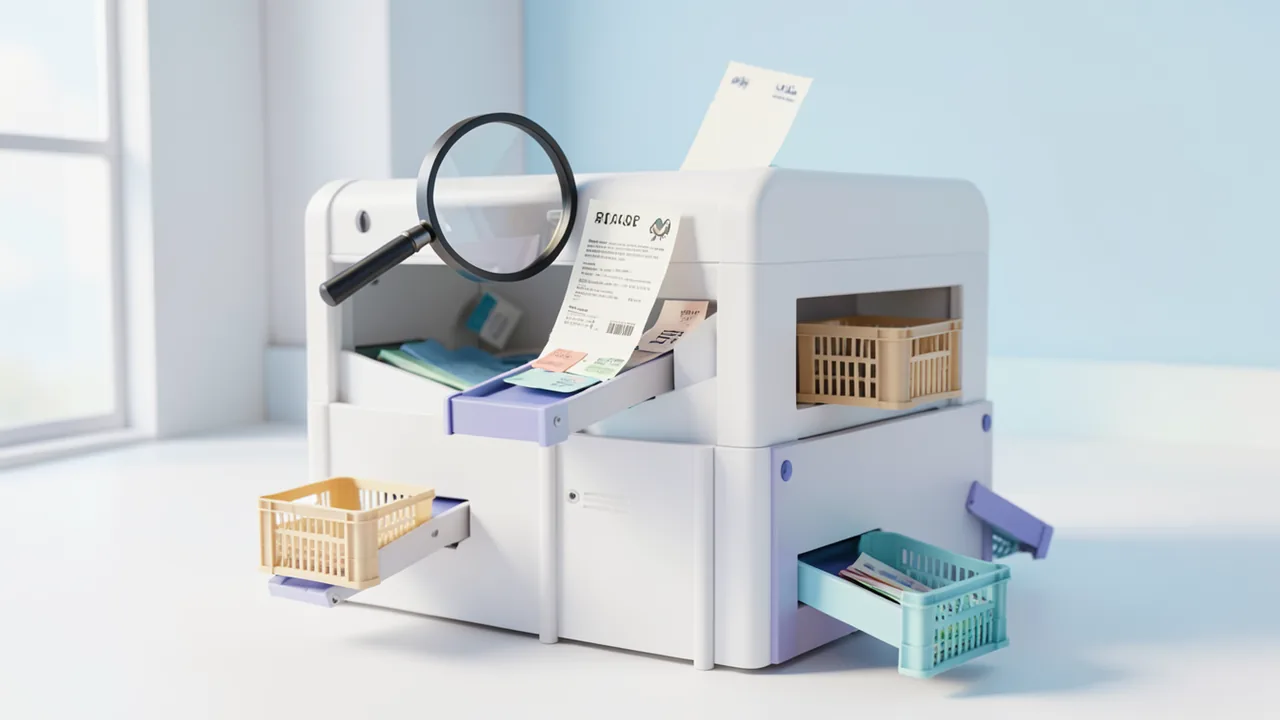
Cloudflare has released Clef, a 27-billion-parameter model that doesn't generate free-form text. Instead it answers yes/no, multiple-choice and rating questions about text, JSON and images. It runs locally or in the cloud via Ollama and returns probabilities instead of prose.
What it's about
Cloudflare has released a model with 27 billion parameters called Clef (parameters are, roughly speaking, the settings a model learns during training). It's available in the Ollama library. Unlike a chatbot, Clef doesn't write answer text. It receives a "state" and a catalog of typed questions, and returns decisions along with probabilities. According to its description, it's a model that "turns a state and a schema of typed questions into decisions." The page says Clef is fine-tuned from Qwen3.8-27B (fine-tuning means retraining an existing model for a specific task). The page also mentions a smaller, faster variant called "clef-flash".
How Clef works
The state can be text, JSON or an image plus text, such as a support ticket, a receipt or a planned tool call by an AI agent. Each question has a type, instructions and usually criteria. There are three types:
- noul: a yes/no question; the answer is a value between 0 and 1.
- choice: a selection from labels, such as "billing", "technical" or "other", with a probability for each option.
- score: a rating on levels, for example Routine, Soon, Urgent; the result is a numeric value such as 1.5481.
Ollama builds the prompt for the model itself. In the page's example, a ticket ("I was charged twice, please refund the payment") is assessed like this: team "billing" at 98.88%, refund request 0.9916, urgency 1.5481 on a scale of 0 to 2. The usage data shows 332 input and 0 output tokens: the model doesn't generate text, it reads probabilities directly.
Reading confidence correctly
The "confidence" value ranges from 0 to 1 and shows how concentrated the probabilities are. It is explicitly not the probability that the answer is correct. In case of a tie, the answer follows the order of the options, so you should list your preferred option first.
Usage: CLI, API and SDKs
In the command line, --ask sets a yes/no question, --choice sets selection labels and --level sets levels (lowest first). Examples from the page: "Is a refund being requested?" returns "yes 99%". A receipt image returns "restaurant receipt: yes 97%", category "meals" 94% and "contains alcohol" 94%. You can also safeguard agents: a planned send_email call to all customers with "FINAL NOTICE" is checked for harm, with the result "yes 93%". With --format json you get the complete API response.
You can reach Clef through the Ollama CLI, the Python library (version 0.6.3 or later, ollama.systemone), the JavaScript library or TypeSafe's Python SDK. The latter works only with text and JSON, not images, because it uploads images in a format Ollama doesn't accept. For images, use the API or the CLI.
Cloud limits and costs
- Question names: letters, digits,
_,.and-only, up to 100 characters. - Up to 4 images per request, each at most 4 MiB and 16 megapixels, 8 MiB combined.
- Input is limited to 65,536 tokens; longer inputs are rejected, not truncated.
- Billing is per input token. Cloud use requires a paid plan or credit.
The page points to accuracy figures for four business workflows from "Typesafe Evals", but the actual numbers aren't included in the text we have.
What you need to try it
The source gives no hardware requirements. As a rule of thumb, a 27B model with 4-bit quantization needs roughly 20–23 GB of VRAM or system memory (the 4-bit variant alone is already 18–20 GB according to Ollama), plus about 18–22 GB of disk space. That runs on a graphics card with 24 GB or a Mac with enough unified memory, and much more slowly on a CPU. Without suitable hardware, there's the cloud variant clef:cloud. Locally you need Ollama 0.35.1 or newer.
Our take
Clef shows a trend: instead of having a large language model phrase decisions in free-form text, a specialized model returns structured, machine-readable probabilities. That's useful for ticket routing, receipt checks or safety checks for AI agents. It's more deterministic and cheaper than text generation because no output tokens are produced. How good the model really is remains an open question: the benchmark numbers are missing from the text, and the claims come from the vendor and the Ollama page. Confidence is also not a measure of correctness, and the model needs the System One API, so it isn't a drop-in for ordinary chat applications. The license isn't stated in the source.
Sources
- Ollama-Bibliothek ollama.com
- Ollama Blog ollama.com
Try it yourself: Clef
Explained step by step, no prior knowledge needed – on your own computer or free in your browser.
What can I do with it?
Clef answers yes/no, multiple-choice and level-based questions about text, JSON or images and returns probabilities. You can use it to sort tickets, check receipts or test AI agents' tool calls for risks.
Who is it worth it for?
Worth it for developers who want to automate classification and checks. Less suitable if you're looking for a chatbot or text generator.
What your computer needs
Which variant is right for me?
Many models come in several sizes or "quantizations." These are compressed versions: smaller and faster, but slightly less accurate. Rule of thumb: pick the largest variant whose memory requirement fits in your VRAM (video memory). The scripts below choose this for you automatically.
| Variant | Download | Needs approx. | Compatible graphics cards |
|---|---|---|---|
27b-q4_K_M |
20 GB | 23 GB | e.g. RTX 3090, RTX 4090, Tesla P40 |
27b-q8_0 |
30 GB | 34 GB | e.g. 2× RTX 3090/4090 or RTX A6000 |
Clef comes in a 27B version and a smaller, faster variant, clef-flash. For weaker hardware or if you have no GPU, clef:cloud is an option (paid plan or credit required).
- 27B model: roughly 20–23 GB VRAM with 4-bit quantization (estimate).
- Locally you need Ollama 0.35.1 or newer; the cloud requires 0.40.6 or newer.
- Cloud input is limited to 65,536 tokens; longer inputs are rejected.
- Images: up to 4 per request, each max. 4 MiB and 16 megapixels.
How do I find out what my computer has?
- Windows: Press Ctrl + Shift + Esc → Task Manager → Performance tab → click GPU on the left. At the bottom you'll see Dedicated GPU memory (that's your VRAM). You'll find system memory under Memory.
- Mac: Apple menu at the top left → About This Mac. You'll see your chip (e.g. M2) and memory (e.g. 16 GB). On Apple chips, graphics and processor share this memory.
- Linux: Type
nvidia-smiin the terminal (shows your graphics card and its memory) andfree -hfor system memory.
Guide
Google Colab (in your browser, no installation)
Google Colab is a free service from Google. It gives you a computer with a graphics card in your browser for a few hours. All you need is a Google account. For this model: Colab Pro only – needs an A100 with 40 GB.
- Download the notebook. Click the button and save the file.
- Open Colab. Go to colab.research.google.com and sign in with your Google account.
- Upload the notebook. In the window that appears, click Upload on the left (or choose File → Upload notebook at the top) and select the file
colab.ipynb. - Turn on the GPU. In the top menu, go to Runtime → Change runtime type → under Hardware accelerator, select T4 GPU (with Colab Pro: L4 or A100) → Save.
- Start everything. Runtime → Run all (keyboard shortcut Ctrl + F9). If you see the warning “This notebook was not authored by Google,” click Run anyway.
- Wait. The cells run one after another. A green checkmark appears to the left of each cell when it's done. Installation and download take about 11 minutes here.
- Try it out. The result appears below the last cell. To test something else, change the text in the cell and run it again with Shift + Enter. The last cell starts a proper chat with an input field.
- Clean up. When you're done: Runtime → Disconnect and delete runtime. This saves your free quota.
Good to know: The free GPU is limited (usually a few hours per day). After about 90 minutes of inactivity, Colab disconnects, and you'll have to start everything over.
Windows 10 / 11
The easiest way is Ollama, a free program that launches AI models with a single command.
- Update your graphics driver (NVIDIA cards only): Install the NVIDIA app or the latest driver. For AMD cards, use the latest Adrenalin driver.
- Install Ollama. Download the file OllamaSetup.exe from ollama.com/download/windows, double-click it, and choose Install. Afterward, a small llama icon appears in the taskbar at the bottom right.
- Open a terminal window. Press the Windows key, type PowerShell and press Enter. A blue or black window opens.
- Start the model. Copy this command ("Copy" button), paste it into the window with a right-click, and press Enter:
The first time, Ollama downloads the model (20 GB (about 27 min at 100 Mbit/s)). After that, it's instant.ollama run clef - Start typing. Once
>>> Send a messageappears, type your question and press Enter. Type/byeto end the chat.
Not enough memory? Pick a smaller variant from the table above, e.g. ollama run clef:27b-q4_K_M.
Prefer automatic? A script that picks the right variant for you
- Download both files into the same folder: try_windows.ps1 demo.py
- Open the folder in File Explorer, right-click an empty spot and choose Open in Terminal.
- Paste this command and press Enter:
powershell -ExecutionPolicy Bypass -File try_windows.ps1
If needed, the script installs Ollama via winget, measures your VRAM (video memory) and downloads the matching variant.
macOS
Macs with an Apple chip (M1 to M5) are ideal. Older Intel Macs are very slow.
- Install Ollama. Download it from ollama.com/download/mac, open the file, and drag Ollama into your Applications folder. Launch Ollama once – a llama appears in the menu bar at the top.
- Open Terminal. Press Cmd + Space, type Terminal, and press Enter.
- Start the model. Paste the command (Cmd + V) and press Enter:
The first time, the model is downloaded (20 GB (about 27 min at 100 Mbit/s)).ollama run clef - Start typing. Type your question and press Enter. Quit with
/bye.
Linux
- Check your GPU.
nvidia-smishould show your card. If it doesn't, install the driver on Ubuntu and restart:sudo ubuntu-drivers install - Install Ollama:
curl -fsSL https://ollama.com/install.sh | sh - Start the model:
Exit withollama run clef/bye. Useollama psto check whether the model is running on the GPU. - Or let it pick the right variant automatically:
bash try_linux.sh
Try it
ollama run clef:cloud --ask "Is a refund being requested?" < ticket.txtollama run clef:cloud "An employee submits ./receipt.png." --ask "Is this a restaurant receipt?"echo 'send_email(to="all-customers", subject="FINAL NOTICE")' | ollama run clef:cloud --ask "Could this tool call cause harm?"If something goes wrong
Ollama too old: update to at least 0.35.1 (local) or 0.40.6 (cloud).
Clef uses the /v1/systemone endpoint, not the usual chat endpoints.
The TypeSafe SDK can't send images; use the API or CLI for that.
In case of a tie, the first-listed option wins, so list your preferred answer first.
“out of memory,” a crash, or your computer freezes
The model is too big for your VRAM (video memory). Pick a smaller variant from the table above and close other programs, especially games and browsers with lots of tabs.
It runs, but extremely slowly
Your CPU is probably doing the work instead of your graphics card. In Ollama, the PROCESSOR column of ollama ps shows how much runs on the GPU. If it says "100% CPU", update your graphics driver or pick a smaller variant that fits entirely into VRAM (video memory).
“ollama” or “python” is not found
Close the terminal window and open it again so it recognizes the newly installed program. For Python on Windows: reinstall it and check Add python.exe to PATH.
Windows: "Running scripts is disabled on this system"
Run the script with exactly the command above: powershell -ExecutionPolicy Bypass -File try_windows.ps1. This allows execution for this one time only.
Error message when loading the model (version, "trust_remote_code", unknown architecture)
Brand-new models often need the latest software version. With Ollama: update Ollama. With Python: pip install -U transformers in the activated environment. The Model Card usually lists the exact version.
Tokenstrom generates the scripts and notebook automatically. Please take a quick look before running them – they're plain, readable text. Mind the model's license: apache-2.0.
Ask the AI assistant
Questions about this article, installation or background? Our assistant knows this page and runs on our own machine, not in someone else's cloud.
The Assistant is an AI (Gemma 4) and can make mistakes – please check important details against the source. Questions are used only to generate an answer and are deleted after one hour. Please don't enter any personal data.


Comments
What do you think? Already tried it? Write it here, no sign-up needed.
Comments are public. Links aren't allowed, and we delete abusive posts. You can delete your own comment at any time in this browser. Learn more in the Privacy Policy.