
Inworld's Voice Isolator: how good is the free open-source noise remover?
Inworld has released its first open-source model. It strips noise, music and other voices out of speech recordings, and you can use it freely under Apache 2.0. We show you how to run it, what it really needs on a laptop or Mac, and how much the vendor's own ranking against DeepFilterNet, ClearerVoice and ElevenLabs actually tells you.
What this is about
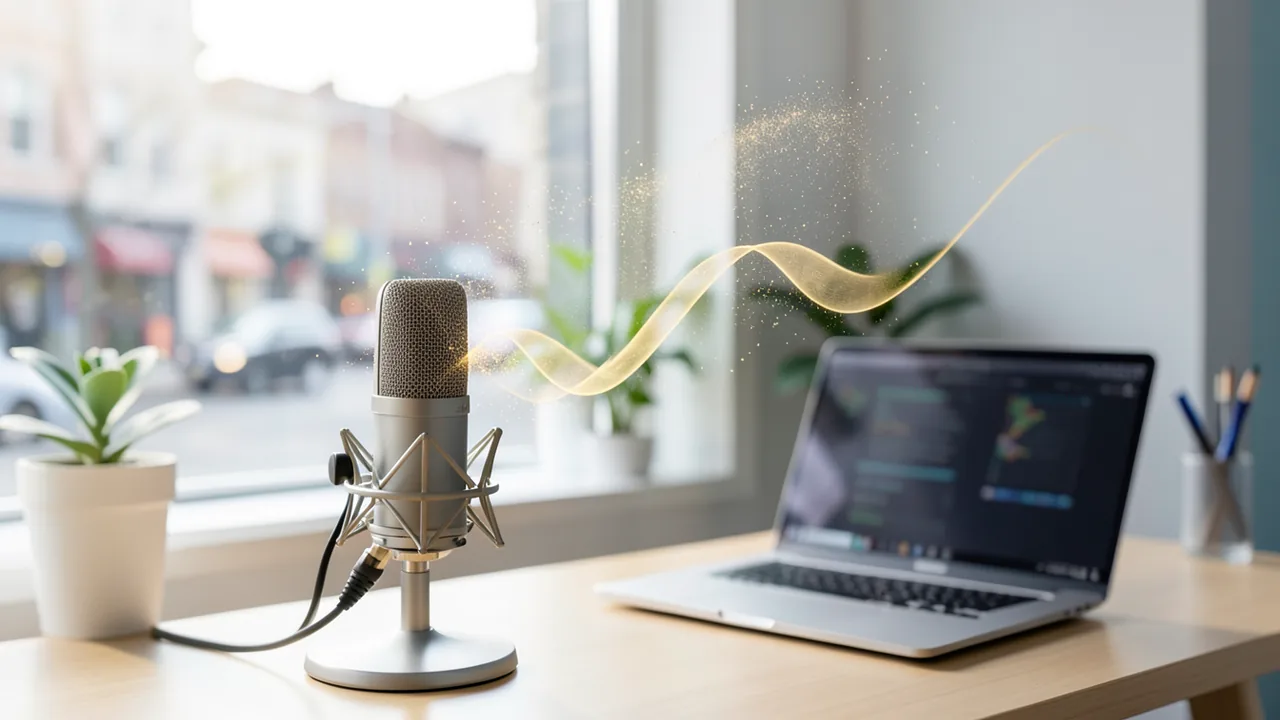
If you record podcasts, stream or build voice assistants, you have a constant problem: traffic noise, background music, the colleague at the next desk. The usual fixes are cloud services like ElevenLabs, Adobe Podcast or Krisp, or small free tools like DeepFilterNet. On November 18, 2026, Inworld AI, so far known mainly for text-to-speech for games and agents, released its first open-source model: the Voice Isolator. It's designed to remove background noise, music and other voices while keeping laughter and breaths intact. Code and weights are under Apache 2.0, so commercial use is allowed.
Ten days in, the model page on Hugging Face has just over 1,050 likes and around 22,800 downloads in the past month. We answer three questions: How do you run the model? What does it really need, especially without a graphics card? And how solid is the winning ranking that Inworld put together itself?
Two models for two jobs
| voice-isolator-v1 | voice-isolator-v1-realtime | |
|---|---|---|
| Purpose | finished recordings | live audio |
| Parameters | 64.0M | 58.2M |
| How it works | 8-second chunks with 2 s overlap, every moment “sees” the whole chunk | causal, i.e. only the past plus 0, 20 or 40 ms of look-ahead |
| Latency | – | 63 ms algorithmic with 20 ms look-ahead |
Both models process 48 kHz full-band audio. That means they capture frequencies up to 24 kHz, while 16 kHz models stop at 8 kHz. This helps with sibilants and breaths. “Algorithmic latency” is only the delay the method itself introduces. Compute time, audio drivers and network come on top, as explainx.ai also points out. Under the hood, the model splits the spectrum into 46 frequency bands and processes them with a mix of attention and Mamba blocks. Mamba is a network type that handles long signal sequences efficiently. According to the model card, it was trained on about 10,000 hours of audio in “many languages,” mixed with noise, music, competing speakers and simulated room and phone effects. There's no list of languages.
One community member counted the tensors in the weight files. The parameter counts check out: 64,047,112 and 58,178,056 respectively.
How to run it
Installation is simple:
pip install inworld-voice-isolation(Python 3.10+, PyTorch 2.1+)- Clean a file:
voice-isolate laut.wav sauber.wav. A file containing the removed background is created automatically alongside it. - Try the live model:
voice-isolate laut.wav sauber.wav --mode streaming --lookahead 2 - Useful flags:
--no-background,--output-sr 0(keeps the input sample rate) and--device.
The program downloads the weights from Hugging Face on first run, no login required. The GitHub repo also includes a Gradio demo with one tab for files and a live tab for your microphone (up to 60 seconds). It expects mono audio at 48 kHz. Convert stereo material first.
What you need to try it
Inworld says it “runs on CUDA, Apple Silicon and CPU.” But the vendor has only tested data center cards (A100, H100, B200, B300) and the CPU. Smaller GPUs are explicitly untested. Here's the picture from community reports:
| Setup | Mode | Time for ~10 s of audio | Source |
|---|---|---|---|
| Ryzen 7 7800X3D, original Python, CPU | offline | 43.9 s (peak 7.1 GB RAM) | Rust port benchmark |
| same | streaming | 34.9 s | same |
| same, Rust port, CPU | offline | 19.4 s (1.6 GB) | same |
| Radeon RX 7900 XT, Rust port | offline | 0.92 s | same |
| Apple M4 Max, PyTorch MPS | offline | 0.87 s for 8 s | MLX port measurement |
| Apple M4 Max, CPU only (C++ port, 6 threads) | streaming | 0.39x real time | C++ port |
| “fast desktop processor” / GPU | offline | approx. 1 minute / approx. 3 s | Inworld employee on HF |
Extrapolating roughly, a one-hour podcast episode takes about four hours with the original code on a strong desktop CPU. On an M4 Max it's around six and a half minutes. Live processing on the CPU doesn't work with the official code: even the 7800X3D runs more than three times slower than real time. The demo docs themselves say live mode needs a device that runs faster than real time. On a GPU, you don't need much memory: MindStudio measured under 2 GB of VRAM for the offline model.
Two pitfalls are already documented. On Windows, pip often installs PyTorch without CUDA. The model then runs on the CPU despite having a graphics card (143 seconds for 10 seconds of audio in one case) until you reinstall PyTorch with CUDA. And in GitHub issue #5, a Windows machine with 32 GB of RAM ran out of memory during CPU inference on the demo clips. A maintainer simply replied that it's “not a super tiny network” and suggested experimenting with quantization, i.e. storing the numbers at lower precision.
The community has delivered a lot in ten days: a Rust port with AMD GPU support and a virtual Windows microphone, a Python-free C++ port with an optional int8 mode, an MLX port and a CoreML port for Macs, plus the Mac app ClearMic Studio. None of these ports has been vetted by Inworld.
The winning ranking, and what it doesn't prove
Inworld scores the models with its own benchmark called VIBE: real, multilingual recordings with and without added noise. 0 corresponds to the unprocessed input, 1 to the clean reference.
| Model (48 kHz, open source) | VIBE |
|---|---|
| Inworld Voice Isolator | 0.768 |
| Inworld Voice Isolator realtime | 0.718 |
| ClearerVoice MossFormer2_SE_48K | 0.695 |
| resemble-enhance (denoise) | 0.646 |
| FastEnhancer-L 48k (streaming) | 0.589 |
| DeepFilterNet3 (streaming) | 0.510 |
The problem: the test set is private, there's no exact scoring formula, and there are no per-language results. According to explainx.ai, no independent lab has reproduced the ranking so far. Commercial services are missing from the table entirely. An AlphaSignal headline claiming the model beats Krisp isn't backed by any measurement in the article itself.
Independent data helps put this in context. The URGENT Challenge 2025 is an open competition for universal speech enhancement covering English, German, French, Spanish, Chinese and Japanese, the last as an unseen test language. The winning entry there was a purely discriminative model, one that only filters and generates nothing new. Generative models, by contrast, invented content in Chinese and Japanese, with character accuracy dropping to 20 and 37 percent respectively. A 2026 study measured ClearerVoice on URGENT's 48 kHz test data. It improves quality significantly (DNSMOS from 2.04 to 2.97) but slightly reduces speaker similarity. In the same study, Resemble Enhance lost half its intelligibility due to “hallucinated” content. That measurement, however, covered the full enhance mode, not the denoise-only mode in Inworld's table.
The gap to DeepFilterNet3 is worth doing the math on. According to one port, DeepFilterNet3 has about 2.1M parameters, so the Inworld real-time model is about 27 times larger. According to its paper, DeepFilterNet3 achieves around 40 ms of latency and a real-time factor of 0.19 on a laptop i5 using a single thread. So it runs comfortably live on the CPU; the Inworld model doesn't. Our take: the benchmark lead is plausible, since bigger models usually filter better. But it compares weight classes, not just quality.
Early hands-on reports and limits
MindStudio tested recordings in several languages. Honking in a Hindi clip disappeared cleanly, and a Russian clip improved noticeably. But noise remained audible in the Arabic sample, and a Czech speaker sounded muffled afterwards. The real-time version came across as “noticeably less polished.” On Hugging Face, one user reports that v1 leaves a lot of room sound with moderate to heavy reverb and sounds unnatural.
Inworld itself lists these limits:
- No restoration: missing highs, clipping and codec damage remain. That's planned for v2.
- No speaker selection: if a second voice is a few dB quieter, it gets removed. Voices of similar loudness usually both stay.
- The background track can contain remnants of the voice.
Inworld stresses that the model doesn't alter the waveform and therefore won't skew downstream speech recognition. explainx.ai, on the other hand, warns that noise filters can clip quiet consonants. So you'll have to measure for yourself whether recognition improves.
Free model or subscription?
| Option | Where it runs | Cost (as of Nov. 2026) |
|---|---|---|
| Inworld Voice Isolator | local | 0, Apache 2.0 |
| DeepFilterNet3 | local, CPU real time, PipeWire plugin | 0, MIT/Apache |
| ClearerVoice-Studio | local | 0, Apache 2.0 |
| ElevenLabs Voice Isolator | cloud | API $0.12/min; 1,000 credits/min (Starter: $6 for 30,000 credits, i.e. 30 min); max. 1 h per file |
| Adobe Podcast Enhance | cloud | free 1 h/day, 30 min per file; Premium only in Firefly Pro since August 30, 2026 |
| Krisp | app, live | according to Voibe (a competitor), no free plan anymore, Core $16/month or $8 billed annually |
Four hours of audio a month would cost you just under $29 via the ElevenLabs API. With the Inworld model, it only costs compute time, and your recordings never leave your machine.
Our verdict
Podcasters with finished recordings and a reasonably recent GPU or an Apple Silicon Mac get a serious, free noise filter with Voice Isolator. It runs locally and gives you a background track as a bonus. It won't help with a bad microphone or an echoey room. There, Adobe Enhance with its “studio sound” remains the easier choice. Streamers won't find a ready-made virtual microphone solution in the original release. On Windows, NVIDIA Broadcast or Krisp are more convenient; on Linux CPUs, DeepFilterNet remains unbeatably lightweight. Developers of voice agents get a free, commercially usable real-time version. But they need a GPU per audio stream and should check for themselves whether speech recognition actually improves.
Our take: Inworld has shipped a strong version 1 that quickly found a community. But the “best open-source model” claim remains unproven as long as VIBE stays private and nobody has measured the model in URGENT or another open benchmark. If you record in a language other than English, test your own clips, because there isn't a single published per-language number.
Sources
- Inworld-Blog: Introducing Voice Isolator inworld.ai
- Hugging Face: inworld/voice-isolator (Modellkarte) huggingface.co
- GitHub: inworld-ai/voice-isolator github.com
- Demo-README des Voice Isolator raw.githubusercontent.com
- GitHub-Issue #5: Speicherproblem auf Windows-CPU github.com
- GitHub-Issue #9: Inoffizieller Rust-Port github.com
- Rust-Port Benchmark (voice-isolator-rs) raw.githubusercontent.com
- HF-Diskussion #1: Very slow running speed huggingface.co
- HF-Diskussion #2: Parameterzählung huggingface.co
- HF-Diskussion #3: Probleme mit Hall huggingface.co
- C++-Port voice-isolate (sannysanoff) github.com
- MLX-Port Turbo5d (Hugging Face) huggingface.co
- ClearMic Studio (GitHub) github.com
- PyPI: inworld-voice-isolation pypi.org
- explainx.ai: Inworld Voice Isolator explainx.ai
- MindStudio: Clean Noisy Voice Recordings Locally mindstudio.ai
- AlphaSignal: Inworld Drops Open-Source Voice Isolator v1 alphasignal.ai
- Inworld Open-Source-Seite inworld.ai
- arXiv: Interspeech 2025 URGENT Speech Enhancement Challenge arxiv.org
- arXiv: Rethinking Training Targets … Universal Speech Enhancement arxiv.org
- arXiv: DeepFilterNet – Perceptually Motivated Real-Time Speech Enhancement arxiv.org
- Hugging Face: DeepFilterNet3-MLX huggingface.co
- GitHub: Rikorose/DeepFilterNet github.com
- GitHub: modelscope/ClearerVoice-Studio github.com
- ElevenLabs Docs: Voice Isolator elevenlabs.io
- ElevenLabs API-Preise elevenlabs.io
- ElevenLabs Preise elevenlabs.io
- ElevenLabs Hilfe: How much does Voice Isolator cost help.elevenlabs.io
- Adobe Podcast Pläne podcast.adobe.com
- Adobe Podcast Premium plan change FAQ helpx.adobe.com
- Voibe: Krisp Pricing getvoibe.com
Try it yourself: Inworld Voice Isolator v1
Explained step by step, no prior knowledge needed – on your own computer or free in your browser.
What can I do with it?
Voice Isolator takes a speech recording and splits it into two tracks: the clean voice and the removed background with noise, music, street sounds and quieter side voices. Laughter and breaths are meant to survive, and the volume stays the same as the original. The offline version is designed for finished recordings and delivers the best quality. The real-time version processes live audio with 63 ms of algorithmic delay, but needs a fast GPU or an Apple Silicon Mac to do so. According to Inworld's own non-public benchmark, it filters better than ClearerVoice MossFormer2 and DeepFilterNet3. That hasn't been independently confirmed yet. Limits: it doesn't fix bad microphones or clipping, users say it leaves a lot of room sound with heavy reverb, and it can't pick out a specific speaker. If a second voice is only slightly quieter, it disappears.
Who is it worth it for?
The model is worth it for podcasters, video creators and developers who want to clean up recordings locally and for free, ideally with an NVIDIA graphics card or an Apple Silicon Mac. If you only have a weak laptop without a GPU, or you're looking for a ready-made live filter for Discord and OBS, DeepFilterNet, NVIDIA Broadcast or Krisp will currently serve you better.
Ideas: What you can do with it
Export each speaker's track separately as a mono WAV and run it through voice-isolate. Fan noise, traffic and clatter disappear, the breaths stay, and the episode sounds calmer without sounding artificial.
For recordings next to a road or in a café, extract the audio track with ffmpeg, clean it and lay it back under the video in your editor. You can mix the background file back in quietly to keep some atmosphere.
Clean up noisy recordings from conferences or trade shows first, then transcribe them with Whisper or another speech recognizer. Compare a segment with and without the filter to see whether recognition actually improves.
Old voice memos or videos from parties with background music can be made easier to understand. But the model can't fix lost highs or a distorted phone microphone.
If you're collecting speech recordings for TTS or speech recognition experiments, you can batch them through the offline model. According to Inworld, it doesn't alter the voice itself and so won't distort your data. Spot-check anyway.
Developers can place the real-time model in front of their speech recognition via the Python streaming interface, in 20 ms chunks. On a GPU or an Apple Silicon Mac, you can then measure whether false starts caused by background noise become less frequent.
What your computer needs
For finished recordings, always use the offline model voice-isolator-v1 (64M parameters, the default when you call voice-isolate). The real-time model voice-isolator-v1-realtime (58M parameters, --mode streaming) only makes sense if you need to process live. It sounds slightly worse, and with the official code it doesn't run in real time on the CPU. You set the look-ahead with --lookahead: 2 equals 20 ms and is the default; 0 and 40 ms are also trained.
- A GPU doesn't need much memory: MindStudio measured under 2 GB of VRAM for the offline model. But only the A100, H100, B200 and B300 are officially tested, not smaller cards.
- It's slow on the CPU: on a Ryzen 7 7800X3D, the original code needed 43.9 seconds for 10.8 seconds of audio, with a peak of 7.1 GB of RAM. At that rate, a one-hour episode takes about four hours.
- Apple Silicon automatically uses Metal (mps) if PyTorch 2.6 or later is installed. On an M4 Max, 8 seconds of audio were processed in 0.87 seconds.
- Live operation needs a device that runs faster than real time. With the official Python code, even a strong desktop CPU can't manage that.
- AMD graphics cards are only supported by the unofficial Rust port (ROCm/HIP). On an RX 7900 XT it processes an 11-second clip in 0.92 seconds.
- The weight files are small: the real-time model takes up about 233 MB in fp32.
How do I find out what my computer has?
- Windows: Press Ctrl + Shift + Esc → Task Manager → Performance tab → click GPU on the left. At the bottom you'll see Dedicated GPU memory (that's your VRAM). You'll find system memory under Memory.
- Mac: Apple menu at the top left → About This Mac. You'll see your chip (e.g. M2) and memory (e.g. 16 GB). On Apple chips, graphics and processor share this memory.
- Linux: Type
nvidia-smiin the terminal (shows your graphics card and its memory) andfree -hfor system memory.
Guide
This model runs with its developers' own program (inworld-ai/voice-isolator on GitHub). The commands below come from the Model Card and the developers' instructions.
Windows 10 / 11
Windows 10 / 11: not officially tested. The source doesn't mention Windows. Installing via Python's pip should still work. Without a proper NVIDIA setup, the program runs on the processor (CPU), and the vendor has tested CPU operation. If it doesn't work, use WSL2 (Linux inside Windows) and follow the Linux instructions there.
- Install the prerequisites. You need Python 3.10 or later. Download it from python.org and check the “Add Python to PATH” box during installation. You don't need Git for this route. Then open PowerShell and type the command below: if it shows 3.10 or higher, you're all set.
python --version - Create a working folder. Create a dedicated folder for the project and switch into it. That way all files end up in one place.
mkdir voice-isolator cd voice-isolator - Create a virtual environment. A virtual environment (venv) is an isolated space for Python packages, so nothing gets mixed up with other programs. Once activated, (.venv) appears at the start of the line. If PowerShell says scripts are blocked, run the middle line once and then activate again.
python -m venv .venv Set-ExecutionPolicy -Scope CurrentUser RemoteSigned .venv\Scripts\Activate.ps1 - Install the program. This command installs Voice Isolator along with PyTorch, the computing library behind it. It can take a few minutes. At the end you should see “Successfully installed.”
pip install inworld-voice-isolation - Check your system. The bundled diagnostic tool checks whether everything is set up correctly and which device is used for computing (graphics card or CPU). Read through the output for error messages.
voice-isolate-doctor - Download a sample recording. This grabs a noisy sample recording from the vendor. In PowerShell you have to type curl.exe, not just curl. Afterwards, the file sample_14.wav is in your folder.
curl.exe -LO https://raw.githubusercontent.com/inworld-ai/voice-isolator/main/demo/examples/sample_14.wav - Isolate the voice. Now the program separates the voice from the background. On first run, it automatically downloads the model (about 0.26 GB) and checks the file. Afterwards, sample_14_clean.wav (voice only) and sample_14_clean_background.wav (the removed noise) are in the folder.
voice-isolate sample_14.wav sample_14_clean.wav - Listen to the result. Play the original and sample_14_clean.wav one after the other, for example by double-clicking. The voice should sound the same, just without the noise.
- Result. Your folder now contains sample_14_clean.wav with the isolated voice and sample_14_clean_background.wav with the removed background noise.
macOS
macOS: supported. On Macs with an Apple chip (M1 or newer), the program uses Apple's Metal graphics (mps) if PyTorch 2.6 or newer is installed. Otherwise it runs on the processor, which the vendor has tested.
- Install the prerequisites. You need Python 3.10 or later. The Python preinstalled on macOS is often too old, so install a current version from python.org or via Homebrew. Then check the version in Terminal: it should say 3.10 or higher.
python3 --version - Create a working folder. Create a dedicated folder for the project and switch into it.
mkdir voice-isolator cd voice-isolator - Create a virtual environment. A virtual environment (venv) is an isolated space for Python packages. Once activated, (.venv) appears at the start of the Terminal line.
python3 -m venv .venv source .venv/bin/activate - Install the program. This installs Voice Isolator along with PyTorch. It can take a few minutes. At the end you should see “Successfully installed.”
pip install inworld-voice-isolation - Check your system. The diagnostic tool shows you whether everything is in order and whether Apple's GPU (mps) or the processor is doing the computing.
voice-isolate-doctor - Download a sample recording. This grabs a noisy sample recording from the vendor. Afterwards, sample_14.wav is in your folder.
curl -LO https://raw.githubusercontent.com/inworld-ai/voice-isolator/main/demo/examples/sample_14.wav - Isolate the voice. The program now separates the voice from the background. The first time, it automatically downloads the model (about 0.26 GB). Afterwards, sample_14_clean.wav (voice) and sample_14_clean_background.wav (removed noise) are in the folder.
voice-isolate sample_14.wav sample_14_clean.wav - Listen to the result. Listen to the original and sample_14_clean.wav, for example by pressing the space bar in Finder (Quick Look). The noise should be gone and the voice should sound the same.
- Result. Your folder now contains sample_14_clean.wav with the isolated voice and sample_14_clean_background.wav with the removed background noise.
Linux
Linux: supported. The vendor tested it on large NVIDIA graphics cards (A100, H100, B200, B300) and on the processor. Smaller graphics cards haven't been tested yet, but with a model size of about 0.26 GB they should be enough. Without a graphics card, the CPU does the work.
- Install the prerequisites. You need Python 3.10 or later with the venv module. For an NVIDIA graphics card you also need a current NVIDIA driver. It works without a graphics card too, just on the processor. Check the Python version in the terminal.
python3 --version - Create a working folder. Create a dedicated folder for the project and switch into it.
mkdir voice-isolator cd voice-isolator - Create a virtual environment. A virtual environment (venv) is an isolated space for Python packages. Once activated, (.venv) appears at the start of the line.
python3 -m venv .venv source .venv/bin/activate - Install the program. This installs Voice Isolator along with PyTorch. If you have an NVIDIA card, the second line additionally installs the fast CUDA building blocks for Mamba (Mamba is part of the model). This second line is optional.
pip install inworld-voice-isolation # optional, NVIDIA graphics card only: pip install "inworld-voice-isolation[fast]" - Check your system. The diagnostic tool shows you whether everything is in order and whether the graphics card (CUDA) or the processor is doing the computing.
voice-isolate-doctor - Download a sample recording. This grabs a noisy sample recording from the vendor. Afterwards, sample_14.wav is in the folder.
curl -LO https://raw.githubusercontent.com/inworld-ai/voice-isolator/main/demo/examples/sample_14.wav - Isolate the voice. The program now separates the voice from the background. The first time, it automatically downloads the model and checks the file. Afterwards, sample_14_clean.wav (voice) and sample_14_clean_background.wav (removed noise) are in the folder.
voice-isolate sample_14.wav sample_14_clean.wav - Listen to the result. Play the original and sample_14_clean.wav one after the other in any audio player and compare them.
- Result. Your folder now contains sample_14_clean.wav with the isolated voice and sample_14_clean_background.wav with the removed background noise.
What to do after your first result
- Use your own recording: voice-isolate meine_aufnahme.wav meine_aufnahme_clean.wav. With --no-background you save only the voice; with --output-sr 0 the file keeps its original sample rate.
- For live audio there's the real-time model: voice-isolate sample_14.wav sample_14_streamed.wav --mode streaming --lookahead 2. It works with just 20 ms of look-ahead.
- With --device you choose what does the computing yourself, the graphics card or the processor.
- The GitHub repo inworld-ai/voice-isolator has an interactive demo in the demo folder. There you can process files or have your microphone cleaned live for up to 60 seconds.
Try it
voice-isolate interview_cafe.wav interview_sauber.wav (clean up a podcast recording from a noisy café)voice-isolate vlog_strasse.wav vlog_clean.wav --no-background (save only the voice, without a background track)voice-isolate sprachnachricht.wav test_live.wav --mode streaming --lookahead 2 (check how the real-time model sounds)voice-isolate song_mit_gesang.wav gesang.wav --background begleitung.wav (save the background music as a separate file)voice-isolate zoom_mitschnitt.wav zoom_clean.wav --device cpu (deliberately run on the CPU for comparison)Tips for better results
- Always listen to the automatically generated background file too. If you can hear bits of voice in it, the model classified speech as noise.
- Use the offline model for recordings. According to Inworld's benchmark, it scores 0.768, clearly ahead of the real-time version at 0.718.
- The model barely helps with reverb, muffled microphones or clipped recordings. In that case, take a step back and improve the recording itself, for example by using a smaller room or getting closer to the microphone.
- If you're feeding the output into speech recognition, compare transcripts with and without the filter, because noise filters can swallow quiet consonants.
- Use --output-sr 0 to keep the input sample rate if your editing software expects something other than 48 kHz.
If something goes wrong
On Windows, pip often installs PyTorch without CUDA, so everything runs on the CPU. One user needed 143 seconds for 10 seconds of audio that way. Fix: reinstall PyTorch with CUDA from pytorch.org and use voice-isolate-doctor to check which device is being used.
The model expects mono audio at 48 kHz. Convert stereo files or MP3s first, for example with ffmpeg -i eingang.mp3 -ac 1 -ar 48000 eingang.wav.
Memory can run short on the CPU: in GitHub issue #5, a Windows machine with 32 GB of RAM ran out. Close other programs or use the unofficial Rust port, which needed only 1.6 GB in one benchmark.
On Apple Macs, Metal is only used from PyTorch 2.6 onward. With older versions, the program silently falls back to the slow CPU.
Python 3.10 or later is required. The optional fast CUDA Mamba kernels are only available via pip install "inworld-voice-isolation[fast]".
The demo saves 16-bit WAVs without normalization, so peaks above full scale get clipped. For further processing, use the command line instead, which writes float32 WAVs.
“out of memory,” a crash, or your computer freezes
The model is too big for your VRAM (video memory). Pick a smaller variant from the table above and close other programs, especially games and browsers with lots of tabs.
It runs, but extremely slowly
Your CPU is probably doing the work instead of your graphics card. In Ollama, the PROCESSOR column of ollama ps shows how much runs on the GPU. If it says "100% CPU", update your graphics driver or pick a smaller variant that fits entirely into VRAM (video memory).
“ollama” or “python” is not found
Close the terminal window and open it again so it recognizes the newly installed program. For Python on Windows: reinstall it and check Add python.exe to PATH.
Windows: "Running scripts is disabled on this system"
Run the script with exactly the command above: powershell -ExecutionPolicy Bypass -File try_windows.ps1. This allows execution for this one time only.
Error message when loading the model (version, "trust_remote_code", unknown architecture)
Brand-new models often need the latest software version. With Ollama: update Ollama. With Python: pip install -U transformers in the activated environment. The Model Card usually lists the exact version.
Tokenstrom generates the scripts and notebook automatically. Please take a quick look before running them – they're plain, readable text. Mind the model's license: apache-2.0.
Ask the AI assistant
Questions about this article, installation or background? Our assistant knows this page and runs on our own machine, not in someone else's cloud.
The Assistant is an AI (Gemma 4) and can make mistakes – please check important details against the source. Questions are used only to generate an answer and are deleted after one hour. Please don't enter any personal data.


Comments
What do you think? Already tried it? Write it here, no sign-up needed.
Comments are public. Links aren't allowed, and we delete abusive posts. You can delete your own comment at any time in this browser. Learn more in the Privacy Policy.