
LlamaIndex's OCRia-nano-1: A tiny document AI that reads PDFs without a GPU
LlamaIndex has released the weights for OCRia-nano-1, an OCR and layout pipeline with just 8.1 million parameters. It processes invoices, contracts and scans on a single ordinary CPU core in under half a second per page. In the company's own tests, it beats well-known local parsers like Marker, Indra and Tesseract at recognizing tables and page structure.
What's going on
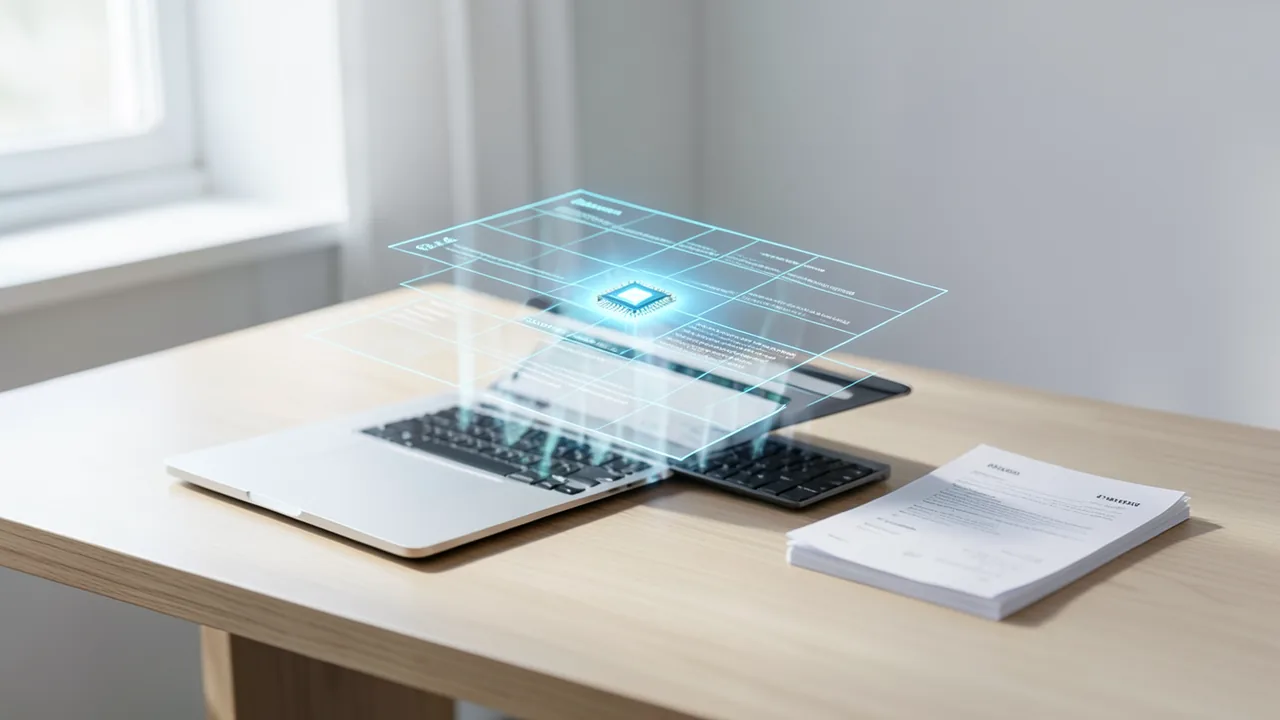
LlamaIndex, a company best known for its open-source framework for connecting your own data to language models, released the weights for OCRia-nano-1 on November 23, 2026. It isn't a single AI model. It's a pipeline of seven small models that turns documents like reports, contracts, invoices and ordinary scans into structured text. The remarkable part: all of the models together add up to just 8.1 million parameters. For comparison, even small language models these days have several billion. That's why OCRia-nano-1 runs entirely on a regular processor (CPU). You don't need a GPU.
The model is an optional add-on for LiteParse, LlamaIndex's own Apache 2.0-licensed tool for breaking documents apart. It's aimed at systems that need to ingest large volumes of documents and at AI agents, meaning programs that carry out tasks on their own and need to read PDFs along the way.
How the pipeline works
OCR stands for optical character recognition: recognizing letters in images. In OCRia-nano-1, 3.9 million parameters go to this recognition part and 4.27 million to a model called LayoutNet, which reconstructs the structure of a page.
Here's the flow:
- LiteParse first checks whether a PDF already contains usable text. Many digitally created PDFs have an embedded text layer that can be read directly. OCR only kicks in for scans, embedded images, or text layers that are missing, invisible or garbled. Extracted and recognized text are then merged.
- A text-line detector finds the lines on the page.
- A script router figures out which writing system dominates the page and sends lines to specialized recognizers: one for Latin script, one for Chinese/Japanese/Korean, one for right-to-left scripts (such as Arabic or Hebrew), and one for other writing systems. On mixed-language pages, the router can assign individual lines differently when it's confident. It also detects upside-down pages before recognition starts.
- LayoutNet combines text, position data, the page image and measurements from LiteParse's so-called spatial grid projection. From these it reconstructs table rows, columns and cells, and assigns text blocks to one of 13 layout classes, such as heading, body text or table.
Output comes as Markdown or plain text. If you need more, you get JSON with bounding boxes (the coordinates showing where text sits on the page) and confidence scores, which tell you how sure the OCR was about each recognition.
Training: a big model as the teacher
OCRia-nano-1 is the product of distillation: a small model learns by imitating the answers of a large one, a bit like a student who copies from the teacher and picks up the underlying principle along the way. The teacher here was OCRia-1, LlamaIndex's 4-billion-parameter document vision-language model (a model that processes images and text together). On top of that came publicly available, permissively licensed data and synthetically generated pages.
To weed out bad training data, LlamaIndex used a cross-check: a training line was only kept if a second reader, such as the PDF text layer or the OCR system PP-OCRv6, agreed with the main label at a character error rate of 0.15 or less (roughly 15 wrong characters per 100 at most). According to the technical report, the result reaches about two thirds of the teacher's ParseBench-2 score (87.0) with roughly one five-hundredth of the parameters.
Numbers and benchmarks
LlamaIndex says full processing takes 426 milliseconds per page on average on a single CPU core, and 90 percent of pages are done within 862 milliseconds. Important: these times cover the entire pipeline, from text recognition to structure reconstruction, not just an isolated OCR step.
The technical report by Logan Markewich compares the system with other local CPU parsers on the ParseBench-2 benchmark (version 2.07). For the speed measurement, 300 random pages were processed by 16 single-core workers in a container with 16 virtual CPUs, averaged across five cloud machines. All results come from LlamaIndex's own tests.
| CPU parser | ParseBench-2 overall | Tables | Pages per second |
|---|---|---|---|
| LiteParse + OCRia-nano-1 | 59.2 | 59.5 | 27.8 |
| Indra 1.1.2 | 55.1 | 47.6 | 29.6 |
| Marker 2.2.0 (fast) | 52.5 | 43.6 | 24.7 |
| LiteParse (Tesseract) | 48.7 | 36.2 | 14.2 |
The biggest lead is in tables and page structure. Indra is slightly faster but trails on accuracy. On layout grounding, meaning how well text is matched to its correct position and role on the page, Nano scores 72.4, Indra 65.2 and the Tesseract variant 49.4. Compared with the previous default, Tesseract, the widely used open-source OCR classic, Nano is both more accurate and almost twice as fast.
What you need to try it
The hardware requirements are unusually low: a regular processor is enough, no GPU required. The company's figures refer to one CPU core per page, so on an ordinary multi-core laptop you can process several pages in parallel. At 8.1 million parameters the model is tiny, so RAM and disk space should barely matter (the source gives no exact figures).
LiteParse runs on Linux, macOS and Windows and can be used from the command line, Python or Node.js. There's a WebAssembly version for browsers and edge devices. The command lit models pull ocria-nano installs the model files and ONNX Runtime (a runtime environment for AI models) and makes Nano the default OCR backend. Tesseract remains available as an alternative. There's no standalone script for using the model without LiteParse.
License and limitations
The weights are released under a modified Open RAIL-M license, separate from LiteParse's Apache 2.0 license. Research and personal use are free. Commercial use is only free for organizations with less than $2 million in annual revenue and less than $2 million in total funding. Above that, you need a commercial license, and so does anyone offering a document parsing, OCR or extraction product that competes with LlamaParse or LlamaCloud, regardless of size. The generated output belongs to the users.
The report is also upfront about clear weaknesses: charts aren't converted into tables but stay as images. Scanned formulas aren't reconstructed. Handwriting and writing systems with little training data are among the weakest areas. LlamaIndex recommends splitting the work: everyday pages locally with Nano, complex tables, badly damaged scans, charts and math with the larger OCRia-1.
The bigger picture
OCRia-nano-1 shows how far document understanding can now be shrunk: a model that should fit in a few megabytes beats established local tools and the classic Tesseract, according to its maker. For developers who want to process lots of documents cheaply and privately on their own machines, for example for RAG systems where language models draw on your own documents, that's an attractive proposition.
Keep two caveats in mind. First, all benchmark numbers come from LlamaIndex itself; there are no independent tests yet. Second, while the model is downloadable, it isn't open source in the classic sense: the license limits free commercial use to small organizations and bans competing products. Strategically, it fits: Nano handles the routine work locally, while for the hard cases LlamaIndex points you to the larger model and its own cloud services. And with a ParseBench-2 score of 59.2 versus 87.0 for the teacher model, one thing is clear: on demanding documents, the gap is still substantial.
Sources
- Google News (GB) unite.ai
- Google News (DE) unite.ai
Try it yourself: OCRia-nano-1
Explained step by step, no prior knowledge needed – on your own computer or free in your browser.
What can I do with it?
OCRia-nano-1 reads documents like PDFs, invoices, contracts and scans on your own computer and turns them into clean, structured text – no GPU and no cloud required. It doesn't just recognize letters but also the structure of the page: headings, paragraphs and especially tables with rows, columns and cells. It supports Latin script, Chinese/Japanese/Korean, right-to-left scripts and other writing systems, and it detects upside-down pages. According to LlamaIndex, it needs under half a second per page on average on one CPU core and is more accurate and faster than Tesseract, and more accurate than Marker and Indra. Limitations: charts stay as images, scanned formulas aren't recognized, and handwriting works poorly. It's not a chatbot – you feed in a document and get Markdown, text or JSON back.
Who is it worth it for?
Worth it for anyone who regularly needs to convert lots of PDFs or scans into text – for their own AI search systems, archiving or automation – while keeping data local. Less suited to handwritten notes, scientific papers with lots of scanned formulas, or documents full of charts. Companies above $2 million in revenue or funding need a license for commercial use.
Ideas: What you can do with it
Scan invoices, insurance letters and contracts and have LiteParse with OCRia-nano-1 turn them into text. That makes them searchable, so you can find any document later by keyword.
Convert a collection of PDFs to Markdown and feed it into a local language model or a RAG system. Then you can ask questions like "When does my phone contract expire?" without sending any data to the cloud.
Run annual reports or bank statements through it and copy the recognized tables from the Markdown output into a spreadsheet. That saves you from tediously retyping columns of numbers.
Small companies under the license threshold can automatically read incoming invoices and pass the JSON output to their bookkeeping scripts. Low confidence scores flag the spots that need a second look.
Process documents in Arabic, Hebrew, Chinese or Japanese, such as travel documents or import paperwork. The script router automatically picks the right recognizer.
What your computer needs
Values estimated from the model size – the Model Card may have more precise figures.
There's only one variant: OCRia-nano-1 with 8.1 million parameters, loaded through LiteParse. It runs on practically any computer. For very complex tables, badly damaged scans, charts and math, LlamaIndex points to the large OCRia-1 model (4 billion parameters).
- No GPU needed – the model is built for regular CPUs.
- According to the company, 426 ms per page on average on a single CPU core, with 90% of pages under 862 ms.
- Multiple CPU cores allow parallel processing: in LlamaIndex's test, 16 cores handled about 27.8 pages per second.
- Runs on Linux, macOS and Windows; via WebAssembly also in the browser and on edge devices.
- With just 8.1 million parameters, memory requirements are very low.
How do I find out what my computer has?
- Windows: Press Ctrl + Shift + Esc → Task Manager → Performance tab → click GPU on the left. At the bottom you'll see Dedicated GPU memory (that's your VRAM). You'll find system memory under Memory.
- Mac: Apple menu at the top left → About This Mac. You'll see your chip (e.g. M2) and memory (e.g. 16 GB). On Apple chips, graphics and processor share this memory.
- Linux: Type
nvidia-smiin the terminal (shows your graphics card and its memory) andfree -hfor system memory.
Guide
This model runs with its developers' own program (run-llama/liteparse on GitHub). The commands below come from the Model Card and the developers' instructions.
Windows 10 / 11
Windows 10 / 11: supported. According to the source, LiteParse runs on Windows, and OCRia-nano-1 uses only the processor via ONNX Runtime. You don't need a GPU.
- Install the prerequisites. You need Python 3. Download it from the official Python website and check "Add Python to PATH" during installation. The source doesn't name a specific Python version, so use a current one. Then open PowerShell and use this command to check that Python is found.
python --version - Create a working folder. Create a dedicated folder for the project and switch into it. That's where the environment and your PDF files will go.
mkdir ocria cd ocria - Create a virtual environment. A virtual environment (venv) is a separate space for Python packages so nothing gets mixed up with other programs. Once it's activated, you'll see "(.venv)" at the start of the line. If Windows says scripts aren't allowed to run, enter "Set-ExecutionPolicy -Scope CurrentUser RemoteSigned" once and confirm.
python -m venv .venv .venv\Scripts\Activate.ps1 - Install LiteParse. LiteParse is the program that runs the OCRia models. OCR means text recognition – reading text from images and scans. The package also gives you the "lit" command.
pip install liteparse - Download the models. This command does a one-time download of the OCRia-nano models and ONNX Runtime, about 60 to 75 MB in total. ONNX Runtime is the software that runs the models on the processor. Each file is automatically verified with a checksum. After that, OCRia-nano-1 is LiteParse's default text recognition.
lit models pull ocria-nano - Prepare a test PDF. Copy a scanned PDF into the "ocria" folder and name it "scan.pdf". A document photographed with your phone and saved as a PDF works too. According to the source, images and Office files work as well.
- Parse your first document. Now LiteParse reads your PDF with OCRia-nano-1 and outputs the text as Markdown, with headings, lists and tables. Markdown is a simple text format. With "> scan.md", the result goes into a file instead of just the window.
lit parse scan.pdf --format markdown > scan.md - Result. Your folder now contains the file scan.md with your PDF's recognized text as Markdown, including headings, lists and tables.
macOS
macOS: supported. According to the source, LiteParse supports macOS on Intel and Apple Silicon (M1/M2 …). Computation happens on the processor only.
- Install the prerequisites. You need Python 3. The source doesn't name a specific version, so use a current one. The easiest way is to install it from the official Python website. Then open the "Terminal" app and check that Python is there.
python3 --version - Create a working folder. Create a dedicated folder and switch into it.
mkdir ocria cd ocria - Create a virtual environment. A virtual environment (venv) keeps this project's Python packages separate from everything else. Once it's activated, you'll see "(.venv)" at the start of the line.
python3 -m venv .venv source .venv/bin/activate - Install LiteParse. LiteParse is the program that runs the OCRia models. OCR means text recognition from images and scans. The package gives you the "lit" command.
pip install liteparse - Download the models. Does a one-time download of the models and ONNX Runtime, about 60 to 75 MB. ONNX Runtime runs the models on the processor. The files are automatically checked for errors.
lit models pull ocria-nano - Prepare a test PDF. Copy a scanned PDF into the "ocria" folder and name it "scan.pdf". According to the source, images and Office files work too.
- Parse your first document. LiteParse reads the PDF with OCRia-nano-1 and writes the text as Markdown (a simple text format with headings and tables) to the file scan.md.
lit parse scan.pdf --format markdown > scan.md - Result. Your folder now contains the file scan.md with your PDF's recognized text as Markdown, including headings, lists and tables.
Linux
Linux: supported. According to the source, Linux is supported; the benchmarks ran in a Linux container with 16 processor cores. No GPU is needed.
- Install the prerequisites. You need Python 3 with the venv module. The source doesn't name a specific version, so use a current one. On Ubuntu or Debian, install what you need via the package manager (package python3-venv); on other systems the package has a similar name.
python3 --version - Create a working folder. Create a dedicated folder and switch into it.
mkdir ocria cd ocria - Create a virtual environment. A virtual environment (venv) keeps this project's packages separate. Once it's activated, you'll see "(.venv)" at the start of the line.
python3 -m venv .venv source .venv/bin/activate - Install LiteParse. LiteParse is the program that runs the OCRia models. OCR means text recognition from images and scans. Afterwards you'll have the "lit" command.
pip install liteparse - Download the models. Does a one-time download of the models and ONNX Runtime, about 60 to 75 MB. Each file is automatically verified with a checksum. After that, OCRia-nano-1 is the default text recognition.
lit models pull ocria-nano - Prepare a test PDF. Copy a scanned PDF into the folder and name it "scan.pdf". According to the source, images and Office files work too.
- Parse your first document. LiteParse reads the PDF with OCRia-nano-1 and writes the result as Markdown to scan.md. Open the file in a text editor or view it with "cat scan.md".
lit parse scan.pdf --format markdown > scan.md - Result. Your folder now contains the file scan.md with your PDF's recognized text as Markdown, including headings, lists and tables.
What to do after your first result
- You can also drive LiteParse from Python: save "from liteparse import LiteParse, models; models.pull("ocria-nano"); result = LiteParse(ocr_backend="ocria-nano", output_format="markdown").parse("scan.pdf"); print(result.text)" as demo.py (ideally split across several lines) and run it with python demo.py.
- With "--keep-headers-footers", headers and footers are kept. With "--extract-blocks", you get JSON with layout blocks and their positions on the page. With "--dpi", you change the resolution at which pages are rasterized (the default is 250).
- For comparison, you can force the old text recognition: lit parse scan.pdf --ocr-backend tesseract.
- Mind the license: use is free for individuals, research and small companies (under $2 million in revenue and funding). Larger companies and competing OCR services need a commercial license.
Try it
Convert a scanned invoice PDF to Markdown and check whether the line items and amounts survive as a table.Read in a multi-page rental agreement and output it as plain text so you can hand it to a language model for a summary.Process a phone photo of a store receipt and look at the JSON output with bounding boxes and confidence scores.Test a PDF with mixed English and Japanese text to put the script router through its paces.Batch-process a folder of 100 scanned letters and compare the time against the Tesseract backend.Tips for better results
- Use the JSON output if you want to know how confident the OCR was – low confidence scores point to spots you should check by hand.
- LiteParse reads digital PDFs with a text layer directly; OCR only steps in for scans or broken text layers – which saves time.
- For passing results to language models, the Markdown output works best because tables and headings are preserved.
- For large volumes, process several documents in parallel on different CPU cores.
- Deliberately set aside tough cases like complex tables or badly damaged scans and reprocess them with a larger model.
If something goes wrong
There's no standalone inference script: the model only works inside LiteParse.
You first have to load the model with "lit models pull ocria-nano"; this also installs ONNX Runtime and sets Nano as the default backend.
If you want to go back to Tesseract, you have to explicitly select it as the backend in LiteParse.
Mind the license: the weights are under a modified Open RAIL-M, not Apache 2.0 like LiteParse – commercial use is only free under $2 million in revenue and funding, and products competing with LlamaParse/LlamaCloud are excluded.
Charts aren't converted into data and scanned formulas aren't recognized – that's a limitation of the model, not user error.
Expect poor results on handwriting and scripts with little training data.
“out of memory,” a crash, or your computer freezes
The model is too big for your VRAM (video memory). Pick a smaller variant from the table above and close other programs, especially games and browsers with lots of tabs.
It runs, but extremely slowly
Your CPU is probably doing the work instead of your graphics card. In Ollama, the PROCESSOR column of ollama ps shows how much runs on the GPU. If it says "100% CPU", update your graphics driver or pick a smaller variant that fits entirely into VRAM (video memory).
“ollama” or “python” is not found
Close the terminal window and open it again so it recognizes the newly installed program. For Python on Windows: reinstall it and check Add python.exe to PATH.
Windows: "Running scripts is disabled on this system"
Run the script with exactly the command above: powershell -ExecutionPolicy Bypass -File try_windows.ps1. This allows execution for this one time only.
Error message when loading the model (version, "trust_remote_code", unknown architecture)
Brand-new models often need the latest software version. With Ollama: update Ollama. With Python: pip install -U transformers in the activated environment. The Model Card usually lists the exact version.
Tokenstrom generates the scripts and notebook automatically. Please take a quick look before running them – they're plain, readable text. Mind the model's license: custom license (see Model Card).
Ask the AI assistant
Questions about this article, installation or background? Our assistant knows this page and runs on our own machine, not in someone else's cloud.
The Assistant is an AI (Gemma 4) and can make mistakes – please check important details against the source. Questions are used only to generate an answer and are deleted after one hour. Please don't enter any personal data.

Comments
What do you think? Already tried it? Write it here, no sign-up needed.
Comments are public. Links aren't allowed, and we delete abusive posts. You can delete your own comment at any time in this browser. Learn more in the Privacy Policy.