
MiniCPM-OCR: Two compact open-source models read documents and check their own work
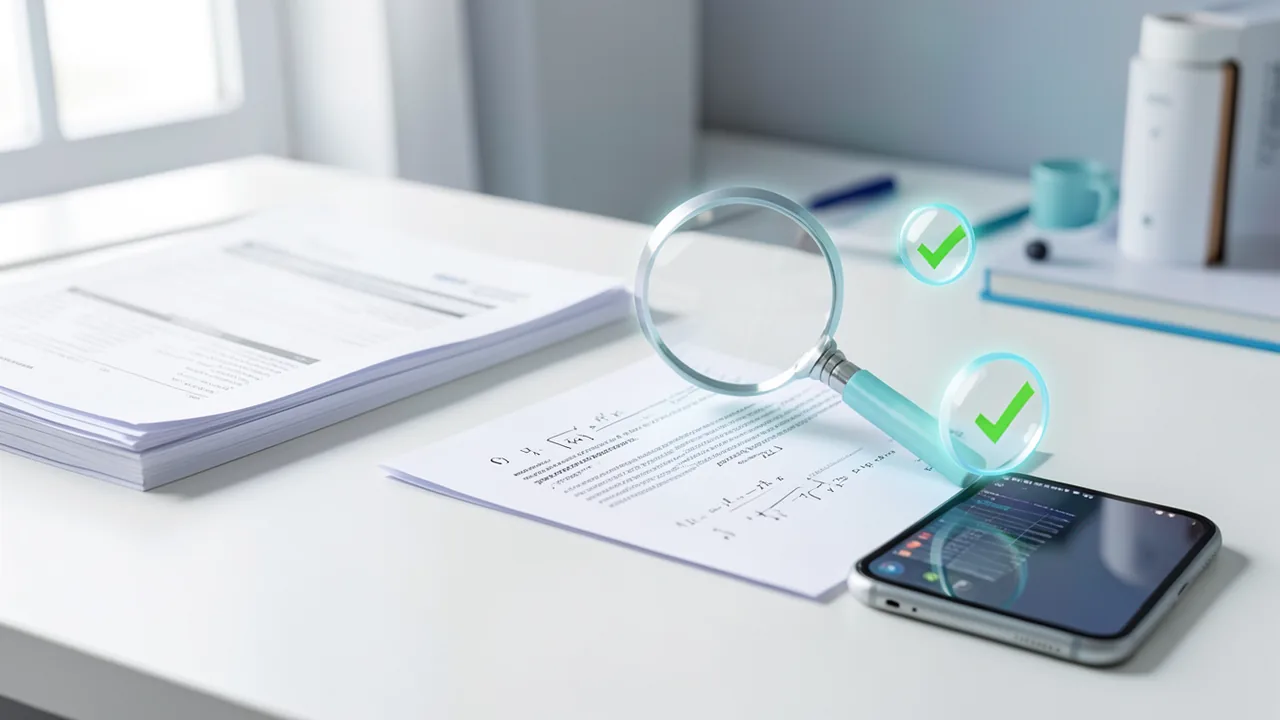
ModelBest and OpenBMB have released the MiniCPM-OCR series: a 1.3-billion-parameter model that reads scanned and photographed documents, including formulas and tables, and a 2B model called Jev that scores OCR results as an "AI quality inspector." Both run with tools such as Ollama and llama.cpp.
What's going on
Chinese company ModelBest and the open-source community OpenBMB released the MiniCPM-OCR series on October 31, 2026. It consists of two models: MiniCPM-OCR 1.0 with 1.3 billion parameters (roughly, the adjustable settings a model learns during training) and MiniCPM-OCR Jev with 2 billion parameters. OCR stands for optical character recognition, which means turning images of text into digital text. The models are freely available on GitHub, Hugging Face and ModelScope. All details below come from the makers' press release. The sources contain no independent tests.
MiniCPM-OCR 1.0: a compact parsing model
MiniCPM-OCR 1.0 is the first OCR-specialized model in the MiniCPM family. According to its makers, it delivers top-tier accuracy in a small architecture optimized for edge devices (that is, local hardware instead of large data centers). It is meant to cope with real-world conditions. It reads scanned, photographed, curved, skewed and screenshot documents, and you don't have to correct the images extensively first.
Key strengths according to the announcement:
- dense bilingual content in Chinese and English,
- complex mathematical formulas,
- multi-level or borderless tables,
- full-page reconstruction,
- key information extraction (KIE): on instruction, the model pulls specific fields from invoices, ID documents or financial reports.
The makers claim leading performance across a broad range of common industry benchmarks, but the announcement gives no concrete figures. A YouTube test (channel Ray Codes) advertises "94% on an OCR benchmark" in its title. That is a third party's headline claim, not a verified figure from the sources.
Thanks to an acceleration technique called DSpark (decoding acceleration), throughput should rise and per-page latency should drop. For organizations with millions of pages, such as contract archives, libraries or government agencies, the makers say this means more documents on the same hardware at lower compute cost.
MiniCPM-OCR Jev: the "AI quality inspector"
Jev doesn't do OCR itself. It compares the original image with the OCR output and assigns confidence scores to text, LaTeX formulas (a notation for math used in science) and tables. It detects missing characters, errors and formatting deviations. Despite having only 2 billion parameters, its judgment accuracy is said to match that of much larger models.
Because Jev works across models, you can add it to existing OCR pipelines without replacing the OCR engine itself. It can:
- automatically approve reliable results for further processing,
- flag doubtful outputs for human review,
- pick the best result from several OCR systems.
The idea is to turn page-by-page checking into risk-based, automated quality assurance.
Availability and hardware support
The series supports vLLM and SGLang (server software for fast model execution), llama.cpp and Ollama (for local use), as well as SDKs, APIs, agent skill plugins and fine-tuning code. Day-0 optimization is available for AMD, Arm, Houmo AI, Intel and NVIDIA. Through the FlagOS software stack, there is also day-0 support for chips from CIX, Huawei Ascend, Hygon, Iluvatar CoreX, Kunlunxin, MetaX, Moore Threads, Sunrise, T-Head, TsingMicro, NVIDIA and Apple Mac (Arm).
What you need to try it
At 1.3B and 2B parameters, both models are very small. With 4-bit quantization, roughly 2 to 4 GB of VRAM (video memory) should be enough. A small graphics card, an Apple Silicon Mac or (more slowly) a CPU should also do. Expect a few GB of disk space per model. The makers explicitly mention Mac support. Google Colab with a free GPU should work too, but the sources don't mention it.
Context
KDnuggets recently listed seven strong open-source OCR models from 0.9B to 8B parameters, including olmOCR 2, PaddleOCR-VL, OCRFlux and MiniCPM-V 4.5. In that field, MiniCPM-OCR stands out mainly because of Jev. A small checker model that scores OCR output automatically is a practical building block for production. Whether MiniCPM-OCR 1.0 really beats those competitors can't be determined from the sources, because concrete benchmark numbers are missing. All figures are the makers' claims from a press release. It's interesting for developers and companies that want to digitize documents locally and cheaply, especially with Chinese text. If you only need to extract the occasional PDF, established tools will usually serve you just as well.
Related videos
Sources
- Bing News (en-US) prnewswire.com
- finance.yahoo.com finance.yahoo.com
- kdnuggets.com kdnuggets.com
Try it yourself: MiniCPM-OCR 1.0
Explained step by step, no prior knowledge needed – on your own computer or free in your browser.
What can I do with it?
MiniCPM-OCR 1.0 turns images and scans of documents into structured text, including formulas and tables. According to the makers, it also copes with skewed, curved or photographed pages, so you don't have to straighten them first. It can also pull out specific fields such as invoice amounts or ID details. The second model, Jev, is a checker: it rates how reliable an OCR result is and flags doubtful cases. Both are very small, so they run on ordinary consumer hardware. The model is said to be especially strong with Chinese and English. How it compares directly with alternatives such as PaddleOCR-VL or olmOCR isn't stated in the sources.
Who is it worth it for?
Interesting for developers, archives and companies that want to digitize documents locally, as well as tinkerers with a small GPU or a Mac. Less useful if you just want to convert a single PDF, or if you only process languages other than Chinese and English, since language coverage isn't documented.
Ideas: What you can do with it
You photograph or scan receipts and have the model output the invoice number, date and amount as JSON. You can drop the data straight into a spreadsheet or your bookkeeping.
Scans of files or books are converted into searchable text. Jev flags uncertain pages, so you only need to re-check those.
Photos of lecture notes or whiteboards are converted into text with LaTeX formulas. That saves you retyping for notes and flashcards.
A screenshot of a borderless table becomes a clean Markdown or CSV-style table that you can reuse in Excel or your notes.
You have several OCR engines read the same document and let Jev pick the best result. That shows you which engine suits your documents.
What your computer needs
Which variant is right for me?
Many models come in several sizes or "quantizations." These are compressed versions: smaller and faster, but slightly less accurate. Rule of thumb: pick the largest variant whose memory requirement fits in your VRAM (video memory). The scripts below choose this for you automatically.
| Variant | Download | Needs approx. | Compatible graphics cards |
|---|---|---|---|
Q4_K_M Default |
0.5 GB | 2 GB | almost any graphics card with 4 GB or more (e.g. GTX 1650, RTX 3050) |
Q5_K_M |
0.6 GB | 2 GB | almost any graphics card with 4 GB or more (e.g. GTX 1650, RTX 3050) |
Q6_K |
0.6 GB | 2 GB | almost any graphics card with 4 GB or more (e.g. GTX 1650, RTX 3050) |
Q8_0 |
0.8 GB | 2 GB | almost any graphics card with 4 GB or more (e.g. GTX 1650, RTX 3050) |
F16 |
1.5 GB | 3 GB | almost any graphics card with 4 GB or more (e.g. GTX 1650, RTX 3050) |
MiniCPM-OCR 1.0 (1.3B) for the actual text recognition; add MiniCPM-OCR Jev (2B) if you want to check results automatically or compare several OCR systems. 4-bit quantization is enough to get started. The source doesn't give concrete file sizes.
- Both models are small at 1.3B and 2B parameters; in 4-bit, roughly 2 to 4 GB of VRAM is enough.
- According to the makers, Apple Macs with Arm chips are supported on release day.
- NVIDIA, AMD, Intel and Arm are supported, as well as many Chinese AI chips via FlagOS.
- For high throughput across millions of pages, vLLM or SGLang are the intended options; for local tests, use llama.cpp or Ollama.
- Higher image resolution and long documents need extra memory.
How do I find out what my computer has?
- Windows: Press Ctrl + Shift + Esc → Task Manager → Performance tab → click GPU on the left. At the bottom you'll see Dedicated GPU memory (that's your VRAM). You'll find system memory under Memory.
- Mac: Apple menu at the top left → About This Mac. You'll see your chip (e.g. M2) and memory (e.g. 16 GB). On Apple chips, graphics and processor share this memory.
- Linux: Type
nvidia-smiin the terminal (shows your graphics card and its memory) andfree -hfor system memory.
Guide
Google Colab (in your browser, no installation)
Google Colab is a free service from Google. It gives you a computer with a graphics card in your browser for a few hours. All you need is a Google account. For this model: runs for free – The free Tesla T4 GPU with 15 GB is enough.
- Download the notebook. Click the button and save the file.
- Open Colab. Go to colab.research.google.com and sign in with your Google account.
- Upload the notebook. In the window that appears, click Upload on the left (or choose File → Upload notebook at the top) and select the file
colab.ipynb. - Turn on the GPU. In the top menu, go to Runtime → Change runtime type → under Hardware accelerator, select T4 GPU → Save.
- Start everything. Runtime → Run all (keyboard shortcut Ctrl + F9). If you see the warning “This notebook was not authored by Google,” click Run anyway.
- Wait. The cells run one after another. A green checkmark appears to the left of each cell when it's done. Installation and download take about 4 minutes here.
- Try it out. The result appears below the last cell. To test something else, change the text in the cell and run it again with Shift + Enter. The last cell starts a proper chat with an input field.
- Clean up. When you're done: Runtime → Disconnect and delete runtime. This saves your free quota.
Good to know: The free GPU is limited (usually a few hours per day). After about 90 minutes of inactivity, Colab disconnects, and you'll have to start everything over.
Windows 10 / 11
The easiest way is Ollama, a free program that launches AI models with a single command.
- Update your graphics driver (NVIDIA cards only): Install the NVIDIA app or the latest driver. For AMD cards, use the latest Adrenalin driver.
- Install Ollama. Download the file OllamaSetup.exe from ollama.com/download/windows, double-click it, and choose Install. Afterward, a small llama icon appears in the taskbar at the bottom right.
- Open a terminal window. Press the Windows key, type PowerShell and press Enter. A blue or black window opens.
- Start the model. Copy this command ("Copy" button), paste it into the window with a right-click, and press Enter:
The first time, Ollama downloads the model (0.5 GB (about 1 min at 100 Mbit/s)). After that, it's instant.ollama run hf.co/openbmb/MiniCPM-OCR-1.0-gguf:Q4_K_M - Start typing. Once
>>> Send a messageappears, type your question and press Enter. Type/byeto end the chat.
Not enough memory? Pick a smaller variant from the table above, e.g. ollama run hf.co/openbmb/MiniCPM-OCR-1.0-gguf:Q4_K_M.
Prefer automatic? A script that picks the right variant for you
- Download both files into the same folder: try_windows.ps1 demo.py
- Open the folder in File Explorer, right-click an empty spot and choose Open in Terminal.
- Paste this command and press Enter:
powershell -ExecutionPolicy Bypass -File try_windows.ps1
If needed, the script installs Ollama via winget, measures your VRAM (video memory) and downloads the matching variant.
macOS
Macs with an Apple chip (M1 to M5) are ideal. Older Intel Macs are very slow.
- Install Ollama. Download it from ollama.com/download/mac, open the file, and drag Ollama into your Applications folder. Launch Ollama once – a llama appears in the menu bar at the top.
- Open Terminal. Press Cmd + Space, type Terminal, and press Enter.
- Start the model. Paste the command (Cmd + V) and press Enter:
The first time, the model is downloaded (0.5 GB (about 1 min at 100 Mbit/s)).ollama run hf.co/openbmb/MiniCPM-OCR-1.0-gguf:Q4_K_M - Start typing. Type your question and press Enter. Quit with
/bye.
Linux
- Check your GPU.
nvidia-smishould show your card. If it doesn't, install the driver on Ubuntu and restart:sudo ubuntu-drivers install - Install Ollama:
curl -fsSL https://ollama.com/install.sh | sh - Start the model:
Exit withollama run hf.co/openbmb/MiniCPM-OCR-1.0-gguf:Q4_K_M/bye. Useollama psto check whether the model is running on the GPU. - Or let it pick the right variant automatically:
bash try_linux.sh
# mit Python/transformers statt Ollama:
MODE=hf bash try_linux.sh
Try it
Convert this photo of a menu into clean Markdown text.Read this scanned invoice and output the invoice number, date and total amount as JSON.Detect the table in this screenshot, which has no border lines, and output it as a Markdown table.Transcribe the formulas on this lecture slide into LaTeX.Reconstruct the whole page of this skewed photo of a contract, including headings and paragraphs.Tips for better results
- Test with your own typical documents first, not sample images, to gauge the real-world quality.
- Combine OCR 1.0 with Jev: let good results through automatically and flag uncertain ones for review.
- For field extraction, state clearly which fields you want and in which format (e.g. JSON).
- For large volumes, use vLLM or SGLang instead of Ollama to increase throughput.
If something goes wrong
The exact repo names and Ollama tags aren't in the source; search Hugging Face or GitHub for "MiniCPM-OCR" or "openbmb".
Jev doesn't replace an OCR engine: it needs the original image and the OCR output as input.
Check the license on the model page before use. The announcement doesn't mention it.
llama.cpp or Ollama may need a recent version; if you hit errors, update the software first.
For critical documents (contracts, IDs), confidence scores don't replace spot checks by a human.
“out of memory,” a crash, or your computer freezes
The model is too big for your VRAM (video memory). Pick a smaller variant from the table above and close other programs, especially games and browsers with lots of tabs.
It runs, but extremely slowly
Your CPU is probably doing the work instead of your graphics card. In Ollama, the PROCESSOR column of ollama ps shows how much runs on the GPU. If it says "100% CPU", update your graphics driver or pick a smaller variant that fits entirely into VRAM (video memory).
“ollama” or “python” is not found
Close the terminal window and open it again so it recognizes the newly installed program. For Python on Windows: reinstall it and check Add python.exe to PATH.
Windows: "Running scripts is disabled on this system"
Run the script with exactly the command above: powershell -ExecutionPolicy Bypass -File try_windows.ps1. This allows execution for this one time only.
Error message when loading the model (version, "trust_remote_code", unknown architecture)
Brand-new models often need the latest software version. With Ollama: update Ollama. With Python: pip install -U transformers in the activated environment. The Model Card usually lists the exact version.
Tokenstrom generates the scripts and notebook automatically. Please take a quick look before running them – they're plain, readable text. Mind the model's license: apache-2.0.
Ask the AI assistant
Questions about this article, installation or background? Our assistant knows this page and runs on our own machine, not in someone else's cloud.
The Assistant is an AI (Gemma 4) and can make mistakes – please check important details against the source. Questions are used only to generate an answer and are deleted after one hour. Please don't enter any personal data.
Comments
What do you think? Already tried it? Write it here, no sign-up needed.
Comments are public. Links aren't allowed, and we delete abusive posts. You can delete your own comment at any time in this browser. Learn more in the Privacy Policy.