
MOSS-Image-SFT: Open 5.1B image model with layout control
The OpenMOSS team has released MOSS-Image-SFT, a fine-tuned text-to-image model with 5.1 billion parameters under the Apache 2.0 license. It understands plain sentences, tag lists and JSON layouts that let you place text and objects in an image precisely.
What this is about
The OpenMOSS team has released the text-to-image model MOSS-Image-SFT on Hugging Face. It belongs to the MOSS-Image model family and is the fine-tuned version of MOSS-Image-Base. "SFT" stands for supervised fine-tuning: an already trained model gets further training on carefully selected examples so it produces better, tidier results. The model has 5.1 billion parameters (the knobs learned during training) and uses the permissive Apache 2.0 license, which also allows use in your own projects. At the time of the source, it had around 6,900 downloads and 570 likes.
What the model can do
MOSS-Image-SFT generates images from text. It supports three kinds of input:
- Natural language: ordinary descriptions.
- Tag sequences: keyword lists, familiar from many image generators.
- JSON layouts: structured descriptions that define where text and objects should appear in the image.
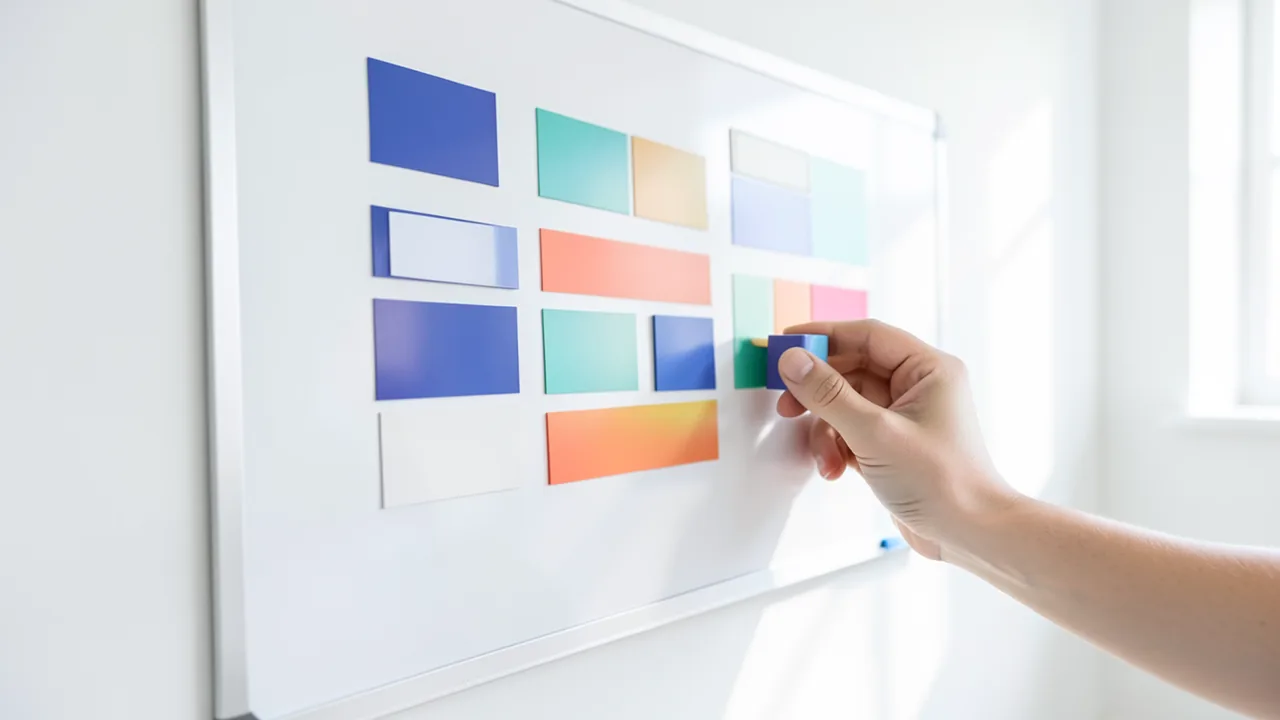
The example prompt on the Model Card is a refrigerator with a handwritten Chinese note. According to its tags, the model supports English and Chinese. On the Model Card, a comparison with the Base variant shows SFT grouping text more clearly and rendering a whiteboard more neatly. That's a vendor example, not an independent measurement.
Layout-to-image
The layout control is the standout feature. You pass in a JSON text with a scene description (summary.caption) and a list of elements (items). Each element has a bounding box, a rectangle that defines its position in the image, in yxyx format with the coordinate space abs_centralized. This lets you control rendered text, objects and how they're arranged. The team says this also allows controlled image editing: you change the text, descriptions or boxes and regenerate the image. The User Guide marks the layout feature as experimental.
There is also a "Prompt Enhancer" skill. It turns image ideas into detailed descriptions or layout prompts. According to the Model Card, it's intended for agents from the "GPT-6 family" with local file and Python tools. The script converts pixel coordinates into compact JSON and doesn't call an image generator itself.
Technical details and settings
The transformer and text encoder run in bfloat16, while the VAE (the component that translates between pixels and the internal data format) and the initial noise use float32. The bundled VAE uses the small FLUX.2 decoder. The acknowledgments name the Diffusers, Qwen and FLUX teams.
| Setting | Default |
|---|---|
| Sampler | Flow-matching Euler |
| Steps | 50 |
| CFG (prompt adherence) | 3 |
| Shift | 5 |
| Layer skipping | Negative branch, layer 22 |
| Negative prompt | empty |
The default guidance needs two transformer passes per step. You can turn off layer skipping with uncond_skip_layers=[]. Image height and width must be positive multiples of 16.
What you need to try it
The source gives no VRAM figure. You need an NVIDIA GPU with CUDA, Python 3.10+ and PyTorch 2.9+. With 5.1B parameters in bfloat16, expect roughly 10–11 GB for the weights alone (our own estimate). The project offers CPU offload and compilation options. The text encoder, the VAE and several gigabytes of disk space come on top. Officially, only CUDA is mentioned; Mac or CPU-only use isn't documented. There is also a demo on Hugging Face Spaces, a Gradio interface and a ComfyUI plugin (search for "MOSS-Image" in ComfyUI Manager).
Our take
At 5.1 billion parameters, the model is fairly compact and very open license-wise. The most interesting part is the combination of text rendering (including Chinese) and layout control, which many open image models handle poorly. The Model Card cites no independent benchmarks, so quality claims come from the vendor. Hardware requirements aren't quantified either, and the layout feature is still experimental. If you need precise image composition or text in images, it's worth testing.
Sources
- Hugging Face Trending huggingface.co
- Hugging Face Trending huggingface.co
- Hugging Face Trending huggingface.co
- Hugging Face Trending huggingface.co
- Google News (IN) news.google.com
- r/StableDiffusion civitai.red
- QbitAI 量子位 (CN) qbitai.com
- r/comfyui docs.comfy.org
- r/comfyui reddit.com
- Google News (US) news.google.com
- r/StableDiffusion reddit.com
- r/StableDiffusion reddit.com
- Google News (JP) news.google.com
Try it yourself: MOSS-Image-SFT
Explained step by step, no prior knowledge needed – on your own computer or free in your browser.
What can I do with it?
You can generate images from text descriptions, including legible English and Chinese text in the image. JSON layouts let you define where text and objects go. The model runs locally via Python (diffusers), Gradio or ComfyUI.
Who is it worth it for?
Worth it for tinkerers and creatives with an NVIDIA GPU who need text in images and deliberate composition. Less suitable without a CUDA graphics card.
What your computer needs
SFT is the fine-tuned variant with tidier results and should be your first choice for everyday use; Base is better as a starting point for your own training. According to the source, there are no quantized (GGUF) variants.
- An NVIDIA GPU with CUDA is required; no VRAM figure is given (expect roughly 12 GB or more).
- The transformer and text encoder run in bfloat16, the VAE in float32.
- The project offers CPU offload and compile options if VRAM is tight.
- The default 50-step run needs two transformer passes per step.
How do I find out what my computer has?
- Windows: Press Ctrl + Shift + Esc → Task Manager → Performance tab → click GPU on the left. At the bottom you'll see Dedicated GPU memory (that's your VRAM). You'll find system memory under Memory.
- Mac: Apple menu at the top left → About This Mac. You'll see your chip (e.g. M2) and memory (e.g. 16 GB). On Apple chips, graphics and processor share this memory.
- Linux: Type
nvidia-smiin the terminal (shows your graphics card and its memory) andfree -hfor system memory.
Guide
Google Colab (in your browser, no installation)
Google Colab is a free service from Google. It gives you a computer with a graphics card in your browser for a few hours. All you need is a Google account. For this model: Colab Pro only – Free Colab has only 12.7 GB of RAM – not enough for this model.
- Download the notebook. Click the button and save the file.
- Open Colab. Go to colab.research.google.com and sign in with your Google account.
- Upload the notebook. In the window that appears, click Upload on the left (or choose File → Upload notebook at the top) and select the file
colab.ipynb. - Turn on the GPU. In the top menu, go to Runtime → Change runtime type → under Hardware accelerator, select T4 GPU (with Colab Pro: L4 or A100) → Save.
- Start everything. Runtime → Run all (keyboard shortcut Ctrl + F9). If you see the warning “This notebook was not authored by Google,” click Run anyway.
- Wait. The cells run one after another. A green checkmark appears to the left of each cell when it's done. Installation and download take about 13 minutes here.
- Try it out. The result appears below the last cell. To test something else, change the text in the cell and run it again with Shift + Enter.
- Clean up. When you're done: Runtime → Disconnect and delete runtime. This saves your free quota.
Good to know: The free GPU is limited (usually a few hours per day). After about 90 minutes of inactivity, Colab disconnects, and you'll have to start everything over.
Windows 10 / 11
This model runs on Python. Our script handles the setup automatically: it creates an isolated Python environment, installs the required packages (PyTorch, approx. 3 GB) and downloads the model (27 GB (about 36 min at 100 Mbit/s)).
- Update your graphics driver (NVIDIA): install the latest driver. Without an NVIDIA card, it runs on the CPU – much more slowly.
- Install Python. Download Python 3.12 from python.org and run the installer. Important: At the bottom of the first window, tick Add python.exe to PATH, then click Install Now.
- Create a folder and download the files. Create a folder, e.g.
Documents\AI-Test, and save both files into it: - Open a terminal in the folder. Open the folder in File Explorer, right-click an empty spot → Open in Terminal.
- Run it. Paste this command and press Enter:
Installation and download are running now. The first time, this can take 10–30 minutes.powershell -ExecutionPolicy Bypass -File try_windows.ps1 - Result. The folder now contains the generated image
output.png. - Try your own input: Open
demo.pyin an editor, change the sample text, and save. Then run this in the terminal:.\.venv-moss-image-sft\Scripts\Activate.ps1 python demo.py
macOS
Macs with an Apple chip (M1 to M5) are ideal. Older Intel Macs are very slow.
- Open Terminal. Press Cmd + Space, type Terminal, and press Enter.
- Install the developer tools (first time only; includes Python):
Click Install in the window. If you see "already installed," everything is already in place.xcode-select --install - Download the files – both end up in your Downloads folder:
- Run it:
The first time, installation and download take 10–30 minutes.cd ~/Downloads bash try_mac.sh - Result. The folder now contains the generated image
output.png.
Linux
- Check your GPU.
nvidia-smishould show your card. If it doesn't, install the driver on Ubuntu and restart:sudo ubuntu-drivers install - Install the Python basics (Ubuntu/Debian):
sudo apt update && sudo apt install -y python3-venv python3-pip git - Put the files in a folder and open a terminal there:
- Run it:
bash try_linux.sh - Result. The folder now contains the generated image
output.png.
Try it
A kitchen with a refrigerator and a fruit bowl; a note hangs on the refrigerator with the handwritten shopping list "Milk, eggs, bread".A tidy whiteboard in an office with three clearly separated text blocks: "Goals", "Tasks" and "Deadlines".A watercolor-style poster for a city festival with the headline "Summer Festival" at the top center and a carousel below it.If something goes wrong
Check your versions: diffusers ≥ 0.38, transformers ≥ 5.3, PyTorch ≥ 2.9 and Python ≥ 3.10 are required.
`trust_remote_code=True` and `custom_pipeline="pipeline_moss_image"` must be set, or the pipeline won't load.
Image width and height must be multiples of 16.
For layout prompts, use the same image dimensions as in the layout, and serialize the JSON with `ensure_ascii=False`.
“out of memory,” a crash, or your computer freezes
The model is too big for your VRAM (video memory). Pick a smaller variant from the table above and close other programs, especially games and browsers with lots of tabs.
It runs, but extremely slowly
Your CPU is probably doing the work instead of your graphics card. In Ollama, the PROCESSOR column of ollama ps shows how much runs on the GPU. If it says "100% CPU", update your graphics driver or pick a smaller variant that fits entirely into VRAM (video memory).
“ollama” or “python” is not found
Close the terminal window and open it again so it recognizes the newly installed program. For Python on Windows: reinstall it and check Add python.exe to PATH.
Windows: "Running scripts is disabled on this system"
Run the script with exactly the command above: powershell -ExecutionPolicy Bypass -File try_windows.ps1. This allows execution for this one time only.
Error message when loading the model (version, "trust_remote_code", unknown architecture)
Brand-new models often need the latest software version. With Ollama: update Ollama. With Python: pip install -U transformers in the activated environment. The Model Card usually lists the exact version.
Tokenstrom generates the scripts and notebook automatically. Please take a quick look before running them – they're plain, readable text. Mind the model's license: apache-2.0.
Ask the AI assistant
Questions about this article, installation or background? Our assistant knows this page and runs on our own machine, not in someone else's cloud.
The Assistant is an AI (Gemma 4) and can make mistakes – please check important details against the source. Questions are used only to generate an answer and are deleted after one hour. Please don't enter any personal data.

Comments
What do you think? Already tried it? Write it here, no sign-up needed.
Comments are public. Links aren't allowed, and we delete abusive posts. You can delete your own comment at any time in this browser. Learn more in the Privacy Policy.