
Ollama
The easiest way to run AI models like Gemma, Qwen or Llama locally.
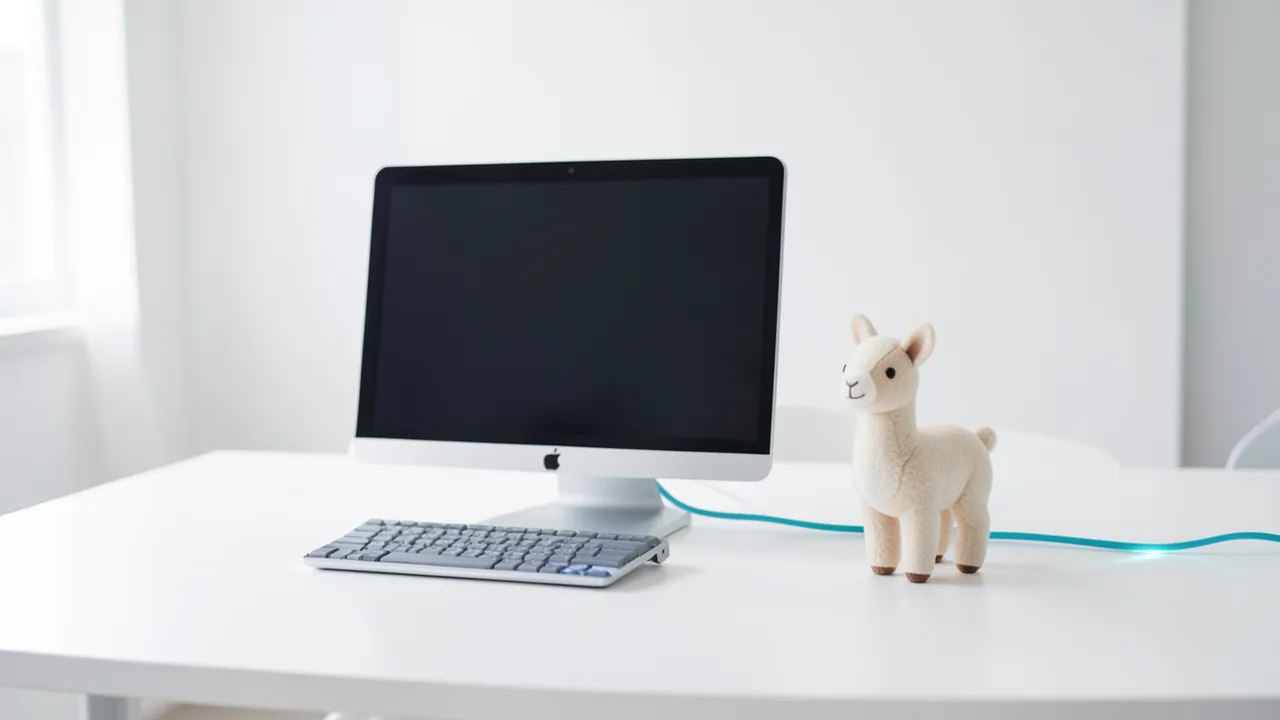
Ollama downloads and runs language models with a single command. Everything runs on your machine, and nothing goes to the internet. Almost every new open-source model shows up here within a few days.
What's new
- Liquid AI's LFM3 models now also run on Linux and Windows, not just on Apple computers with Apple's own chips. That includes the speech output in lfm3-audio and lfm3-omni.
- Ollama now supports Liquid AI's new LFM3 model family: small models for text, images and speech that run locally. There are also d1 models in the 2B size. For now it only works on Apple devices, with Linux and Windows to follow. Apple chips also process input faster with some models.
What is Ollama?
Ollama is a program that lets you run language models on your own computer. Language models are AI systems that understand and write text, like the chatbots you already know. The difference: everything runs locally. According to the project description, nothing goes to the internet. Your questions and texts stay with you.
How does it work?
Ollama downloads a model and starts it with a single command. The README gives ollama run gemma4 as an example. After that, you can chat with the model right away. Installers are available for macOS, Windows and Linux, and there is an official Docker image. Under the hood, Ollama uses the llama.cpp project as its backend. That's the technology that actually runs the model.
A REST API also runs in the background. Think of it as a phone line for other programs: through it, they can talk to the model. Ready-made libraries exist for Python and JavaScript.
What is it especially good at?
- Easy start: One command is enough to download and launch a model.
- Wide selection: Almost every new open-source model shows up here within a few days. Gemma, Qwen and Llama are among those mentioned. You'll find the full list at ollama.com/library.
- Lots of integrations: The README lists a long series of community programs. They include chat interfaces like Open WebUI, coding helpers like Continue or Cline, and tools for knowledge bases.
- Launch integrations: With
ollama launchyou start certain programs, such as Claude Code or OpenClaw, with Ollama as the foundation. According to the README, OpenClaw turns Ollama into a personal assistant in WhatsApp, Telegram, Slack or Discord. - Open license: Ollama is released under the MIT license.
Where are the limits?
Ollama itself offers only a simple interface for typing in the command line. If you prefer clicking, you'll need an extra program from the community ecosystem. The quality of the answers depends on the model you choose, and speed depends on your hardware. The README also mentions access "in the cloud". If you use that, the claim that "nothing goes to the internet" probably no longer holds. For purely local use, stick with local models.
What do you need?
A computer with a CPU is enough for trying it out. A graphics card (GPU) is better. Its own memory is called VRAM, and it determines how large the models you can run are. The short description gives these rules of thumb:
- 8 GB VRAM:
gemma4:e4b - 16–24 GB VRAM:
qwen3.5:27b
You'll also need enough disk space for the models and a terminal, which is the window for entering commands.
Ideas: What you can do with it
You start a model like Gemma with `ollama run gemma4` and ask questions in the terminal. Your input stays on your computer. That suits texts you don't want to hand to an online service.
You connect Ollama to an interface like Open WebUI or Hollama. Then you chat just like with familiar online chatbots, only locally. Others in your household can use it too if you make it available on your network.
You plug Ollama into a code editor, for example via Continue, Cline or Void. The model explains code, suggests changes or writes small scripts. Your source code never leaves your computer.
With tools like the Ollama RAG Chatbot or AnythingLLM, you can load PDFs and ask questions about them. It's handy for contracts, manuals or study materials. You should double-check the answers against the source.
With plugins like Obsidian Local GPT or Copilot for Obsidian, you use a local model inside your notes. You can have texts summarized or reworded. Your notes stay on your device.
With the Python or JavaScript library, you send questions to a model from your own code. That lets you build, say, a script that sorts or summarizes texts. The examples in the README show how to get started in just a few lines.
How to try it
Commands from the official guides – just copy them.
Google Colab
- Download the notebook: colab.ipynb
- Open colab.research.google.com → File → Upload notebook
- Runtime → Change runtime type → GPU (T4)
- Runtime → Run all
Linux
curl -fsSL https://ollama.com/install.sh | sh    # asks for your sudo password
ollama run gemma4:e4b
# End the chat with /bye
macOS
# Install and launch the app from https://ollama.com/download, then in the terminal:
ollama run gemma4:e4b
Windows (PowerShell)
winget install Ollama.Ollama
# open a new terminal, then:
ollama run gemma4:e4b
Tips
- Start with a small model that fits your VRAM. The rules of thumb: `gemma4:e4b` for 8 GB, `qwen3.5:27b` for 16–24 GB.
- Check the model list at ollama.com/library regularly. According to the description, new open-source models often appear there after just a few days.
- If the terminal isn't your thing, pick a chat interface from the community list, such as Open WebUI or Msty.
- Try several models with the same question. You'll quickly see which one suits your task best.
- With a Modelfile, you can customize models. The guide is in the documentation at docs.ollama.com/modelfile.
If something goes wrong
- The model answers very slowly: it's probably running on the CPU only, or it's too big for your VRAM. Pick a smaller model that fits your graphics card.
- A model won't download or start: check the name, including the size tag, in the model library, and make sure enough memory is free. When in doubt, choose a smaller variant.
- A chat interface can't find Ollama: Ollama needs to be running in the background. According to the README, the API responds at `http://localhost:11434`. Check that address in the program's settings.
- You want to keep everything offline but use cloud features: the README mentions access either locally or in the cloud. Make sure you're using a locally downloaded model.
Ask the AI assistant
Questions about Ollama, installation or background? Our assistant knows this page and runs on our own machine, not in someone else's cloud.
The Assistant is an AI (Gemma 4) and can make mistakes – please check important details against the source. Questions are used only to generate an answer and are deleted after one hour. Please don't enter any personal data.
Comments
What do you think? Already tried it? Write it here, no sign-up needed.
Comments are public. Links aren't allowed, and we delete abusive posts. You can delete your own comment at any time in this browser. Learn more in the Privacy Policy.