
Open WebUI
A ChatGPT-style interface – for your local models.
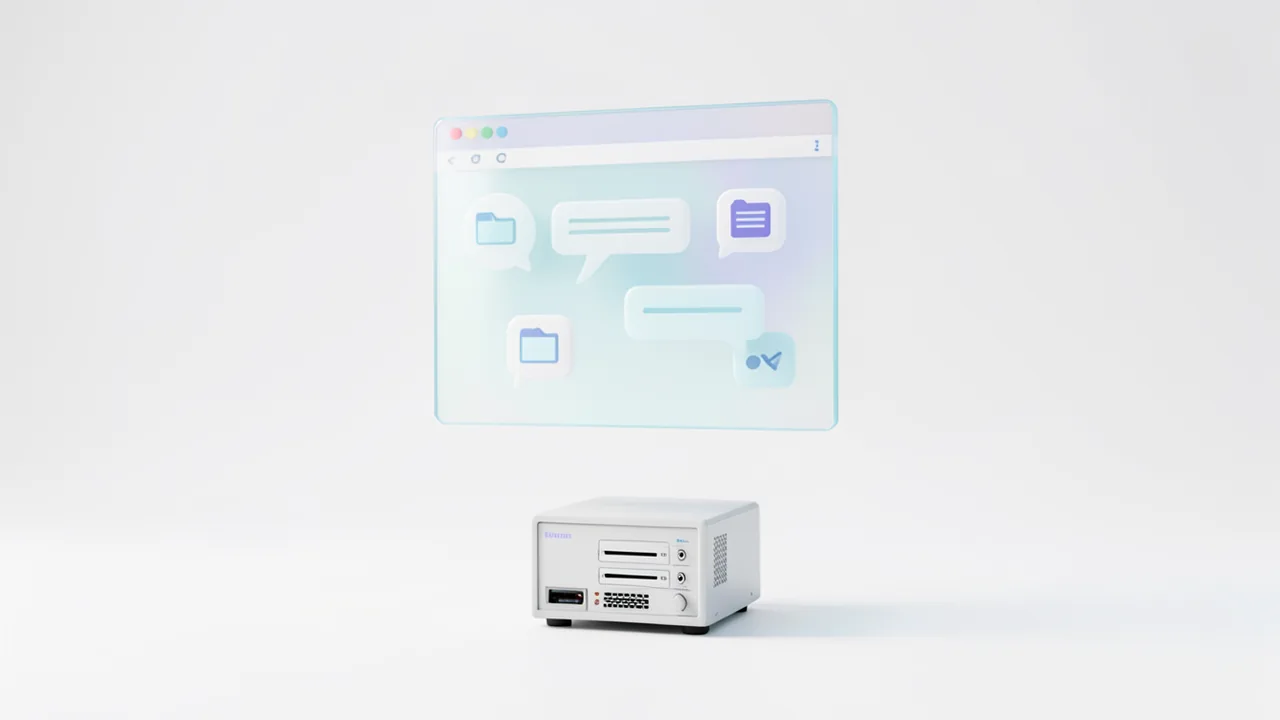
Open WebUI runs in your browser and connects to Ollama automatically. You get chat history, file upload, image analysis and a choice of multiple models. Prerequisite: Ollama is installed.
What's new
- Notes can now contain multiple pages and subpages, and you can see who else has the same note open. Chats can be renamed directly from the menu at the title, and your model choice is saved with the chat immediately. Admins also get an overview of individual chat sessions with usage, errors and timeline.
- Administrators can set additional capabilities ("skills") to load only when needed. The chat now shows when older messages have been summarized, and this also happens in short and temporary chats to reduce errors caused by overly long inputs. Administrators can also hide many individual controls from users.
What is Open WebUI?
Open WebUI is an interface for AI chats. It runs in your browser and looks like the chat services you know. The difference: the models run on your own computer or server. According to the project, the platform is self-hosted and designed to run completely offline.
How does it work?
Open WebUI is just the window to the AI, not the AI itself. The real work is done by Ollama, a program that runs language models locally. Open WebUI connects to Ollama and shows you the installed models to choose from. You type in the browser, and Ollama does the computing in the background.
You can also connect other providers. Open WebUI supports interfaces compatible with the OpenAI API. LMStudio, GroqCloud, Mistral, OpenRouter and vLLM are among those mentioned. That lets you mix local and cloud models.
What is it especially good at?
- Chat history: Your conversations are saved.
- File upload and image analysis: You upload documents or images and ask questions about them. Whether image analysis works depends on the model you choose.
- Multiple models: You can switch between models. You can also have several answer at once and compare the results.
- Searching documents (RAG): RAG means the AI first looks up relevant passages in your documents and then answers based on them. With the
#command, you pull documents or web pages into the chat. - Web search: Results from search providers like SearXNG, Brave or DuckDuckGo can be fed into the chat.
- Memory: The AI can remember facts about you across multiple chats.
- Voice: Voice and video calls are built in, with local Whisper for speech recognition and several text-to-speech options.
- Custom assistants: You bundle a model with your own instructions, tools and knowledge into a specialized agent.
- More features: Notes, calendar, scheduled automations, image generation through integrations like ComfyUI or AUTOMATIC1111, and plugins.
- Multiple users: An admin can set roles, groups and permissions.
Where are the limits?
Open WebUI doesn't make models any smarter. Quality depends on the model you use through Ollama. The hardware requirements are also the same as for Ollama. The feature set is large, and many options are aimed more at teams and admins. To get started, you only need a fraction of them.
The license is the Open WebUI License, which is BSD-3 with a branding clause. If you redistribute or modify the interface, read the clause carefully.
What do you need?
- Ollama must be installed.
- A computer that can handle the models you want (same as for Ollama).
- A browser.
- For setup, the project lists pip (with Python 3.12) and Docker. After that, you reach the interface in your browser, at
localhost:8080with pip. In the README's Docker example, it's port 3000.
Alternatively, there's a Docker image that bundles Open WebUI and Ollama together.
Ideas: What you can do with it
You ask questions, have texts reworded or draft emails. Everything stays on your computer. The chat history helps you pick up where you left off.
You upload a PDF or a text, such as a contract or a manual. Then you ask targeted questions about its contents. With the # command, you can also pull documents from your library into the chat.
You upload a photo or screenshot and ask for a description. This works with models that understand images. It's handy for charts, handwriting or user interfaces.
You ask several models the same question at once. That shows you right away which one is better for summaries, translations or ideas.
You give a model fixed instructions, for example as an editor or study aid. The assistant is then ready in every chat. At work, you can use this to shortcut recurring tasks.
You run Open WebUI on a server and give colleagues or family access. With roles and groups, you decide who can use what.
How to try it
Commands from the official guides – just copy them.
Linux
# One-time setup: install uv (package manager for Python, no sudo needed)
curl -LsSf https://astral.sh/uv/install.sh | sh && source $HOME/.local/bin/env
DATA_DIR=~/.open-webui uvx --python 3.11 open-webui@latest serve
# The first start downloads about 3 GB and takes a few minutes.
# Once "Uvicorn running" appears: open http://localhost:8080 in your browser and create an account (stays local)
macOS
# One-time setup: install uv (package manager for Python, no sudo needed)
curl -LsSf https://astral.sh/uv/install.sh | sh && source $HOME/.local/bin/env
DATA_DIR=~/.open-webui uvx --python 3.11 open-webui@latest serve
# The first start downloads about 3 GB and takes a few minutes.
# Once "Uvicorn running" appears: open http://localhost:8080 in your browser and create an account (stays local)
Windows (PowerShell)
# One-time setup: install uv (package manager for Python)
powershell -ExecutionPolicy ByPass -c "irm https://astral.sh/uv/install.ps1 | iex"
$env:Path = "$HOME\.local\bin;$env:Path"
$env:DATA_DIR = "$HOME\.open-webui"; uvx --python 3.11 open-webui@latest serve
# The first start downloads about 3 GB and takes a few minutes.
# Once "Uvicorn running" appears: open http://localhost:8080 in your browser and create an account (stays local)
Tips
- Install and test Ollama with a model first. Open WebUI is then easier to set up.
- Choose small models if your computer is weak. The hardware requirements match those of Ollama.
- For image analysis, you need a model that can process images. Select it in the model menu.
- Use the # command to pull web pages or documents into the chat on purpose.
- Create your own assistants with fixed instructions if you often do the same task.
If something goes wrong
- With pip, Open WebUI works best with Python 3.12, according to the README. Other versions can cause compatibility problems. Check your Python version first.
- With Docker, you must mount the data volume (`-v open-webui:/app/backend/data`). Otherwise you lose your data, such as the chat history.
- Open WebUI can't find Ollama? Some Docker environments need extra settings. If Ollama runs on a different server, set the address via `OLLAMA_BASE_URL`. More help is in the documentation.
- For GPU acceleration with Docker on Linux or WSL, you need the Nvidia CUDA Container Toolkit and an image with the `:cuda` tag.
Ask the AI assistant
Questions about Open WebUI, installation or background? Our assistant knows this page and runs on our own machine, not in someone else's cloud.
The Assistant is an AI (Gemma 4) and can make mistakes – please check important details against the source. Questions are used only to generate an answer and are deleted after one hour. Please don't enter any personal data.

Comments
What do you think? Already tried it? Write it here, no sign-up needed.
Comments are public. Links aren't allowed, and we delete abusive posts. You can delete your own comment at any time in this browser. Learn more in the Privacy Policy.