
MiniMax-H3-Image: Open image model generates 16-megapixel images natively
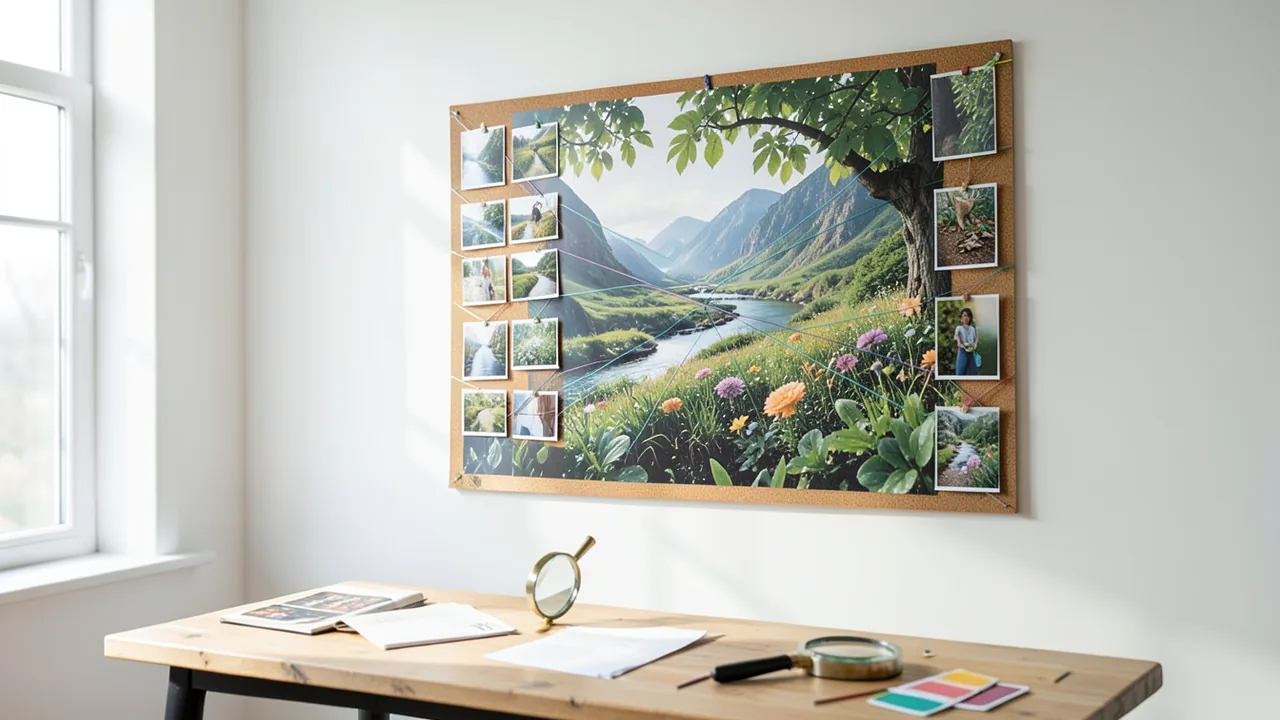
Chinese AI company MiniMax has released the weights of its H3-Image model on Hugging Face, along with matching ComfyUI files. The model creates and edits images at around 16 megapixels without an upscaler and handles up to 16 reference images. The catch: it's huge, and a regular gaming GPU won't cut it.
What's going on
Shanghai-based AI company MiniMax released the weights of MiniMax-H3-Image on November 10, 2026. It's a dedicated still-image model from the H3 family. Until now, MiniMax H3 was best known as a video model, which this summer became the first open model to top a video leaderboard. The new image model is available on Hugging Face at huggingface.co/MiniMaxAI/MiniMax-H3-Image. In parallel, the ComfyUI team uploaded a version for the popular image generation interface: huggingface.co/Comfy-Org/MiniMax-H3-Image. If you don't have the hardware, you can use the model via the MiniMax API (platform.minimax.io) or the Hailuo web app.
MiniMax calls the model "state of the art" among open-source models for image generation and editing. Text-to-image and editing live in the same checkpoint. So you can either generate a new image from a description or upload one or more existing images as references and have them modified.
What the model can do
MiniMax highlights three strengths: speed, image quality and instruction following.
- 16 megapixels natively: Today's typical image models usually output 1 to 4 megapixels. According to MiniMax, H3-Image generates around 16 megapixels in any aspect ratio, without an upscaler, so there's no after-the-fact upscaling that often smears details. The model works reliably between roughly 4 and 20 megapixels and delivers the best results at around 16.
- Realism: The images are supposed to leave the typical "AI look" behind and show finer detail. That's a vendor claim; there are no independent tests yet.
- Up to 16 reference images: When editing, you can use up to 16 references at once. In the prompt, you refer to them as
<Picture 1>,<Picture 2>and so on, numbered in upload order. One Reddit user describes the advantage like this: one reference sheet locks in a character's face and outfit, a second sets the color mood, a third defines the background architecture. You don't have to cram everything into a single collage. That's useful for concept art, product design and layout variations, for example. - Strong prompt adherence: According to MiniMax, no other open model follows instructions as precisely.
The standard 16-megapixel formats:
| Aspect ratio | Size (width × height) |
|---|---|
| 1:1 | 4096×4096 |
| 4:3 / 3:4 | 4736×3552 / 3552×4736 |
| 3:2 / 2:3 | 5024×3360 / 3360×5024 |
| 16:9 / 9:16 | 5472×3072 / 3072×5472 |
| 21:9 | 6272×2688 |
How the model is built
H3-Image is based on the H3-Base video model, minus the audio layers. At its core is a Diffusion Transformer (DiT), a type of network that develops an image step by step out of noise. It has 33.1 billion parameters and 50 layers, and it's "dense," meaning every part of the network is involved in every image, unlike mixture-of-experts models. Text and reference images are packed into a single long sequence that a "single-stream" transformer processes.
The text is handled by the text encoder from MiniMax-H3, an unmodified Qwen3-VL encoder. It translates your prompt into numbers the image generator can work with; the DiT reads the hidden states from layer 50. The VAE compresses images into a smaller "latent space" and unpacks them again at the end, a bit like a zip tool for images. It compresses 16x, and each transformer token covers a 32×32-pixel area. That's the only reason 16-megapixel images are affordable to compute at all.
The speed comes from distillation down to 6 steps (6 NFEs). The model was further trained to get by with just a few steps instead of the usual 20 to 50. It also does without classifier-free guidance, a technique where a model normally computes each step twice to weight the prompt more heavily. In practice, that means the step count must be 6 and the guidance value 1. The server rejects any other values with an error. Negative prompts ("don't show …") aren't supported.
Downloads, sizes and running it locally
| Component | Contents | Size |
|---|---|---|
| transformer/ | DiT in BF16 | 66.28 GB |
| vae/ | Image VAE, FP32 | 2.34 GB |
| Text encoder (from MiniMax-H3) | Qwen3-VL encoder | 66.7 GB |
| MiniMax-H3-Image-PE (optional) | Prompt expander, NVFP4 | 17.9 GB |
All told, that's well over 130 GB to download. The repository doesn't include the text encoder itself; it's loaded from MiniMaxAI/MiniMax-H3. If you already have the video model, you won't download it twice.
MiniMax recommends SGLang, vLLM, Diffusers and ComfyUI as tools. ComfyUI gets dedicated templates for text-to-image and editing. With SGLang, a server runs on a single GPU. To cut latency, you can split each request across several cards, say four, using sequence parallelism (Ulysses).
One important point: H3-Image expects a detailed English description of the entire image. The MiniMax API automatically turns short prompts in any language into such a description using its H3-Image-Context-IR service. Locally, the optional MiniMax-H3-Image-PE prompt expander does the job. It ships in NVFP4, a 4-bit format designed mainly for newer Nvidia cards. If you want to match the API's image quality locally, use it or write very detailed prompts yourself.
What you need to try it
At full precision, H3-Image is not a home PC model. The DiT and text encoder together need more than 130 GB of memory. That means data center hardware or a combination of several large GPUs. MiniMax doesn't publish specific minimum requirements. By our estimate, even quantized to 4 bits, the DiT still needs around 20 to 22 GB of VRAM (video memory). The text encoder would then also have to be quantized or offloaded to system RAM, so 64 GB of RAM or more makes sense. The sources don't say whether the Comfy-Org files already include smaller variants, so if you're just starting out, wait for community quantizations. On top of that, you need at least 150 GB of free SSD space. According to the Diffusers example, the model can also be loaded on Apple devices ("mps"), but in practice that requires a Mac with a huge amount of unified memory. It's too big for the free tier of Google Colab. The easiest way to try it is through the MiniMax app.
The sources don't say clearly what license the image model uses. According to The Decoder and OrcaRouter, the H3 video model is under a community license: commercial use is only allowed for companies with less than $20 million in revenue, and the US, the UK, the EU and South Korea are excluded. Users there have to request permission from MiniMax. Check the license file on Hugging Face before using H3-Image to see whether the same terms apply.
The bigger picture
With H3-Image, MiniMax brings its video model strategy to still images: a very large open model that aims to compete with closed top-tier models. Native 16 megapixels without an upscaler and 16 reference images are genuinely unusual among open models, which makes it interesting for print, advertising and concept art. The claim that it follows instructions better than any other open model comes from MiniMax itself, though. No independent leaderboards or tests were available at the time of release.
Two points deserve scrutiny. First, the hardware: with 33 billion parameters in the image generator and an equally large text encoder, H3-Image plays in a completely different league from models like SDXL or smaller Flux variants that run on regular graphics cards. Second, full quality depends on the prompt rewriter. For the video model, the Context-IR service stayed closed; for the image model, the PE model at least offers a local alternative. Especially for users in the EU, the licensing question will likely decide whether "open" really means open here.
Sources
- Reddit r/StableDiffusion reddit.com
- Reddit r/LocalLLaMA huggingface.co
- Reddit r/StableDiffusion reddit.com
- the-decoder.com the-decoder.com
- intelligentliving.co intelligentliving.co
- orcarouter.ai orcarouter.ai
- Reddit r/StableDiffusion reddit.com
- Reddit r/StableDiffusion reddit.com
- Naver News (KR) tokenpost.kr
- Google News (BE) news.google.com
- Google News (ES) news.google.com
- Google News (IT) news.google.com
- Google News (NL) news.google.com
Try it yourself: MiniMax-H3-Image
Explained step by step, no prior knowledge needed – on your own computer or free in your browser.
What can I do with it?
MiniMax-H3-Image generates images at around 16 megapixels from a text description, such as 4096×4096 or wide 21:9 formats at 6272×2688 pixels. It doesn't need an upscaler to do it. The same model also edits existing images and can use up to 16 reference images at once, for example separate ones for character, style and background. According to MiniMax, it's fast at just 6 steps per image, looks more realistic than the typical AI look and follows instructions better than any other open model. None of that has been independently verified yet. The limits: it's huge (33.1 billion parameters in the image part plus a similarly large text encoder), it works best with detailed English descriptions, and negative prompts don't work. Compared with smaller models like SDXL or Flux variants, it delivers much higher resolutions but also needs many times the memory.
Who is it worth it for?
Worth it if you have workstation or data center GPUs, for studios, and for tinkerers who specifically need very high-resolution images or edits with lots of reference images. If you only have a typical gaming GPU with 8 to 16 GB, wait for smaller community versions or try the model in the MiniMax app first. Users in the EU should check the license beforehand.
Ideas: What you can do with it
Generate an image directly at 4096×4096 or 3552×4736 and have it printed as a poster or canvas. Since no upscaler is needed, fine details like hair, textures or foliage stay intact. You end up with a print-ready file for large formats.
Upload a character sheet as <Picture 1> and place your character in new scenes, for a children's book, a comic or a tabletop RPG campaign, for example. Additional reference images can set the style and setting. The result is an image series with a recognizable main character.
Upload a photo of your product and have it placed in different settings, such as a kitchen table, an outdoor scene or a studio backdrop. A second reference image can set the lighting mood you want. You get several variations for your store and social media without a photo shoot.
Combine references for architecture, color palette and characters, and describe the scene you want in detail. The wide 21:9 format works well for cinematic panoramas. You get richly detailed mood boards and scene drafts.
Change specific things in one of your own photos, such as the season, the time of day or a room's furnishings. Explicitly describe everything else as "unchanged." That's handy for living room makeover ideas or garden planning, for example.
With SGLang, the model runs as a server that accepts requests at /v1/images/generations and /v1/images/edits. That lets a team or agency generate images on its own hardware without sending data to a cloud service. Responses come back as PNG inside JSON.
What your computer needs
Officially, there's only the full BF16 version: the 66.28 GB DiT, plus the 66.7 GB text encoder from MiniMax-H3 and the 2.34 GB VAE. That's aimed at large data center GPUs or multiple cards, which SGLang can combine using Ulysses parallelism. If you use ComfyUI, grab the files from Comfy-Org/MiniMax-H3-Image and the official T2I and Edit templates. For cards with around 24 GB, you'll likely need community 4-bit quantizations and a text encoder offloaded to system RAM. Those variants weren't documented at launch. The optional MiniMax-H3-Image-PE prompt expander (17.9 GB, NVFP4) is available separately.
- The download is big: DiT 66.28 GB + text encoder 66.7 GB + VAE 2.34 GB, so plan for at least 150 GB of free SSD space, and about 18 GB more with the optional prompt expander.
- At full BF16 precision, the model needs well over 100 GB of VRAM, which limits it to data center hardware or multi-GPU systems.
- With 4-bit quantization, the image generator alone will probably need roughly 20 to 22 GB of VRAM. You're then better off offloading the text encoder to system RAM (64 GB of RAM or more recommended).
- 16-megapixel images are compute-heavy. Multiple GPUs cut wait times via sequence parallelism (e.g. --num-gpus 4 --ulysses-degree 4 in SGLang).
- On Apple devices, you can start the Diffusers pipeline with device 'mps', but that's only realistic with a huge amount of unified memory.
- The prompt expander ships in NVFP4, a 4-bit format supported mainly by newer Nvidia cards.
How do I find out what my computer has?
- Windows: Press Ctrl + Shift + Esc → Task Manager → Performance tab → click GPU on the left. At the bottom you'll see Dedicated GPU memory (that's your VRAM). You'll find system memory under Memory.
- Mac: Apple menu at the top left → About This Mac. You'll see your chip (e.g. M2) and memory (e.g. 16 GB). On Apple chips, graphics and processor share this memory.
- Linux: Type
nvidia-smiin the terminal (shows your graphics card and its memory) andfree -hfor system memory.
Guide
This model runs with its developers' own program (MiniMax-AI/MiniMax-H3 on GitHub). The commands below come from the Model Card and the developers' instructions.
In the browser (no installation)
The developers have an online demo on Hugging Face. You can try the model right away there without installing anything. Sometimes you have to wait a moment for the demo to wake up.
Windows 10 / 11
Windows 10 / 11: not officially tested. The source says nothing about Windows, and SGLang is built for Linux with NVIDIA. Your best bet is WSL2 (Linux running inside Windows) with the Linux steps. Without a data center GPU, you're better off with the hailuoai.video web app or the MiniMax API.
- Check the prerequisites. You need a recent Python 3, Git, an up-to-date NVIDIA driver with CUDA and about 140 GB of free disk space. Open PowerShell. If nvidia-smi shows your graphics card, you're good to go. If any of the steps below fail, set up WSL2 and follow the Linux instructions.
python --version git --version nvidia-smi - Create a working folder and environment. A virtual environment (venv) keeps the Python packages separate from everything else. If you then see (.venv) in front of the prompt, it's active. If PowerShell says scripts are blocked, run Set-ExecutionPolicy -Scope CurrentUser RemoteSigned first.
mkdir minimax-h3-image; cd minimax-h3-image python -m venv .venv .venv\Scripts\Activate.ps1 - Install SGLang and the download tool. SGLang is the server program that runs the model. The huggingface_hub package provides the hf command. If the installation fails on Windows, switch to WSL2.
pip install --upgrade pip pip install sglang huggingface_hub - Download the model. This puts the image model (about 69 GB) and the text encoder from MiniMax-H3 (about 67 GB) on your drive. It takes a long time. If it gets interrupted, just run the command again.
hf download MiniMaxAI/MiniMax-H3-Image hf download MiniMaxAI/MiniMax-H3 --include "text_encoder/*" - Start the server. This command starts the model on port 30000. Leave this window open and open a second PowerShell window. Activate the venv there too.
sglang serve --model-path MiniMaxAI/MiniMax-H3-Image --host 0.0.0.0 --port 30000 --warmup-mode off - Create the request script. Open a text editor, paste in the code and save it as demo.py in the minimax-h3-image folder. Make sure the file doesn't get saved as demo.py.txt.
import json, base64, urllib.request body = json.dumps({ "prompt": "A photorealistic close-up portrait of a shaggy highland cow standing in a misty Scottish meadow at sunrise, long reddish-brown fur with dew drops, curved horns, soft golden backlight, green grass and purple heather, shallow depth of field, highly detailed.", "size": "4096x4096", "seed": 42, "generator_device": "cpu", "response_format": "b64_json"}).encode() req = urllib.request.Request("http://localhost:30000/v1/images/generations", data=body, headers={"Content-Type": "application/json"}) data = json.load(urllib.request.urlopen(req, timeout=3600)) open("bild.png", "wb").write(base64.b64decode(data["data"][0]["b64_json"])) print("Done: bild.png") - Generate your first image. Run the script in the second window. When you see "Done: bild.png" at the end, the image is in your folder.
python demo.py - Result. Your folder now contains bild.png, a 4096×4096-pixel image (16 megapixels) generated by your local SGLang server.
macOS
macOS: not officially tested. The source only covers running it with SGLang on GPUs and doesn't mention the Mac. With about 135 GB of weights, it's very unlikely to run even on large Apple Silicon Macs. Realistically, on a Mac you'll use the hailuoai.video web app, the desktop app or the MiniMax API.
- Check the prerequisites. You need Python 3, Git and the Xcode Command Line Tools (Apple's developer tools), plus about 140 GB of free space. If an install dialog pops up when you run git, confirm it.
xcode-select --install python3 --version git --version - Create a working folder and environment. The virtual environment (venv) keeps the packages separate from everything else. If you then see (.venv) in front of the prompt, it's active.
mkdir minimax-h3-image && cd minimax-h3-image python3 -m venv .venv source .venv/bin/activate - Install SGLang and the download tool. SGLang is the server program that runs the model. The huggingface_hub package provides the hf command. If the installation fails, the model won't run on your Mac. Use the web app instead.
pip install --upgrade pip pip install sglang huggingface_hub - Download the model. This puts the image model (about 69 GB) and the text encoder (about 67 GB) on your drive. Check that you have enough free space first.
hf download MiniMaxAI/MiniMax-H3-Image hf download MiniMaxAI/MiniMax-H3 --include "text_encoder/*" - Start the server. This command starts the model on port 30000. Leave the window open and open a second Terminal window in the same folder.
sglang serve --model-path MiniMaxAI/MiniMax-H3-Image --host 0.0.0.0 --port 30000 --warmup-mode off - Create the request script. This command creates the file demo.py. It sends an English image description to the server.
cd minimax-h3-image cat > demo.py << 'EOF' import json, base64, urllib.request body = json.dumps({ "prompt": "A photorealistic close-up portrait of a shaggy highland cow standing in a misty Scottish meadow at sunrise, long reddish-brown fur with dew drops, curved horns, soft golden backlight, green grass and purple heather, shallow depth of field, highly detailed.", "size": "4096x4096", "seed": 42, "generator_device": "cpu", "response_format": "b64_json"}).encode() req = urllib.request.Request("http://localhost:30000/v1/images/generations", data=body, headers={"Content-Type": "application/json"}) data = json.load(urllib.request.urlopen(req, timeout=3600)) open("bild.png", "wb").write(base64.b64decode(data["data"][0]["b64_json"])) print("Done: bild.png") EOF - Generate your first image. Run the script. When you see "Done: bild.png" at the end, double-click the file to open it in Preview.
python3 demo.py - Result. Your folder now contains bild.png, a 4096×4096-pixel image (16 megapixels) generated by your local SGLang server.
Linux
Linux: supported. The source shows how to start it with SGLang on an NVIDIA GPU under Linux. You need a data center graphics card with a lot of memory and about 140 GB of free disk space. It won't work on regular gaming cards; in that case, you're better off with the hailuoai.video web app or the MiniMax API.
- Check the prerequisites. You need a recent Python 3, Git, an up-to-date NVIDIA driver with CUDA and about 140 GB of free disk space. CUDA is NVIDIA's compute interface. If nvidia-smi shows your graphics card and its memory, you're good to go.
python3 --version git --version nvidia-smi - Create a working folder and environment. A virtual environment (venv) is a separate space for Python packages, so you don't mess up the rest of your system. If you then see (.venv) in front of your prompt, the environment is active.
mkdir minimax-h3-image && cd minimax-h3-image python3 -m venv .venv source .venv/bin/activate - Install SGLang and the download tool. SGLang is the server program that runs the model. The huggingface_hub package provides the hf command for downloading. If something's missing when you start it later, check the SGLang cookbook entry for MiniMax-H3-Image.
pip install --upgrade pip pip install sglang huggingface_hub - Download the model. The first command downloads the image model (about 69 GB). The second downloads only the text encoder from MiniMax-H3 (about 67 GB), the part that understands your text. This takes a long time. If the download gets interrupted, just run the same command again.
hf download MiniMaxAI/MiniMax-H3-Image hf download MiniMaxAI/MiniMax-H3 --include "text_encoder/*" - Start the server. This command starts the model on one GPU and waits for requests on port 30000. Loading takes a few minutes. Leave this window open and open a new terminal for the next steps.
sglang serve --model-path MiniMaxAI/MiniMax-H3-Image --host 0.0.0.0 --port 30000 --warmup-mode off - Create the request script. In the new terminal, go to the same folder. This command creates the file demo.py, which only needs what Python already ships with. The model expects a detailed English image description, and the size has to match the model, here 4096x4096.
cd minimax-h3-image cat > demo.py << 'EOF' import json, base64, urllib.request body = json.dumps({ "prompt": "A photorealistic close-up portrait of a shaggy highland cow standing in a misty Scottish meadow at sunrise, long reddish-brown fur with dew drops, curved horns, soft golden backlight, green grass and purple heather, shallow depth of field, highly detailed.", "size": "4096x4096", "seed": 42, "generator_device": "cpu", "response_format": "b64_json"}).encode() req = urllib.request.Request("http://localhost:30000/v1/images/generations", data=body, headers={"Content-Type": "application/json"}) data = json.load(urllib.request.urlopen(req, timeout=3600)) open("bild.png", "wb").write(base64.b64decode(data["data"][0]["b64_json"])) print("Done: bild.png") EOF - Generate your first image. The script sends your description to the server and saves the response as a PNG image. When you see "Done: bild.png" at the end, everything worked. Open the file in an image viewer.
python3 demo.py - Result. Your folder now contains bild.png, a 4096×4096-pixel image (16 megapixels) generated by your local SGLang server.
What to do after your first result
- Try other aspect ratios via the size field, for example 5472x3072 (16:9), 3072x5472 (9:16) or 6272x2688 (21:9). Images come out best at around 16 megapixels.
- The model needs a long, precise English description. For short ideas or ones in other languages, there's the optional prompt expander: hf download MiniMaxAI/MiniMax-H3-Image-PE (17.9 GB). Alternatively, use the scripts in the examples folder together with a MiniMax API key.
- Edit images: send one or more reference images as form data to /v1/images/edits. In the prompt, refer to them as <Picture 1>, <Picture 2> and so on. Up to 16 reference images are supported.
- Leave out num_inference_steps and guidance_scale. The server rejects any values other than 6 and 1, respectively. If you have several GPUs, --num-gpus 4 --ulysses-degree 4 makes each request finish faster.
Try it
A cozy reading nook by a large window on a rainy autumn afternoon, warm lamp light, a ginger cat sleeping on a knitted blanket, stacks of old books, raindrops on the glass, photorealistic, soft natural colorsWide 21:9 panorama of an alpine lake at sunrise, mist over the water, a small wooden boathouse on the left shore, pine forests, snow-capped peaks reflected in the still water, extremely detailed, natural lightProduct photo of a matte ceramic coffee mug in sage green on a light oak table, morning sunlight from the left, soft shadows, a sprig of eucalyptus beside it, clean minimal background, studio qualityEdit: Put the character from <Picture 1> in the outfit from <Picture 2> and place them in the street scene of <Picture 3>, keeping the face and hairstyle from <Picture 1> exactly the same, golden hour lightingEdit: Change the season in <Picture 1> from summer to winter: cover the ground and rooftops with fresh snow, add a light snowfall, keep the buildings, people and composition unchangedTips for better results
- Use the 16-megapixel formats from the size table (e.g. 4096x4096 or 5472x3072). According to MiniMax, that's where the model performs best; 4 to 20 megapixels is the sensible range.
- Set a fixed seed and generator_device=cpu. That gives you the same starting noise on every machine, so you can compare variations cleanly.
- For edits with multiple images, refer to each reference in the prompt as <Picture 1>, <Picture 2> and so on. They're numbered in upload order.
- Describe the whole image: subject, setting, lighting, perspective, mood and style. Prompts only get truncated after 4096 tokens, so writing in detail pays off.
- In ComfyUI, use the official text-to-image and Edit templates instead of building your own workflows. That saves you from mistakes with steps and guidance.
If something goes wrong
The text encoder isn't included in the repository. Download it separately with 'hf download MiniMaxAI/MiniMax-H3 --include "text_encoder/*"', or the model won't start.
The step count must be 6 and the guidance value 1. With any other values, the SGLang server returns an error (HTTP 400). So don't carry over settings from other models.
Negative prompts aren't supported and get rejected. Instead, describe what you want in positive terms in the main prompt.
Short or non-English prompts produce weaker results. The model expects a detailed English description, so use the prompt expander or write in detail.
Small image sizes are generated internally on a larger canvas (at least 2048×2048 by default) and then scaled down. Set min_generation_area=1024 to turn that off.
The license isn't clear-cut. Reports say the H3 family comes with restrictions for the EU, the US, the UK and South Korea, as well as for companies with $20 million or more in revenue, so check the license file before any commercial use.
“out of memory,” a crash, or your computer freezes
The model is too big for your VRAM (video memory). Pick a smaller variant from the table above and close other programs, especially games and browsers with lots of tabs.
It runs, but extremely slowly
Your CPU is probably doing the work instead of your graphics card. In Ollama, the PROCESSOR column of ollama ps shows how much runs on the GPU. If it says "100% CPU", update your graphics driver or pick a smaller variant that fits entirely into VRAM (video memory).
“ollama” or “python” is not found
Close the terminal window and open it again so it recognizes the newly installed program. For Python on Windows: reinstall it and check Add python.exe to PATH.
Windows: "Running scripts is disabled on this system"
Run the script with exactly the command above: powershell -ExecutionPolicy Bypass -File try_windows.ps1. This allows execution for this one time only.
Error message when loading the model (version, "trust_remote_code", unknown architecture)
Brand-new models often need the latest software version. With Ollama: update Ollama. With Python: pip install -U transformers in the activated environment. The Model Card usually lists the exact version.
Tokenstrom generates the scripts and notebook automatically. Please take a quick look before running them – they're plain, readable text. Mind the model's license: custom license (see Model Card).
Ask the AI assistant
Questions about this article, installation or background? Our assistant knows this page and runs on our own machine, not in someone else's cloud.
The Assistant is an AI (Gemma 4) and can make mistakes – please check important details against the source. Questions are used only to generate an answer and are deleted after one hour. Please don't enter any personal data.

Comments
What do you think? Already tried it? Write it here, no sign-up needed.
Comments are public. Links aren't allowed, and we delete abusive posts. You can delete your own comment at any time in this browser. Learn more in the Privacy Policy.