
tiny-voca: A 4.5M-parameter text-to-speech model that runs entirely in your browser
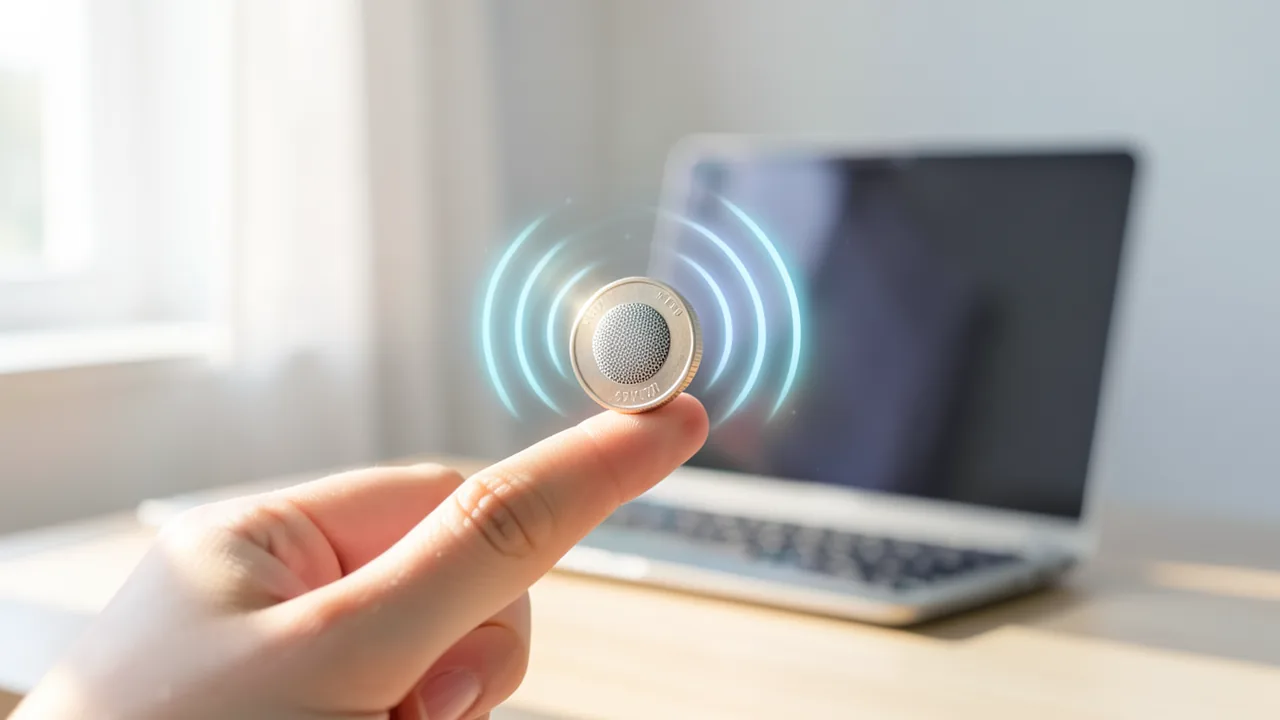
A developer has released tiny-voca, a tiny English text-to-speech model with just 4.5 million parameters that runs right in your browser. The code, weights, training recipe and dataset are all open, and on an ordinary CPU it generates speech roughly 70 times faster than real time.
What's going on
Over on Reddit's r/LocalLLaMA, a developer posting as "nato_nob" (n4ze3m on GitHub and Hugging Face) has shown off a very small speech model called tiny-voca. It's a text-to-speech (TTS) model, meaning an AI that turns written text into spoken audio. What makes it stand out is its size. At 4,537,291 parameters, tiny-voca is minuscule. Large language models have thousands of times more. Even so, it's supposed to produce intelligible English in two voices.
You can try it right now in your browser at tiny-voca.n4ze3m.com. The model runs locally on your device, and the project page says nothing you type ever leaves your machine. Everything else is public too: the code on GitHub, the weights on Hugging Face, the training dataset at huggingface.co/datasets/n4ze3m/tiny-voca and the custom phonemizer at github.com/n4ze3m/dizione. Code and weights are released under Apache-2.0, so commercial use is allowed.
The specs
| Feature | Value |
|---|---|
| Parameters | 4,537,291 (including waveform generation) |
| File size | 21 MB per the project page (ONNX, float32), 18 MB per the Reddit post |
| Output | 24 kHz, mono |
| Voices | 2 (F2 female, M2 male), American English |
| Training data | 17.6 hours of synthetic speech |
| Training time | 7.7 hours on one RTX 4090 |
| Speed | ~70x real time on 4 CPU threads (developer's figure) |
| Runtimes | PyTorch, ONNX, browser |
| License | Apache-2.0 |
The two size figures don't quite match. That's probably down to different file formats, or one number being in MB and the other in MiB. The developer hasn't cleared it up. Either way, the model is smaller than a lot of smartphone photos.
"70x real time" means ten seconds of speech is ready in about a seventh of a second. Four cores of an ordinary CPU are enough for that, no GPU required. When you try the browser demo, it shows you how long generation took, how fast it was and how long the conversion to phonetic notation took.
Why it's so fast
Most modern TTS systems work in two stages. First, one model computes a kind of acoustic picture of the speech. Then a second neural network, the vocoder, turns that into the actual audio. Vocoders are often pretty compute-hungry.
tiny-voca deliberately skips that step. Instead it uses a small source-filter synthesizer. The idea mirrors the human voice: a source produces a base tone, like your vocal cords, and a filter shapes that tone into vowels and consonants, like your mouth and throat. It's an old, well-understood speech synthesis technique, and it needs far less compute than a neural vocoder. According to the developer, that's exactly where the speed comes from. The trade-off: the voice can sound a bit artificial.
On top of that, there's a custom phonemizer, a program that converts written text into phonetic notation. That's tricky in English, where spelling and pronunciation often have little to do with each other. Think "though", "through" and "tough". The phonemizer, called "dizione", is a separate project, and the demo displays the phonemes it produces.
Trained on voices from another AI
tiny-voca was trained from scratch, without starting from an existing model. Training took 7.7 hours on a single RTX 4090, a GPU aimed at gamers and hobbyists. No data center required.
The 17.6 hours of training audio didn't come from real speakers. The developer generated it with Qwen3-TTS, a much larger speech model from Alibaba. That's what's known as synthetic training data. It's convenient: you get consistent voices without a recording studio and without legal questions around voice recordings. But there's a clear ceiling, and the developer names it himself: tiny-voca can never sound better than its teacher, Qwen3-TTS. This is essentially a form of distillation, where a small model learns to imitate a big one.
What doesn't work well yet
The developer is upfront about the weaknesses:
- English only, and only the two bundled voices. It can't read other languages, like German, in any usable way.
- No voice cloning, so it can't imitate someone else's voice from a short recording.
- Foreign names and unusual spellings are often mispronounced.
- The sound can come across as somewhat synthetic.
- Because the training data is synthetic, quality tops out at Qwen3-TTS level.
He explicitly asks people to test it with tricky text: numbers, dates, names and long sentences. If you find a failure, he wants you to post the text and the voice you used. There are no independent benchmarks or listening tests yet. All performance figures come from the developer.
What you need to try it
Practically nothing. The easiest route is the browser demo: open the page, wait a moment for the model to load (about 20 MB), type some English text and hit play. It works on any recent laptop, including Macs, and probably on many smartphones.
If you want to run it locally inside your own software, use PyTorch or ONNX. You don't need a GPU. According to the developer, 4 CPU threads are enough for 70x real time. RAM and disk space barely matter, a few hundred megabytes for the Python environment and model will do. That makes tiny-voca a candidate for weak hardware like a Raspberry Pi or older computers. Nobody has publicly tested that yet, though.
The bigger picture
tiny-voca isn't trying to be the best TTS out there. It shows how little you actually need. Well-known small open TTS models like Kokoro (around 82 million parameters) or Piper are already lean. tiny-voca is significantly smaller still, and fully reproducible, right down to the dataset. That's rare: many "open" models only publish weights, not the training data or recipe.
That makes the project valuable for tinkerers, educators and anyone who wants to understand how speech synthesis works. You can retrain it yourself on a single gaming GPU in a working day. A model that runs entirely in the browser is also interesting for apps that need to work offline or where privacy matters.
The limits are obvious, though. English only, two voices, an audibly artificial sound and trouble with names make tiny-voca more of a tech demo than an alternative to commercial voices for now. It's also unclear whether Qwen3-TTS's terms of use restrict how training data generated with it can be reused. The source doesn't say.
Sources
- Reddit rising: KI-Szene tiny-voca.n4ze3m.com
- Hugging Face Posts huggingface.co
Try it yourself: tiny-voca
Explained step by step, no prior knowledge needed – on your own computer or free in your browser.
What can I do with it?
tiny-voca reads English text aloud in one of two American voices, a female one (F2) and a male one (M2). Output is 24 kHz mono. It's so small (about 20 MB) that it runs directly in your browser or on an ordinary CPU, roughly 70 times faster than real time on 4 CPU threads, according to the developer. You don't need a GPU. Because a simple source-filter synthesizer generates the sound instead of a neural vocoder, the voice can sound a bit artificial. Sound-wise, it can't keep up with large models like Qwen3-TTS, whose recordings it was trained on, or with commercial voices. It can't clone voices, doesn't speak any language other than English, and struggles with foreign names and unusual spellings. Its strengths are speed, privacy (everything stays local) and complete openness, right down to the training dataset.
Who is it worth it for?
It's worth a look for tinkerers, developers and learners who want an extremely lightweight English reading voice that works offline, or who want to understand how speech synthesis works. If you need natural, expressive voices, other languages or voice cloning, go for a larger model.
Ideas: What you can do with it
Drop the ONNX file into a web or desktop app that needs to read English text aloud. Since everything runs locally, there are no API costs and no data leaves the device.
Have a home automation assistant or robot speak English status messages, like "The door is open". The model is small enough for weak hardware without a GPU.
Type in vocabulary or sentences and have them read to you. The phoneme display also shows you the pronunciation in phonetic notation.
Because the code, recipe and dataset are open, you can reproduce the training on a single gaming GPU. Great for university projects or just learning.
Generate placeholder voice lines for games, presentations or videos in seconds, before bringing in professional voice actors or larger models.
What your computer needs
Values estimated from the model size – the Model Card may have more precise figures.
There's only one variant, with 4.5 million parameters. The ONNX file (float32, about 21 MB) suits browsers and lightweight apps, while the PyTorch version is for experimenting and retraining. At this size, quantization isn't necessary.
- No GPU needed: according to the developer, 4 CPU threads are enough for roughly 70x real time.
- The model file is only about 18–21 MB, so RAM and storage are practically a non-issue.
- Runs directly in the browser, so it works on Macs and other devices with no installation at all.
- If you want to retrain it yourself: the original training took 7.7 hours on an RTX 4090.
How do I find out what my computer has?
- Windows: Press Ctrl + Shift + Esc → Task Manager → Performance tab → click GPU on the left. At the bottom you'll see Dedicated GPU memory (that's your VRAM). You'll find system memory under Memory.
- Mac: Apple menu at the top left → About This Mac. You'll see your chip (e.g. M2) and memory (e.g. 16 GB). On Apple chips, graphics and processor share this memory.
- Linux: Type
nvidia-smiin the terminal (shows your graphics card and its memory) andfree -hfor system memory.
Guide
This model runs with its developers' own program (n4ze3m/tiny-voca on GitHub). The commands below come from the Model Card and the developers' instructions.
Windows 10 / 11
Windows 10 / 11: not officially tested. The source doesn't mention Windows. Since the model runs on the CPU, it should work anyway. If it doesn't, use WSL2 (Linux inside Windows) and follow the Linux instructions, or try the online demo at tiny-voca.n4ze3m.com.
- Install the prerequisites. Install Python 3 from python.org, and make sure to tick "Add Python to PATH". Also install Git for Windows. Then open PowerShell. If everything worked, each of the two commands below prints a version number.
python --version git --version - Create a working folder. Create a dedicated folder for the project and switch into it. Run all the following commands in this folder.
mkdir tiny-voca-test cd tiny-voca-test - Create a virtual environment. A virtual environment (venv) is an isolated space for Python packages. If it worked, you'll see (.venv) at the start of the line. If you get an error about scripts, run Set-ExecutionPolicy -Scope CurrentUser RemoteSigned once and try again.
python -m venv .venv .venv\Scripts\Activate.ps1 - Install the software. The second command installs dizione (converts text into phonetic notation) and tiny-voca straight from GitHub. The first command installs the hf download tool. This takes a few minutes because it also pulls in PyTorch.
pip install huggingface_hub pip install git+https://github.com/n4ze3m/dizione git+https://github.com/n4ze3m/tiny-voca - Download the model. This command downloads about 45 MB of model files into the tiny-voca folder. Afterwards you'll find the file tiny-voca.pt and the phonemizer folder there.
hf download n4ze3m/tiny-voca --local-dir tiny-voca - Point to the pronunciation data. This environment variable tells dizione where its data lives. PowerShell uses a different syntax than Linux. You'll need to repeat this command in any new window.
$env:DIZIONE_DATA = "tiny-voca/phonemizer" - Generate your first speech. The F2 voice now reads the sample sentence. Afterwards, the folder contains the file hello.wav. Double-click it to play.
python -m tiny_voca.infer --checkpoint tiny-voca/tiny-voca.pt --voice F2 --text "Hello! This is tiny voca." --output hello.wav - Result. Your folder now contains the file hello.wav, in which a female voice says "Hello! This is tiny voca."
macOS
macOS: not officially tested. The source doesn't mention macOS. But the model runs on the CPU, so it should work on both Intel and Apple Silicon Macs. Alternatively, there's the online demo at tiny-voca.n4ze3m.com.
- Install the prerequisites. You need Python 3 and Git. The easiest way to get Git is via the Xcode Command Line Tools (Apple's developer tools), which you install with the first command in Terminal. Get Python 3 from python.org. The last two commands each print a version number.
xcode-select --install python3 --version git --version - Create a working folder. Create a dedicated folder for the project and switch into it.
mkdir tiny-voca-test cd tiny-voca-test - Create a virtual environment. The virtual environment (venv) keeps Python packages separate from the system. If it worked, you'll see (.venv) at the start of the line. In a new Terminal window, reactivate it with the second command.
python3 -m venv .venv source .venv/bin/activate - Install the software. The second command installs dizione (converts text into phonetic notation) and tiny-voca straight from GitHub. The first command installs the hf download tool. This takes a few minutes.
pip install huggingface_hub pip install git+https://github.com/n4ze3m/dizione git+https://github.com/n4ze3m/tiny-voca - Download the model. This command downloads about 45 MB of model files into the tiny-voca folder. Afterwards you'll find tiny-voca.pt and the phonemizer folder there.
hf download n4ze3m/tiny-voca --local-dir tiny-voca - Point to the pronunciation data. This environment variable tells dizione where its data lives. You'll need to repeat this command in any new Terminal window.
export DIZIONE_DATA=tiny-voca/phonemizer - Generate your first speech. The F2 voice now reads the sample sentence. Afterwards, the folder contains the file hello.wav. Select it in Finder and press the space bar to listen.
python -m tiny_voca.infer --checkpoint tiny-voca/tiny-voca.pt --voice F2 --text "Hello! This is tiny voca." --output hello.wav - Result. Your folder now contains the file hello.wav, in which a female voice says "Hello! This is tiny voca."
Linux
Linux: supported. The commands in the source are written for Linux. Everything runs on the CPU, so you don't need a GPU. If you'd rather not install anything, try the online demo at tiny-voca.n4ze3m.com in your browser.
- Check the prerequisites. You need Python 3 and Git. Git is a tool for downloading code from the internet. You don't need a GPU. On Ubuntu, the command below installs everything. Afterwards, the last two commands each print a version number.
sudo apt install python3 python3-venv python3-pip git python3 --version git --version - Create a working folder. Create a dedicated folder for the project and switch into it. Run all the following commands in this folder.
mkdir tiny-voca-test cd tiny-voca-test - Create a virtual environment. A virtual environment (venv) is an isolated space for Python packages, so the rest of your system stays untouched. If it worked, you'll see (.venv) at the start of the prompt. If you open a new terminal later, reactivate the environment with the second command.
python3 -m venv .venv source .venv/bin/activate - Install the software. The second command installs two packages straight from GitHub. dizione converts text into phonetic notation (phonemes), and tiny-voca is the actual speech program. The first command installs the hf helper tool, which you'll use to download the model in a moment. This takes a few minutes because it also pulls in PyTorch.
pip install huggingface_hub pip install git+https://github.com/n4ze3m/dizione git+https://github.com/n4ze3m/tiny-voca - Download the model. This command downloads the model files from Hugging Face into a new tiny-voca folder. It's only about 45 MB in total. Afterwards you'll find the file tiny-voca.pt and the phonemizer folder there, among other things.
hf download n4ze3m/tiny-voca --local-dir tiny-voca - Point to the pronunciation data. dizione needs the data in the phonemizer folder. This environment variable (a setting for the current terminal) tells dizione where to find it. You'll need to repeat this command in any new terminal.
export DIZIONE_DATA=tiny-voca/phonemizer - Generate your first speech. Now the female F2 voice reads the sample sentence from the instructions. After a few seconds, the folder contains the file hello.wav. Open it in any audio player.
python -m tiny_voca.infer --checkpoint tiny-voca/tiny-voca.pt --voice F2 --text "Hello! This is tiny voca." --output hello.wav - Result. Your folder now contains the file hello.wav, in which a female voice says "Hello! This is tiny voca."
What to do after your first result
- Use --voice M2 to hear the male voice. Put your own English sentence after --text. The model only speaks English.
- Use --speed to change the tempo (e.g. 0.9 for slower). Use --pitch-shift to change the pitch, where 0.058 is roughly one semitone. Use --pitch-range to control how much the voice's pitch varies.
- The model reads one sentence per call, up to 32 seconds long. So split long texts into sentences first.
- The tiny-voca/onnx folder contains an ONNX version of the model. ONNX is a file format that runs with onnxruntime, without PyTorch. The Model Card explains how to call it. There's a web demo at tiny-voca.n4ze3m.com.
Try it
Hello, this is a quick test of a very small speech model.The meeting is scheduled for March 3rd, 2027, at 4:45 p.m.Please transfer $1,250.75 to account number 4471 before Friday.Although the weather looked rough, though not tough enough to stop us, we went through the forest anyway.Dr. Nakamura and Mr. Wojciechowski will present their findings in Reykjavik next week.Tips for better results
- Try both voices (F2 and M2) with the same text. Depending on the content, one of them may sound more natural.
- Check the displayed phonemes: if a word sounds wrong, you can see whether the phonetic conversion was already off.
- If numbers, abbreviations or units get misread, try spelling them out.
- Share broken examples, with the text and voice, with the developer. He's explicitly asking for them.
If something goes wrong
English only: text in other languages, like German, comes out wrong and unintelligible.
Foreign names and unusual spellings often go wrong. If needed, spell them phonetically (e.g. "Voy-chee-ehov-skee").
There's no voice cloning, only the two voices F2 and M2.
The first time you open the browser demo, the model (about 20 MB) has to load. Wait until the "Loading…" indicator disappears.
Audio quality is capped by the synthetic training data from Qwen3-TTS. Don't expect studio quality.
“out of memory,” a crash, or your computer freezes
The model is too big for your VRAM (video memory). Pick a smaller variant from the table above and close other programs, especially games and browsers with lots of tabs.
It runs, but extremely slowly
Your CPU is probably doing the work instead of your graphics card. In Ollama, the PROCESSOR column of ollama ps shows how much runs on the GPU. If it says "100% CPU", update your graphics driver or pick a smaller variant that fits entirely into VRAM (video memory).
“ollama” or “python” is not found
Close the terminal window and open it again so it recognizes the newly installed program. For Python on Windows: reinstall it and check Add python.exe to PATH.
Windows: "Running scripts is disabled on this system"
Run the script with exactly the command above: powershell -ExecutionPolicy Bypass -File try_windows.ps1. This allows execution for this one time only.
Error message when loading the model (version, "trust_remote_code", unknown architecture)
Brand-new models often need the latest software version. With Ollama: update Ollama. With Python: pip install -U transformers in the activated environment. The Model Card usually lists the exact version.
Tokenstrom generates the scripts and notebook automatically. Please take a quick look before running them – they're plain, readable text. Mind the model's license: apache-2.0.
Ask the AI assistant
Questions about this article, installation or background? Our assistant knows this page and runs on our own machine, not in someone else's cloud.
The Assistant is an AI (Gemma 4) and can make mistakes – please check important details against the source. Questions are used only to generate an answer and are deleted after one hour. Please don't enter any personal data.

Comments
What do you think? Already tried it? Write it here, no sign-up needed.
Comments are public. Links aren't allowed, and we delete abusive posts. You can delete your own comment at any time in this browser. Learn more in the Privacy Policy.