
Viggle Remake: Open model recasts people in entire videos, AI agent included
Viggle has released Viggle Remake, an open-weights model that replaces people in existing videos and edits scenes while keeping the motion, camera work and audio intact. The standout is the bundled MCP server: it's meant to let AI agents like Claude Code rework even long videos on their own.
What's going on
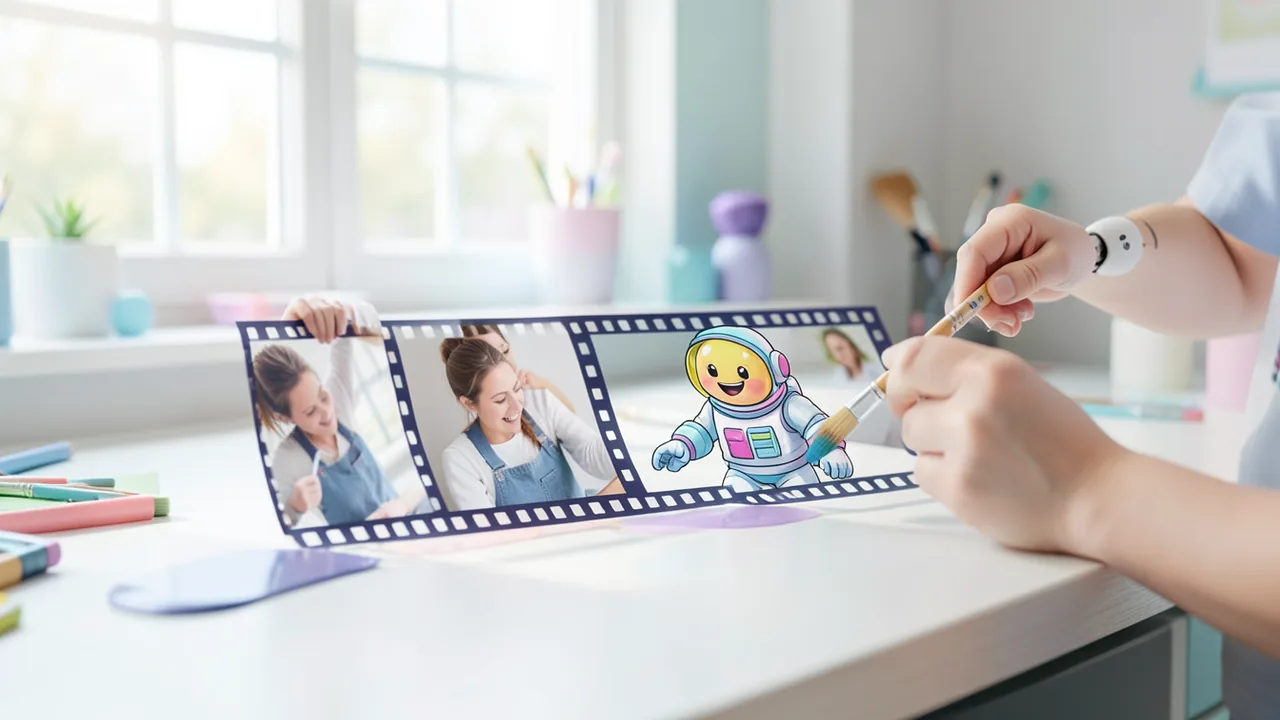
Viggle, the company known for its app that makes characters in videos dance and move, has released Viggle Remake. The model can swap out people in an existing video ("recasting", as in giving a role to a new actor) and edit scenes, all while preserving the original's motion, camera work and audio track. The weights are open and live on Hugging Face under Viggle/Viggle-Remake. The news broke via a post on X and on the r/StableDiffusion subreddit. If you'd rather not install anything yourself, the same feature is available in the Viggle app.
Built for AI agents
The most striking thing about the release: Viggle describes Remake as "agent-first", meaning it was designed from the ground up to be driven by an AI agent rather than by hand. To that end, Viggle ships an MCP server. MCP (Model Context Protocol) is an open standard that lets AI assistants control external tools, a kind of power outlet for add-on capabilities. According to Viggle, agents like Claude Code or Codex can use it to recast people in videos of "any length".
The agent handles a whole chain of steps:
- It cuts the video into sections (windows).
- It paints the keyframes, selected frames that the model uses as reference points.
- It writes the prompts, the text instructions for the model.
- It renders the sections.
- It checks its own work.
- It stitches everything back together into one video.
Splitting the video into windows is necessary because video models can usually only generate short clips in one go. Longer videos are built by generating lots of pieces and joining them cleanly, with the person supposed to look the same across every cut. According to Viggle, the longest run so far is a two-minute music video, and the repository is said to contain everything you need to reproduce it.
Harder to use by hand than its predecessor
Viggle is upfront that Remake is more complicated than the older Viggle-Animate. If you drive the model manually, you need a well-structured prompt and a few painted keyframes, and the result "depends heavily on both", according to Viggle. That's exactly the work the MCP agent is meant to take off your hands. For anyone who doesn't want to deal with prompts or agents at all, Viggle points to its own app.
It's an interesting approach. Instead of making the model as easy to use as possible, Viggle is betting on a language model doing the tedious legwork: preparing keyframes, writing prompts, checking quality. In this case, the user interface is less a human than the agent.
What's in the repository
Besides the actual weights and the MCP server, Viggle says the Hugging Face repo contains:
- ComfyUI nodes and workflows: ComfyUI is a popular free interface where you build AI image and video pipelines by snapping together building blocks.
- int8 and GGUF files: slimmed-down versions for GPUs with less memory, where the model's numbers are stored at lower precision (quantization).
- Smaller LoRAs at rank 128 and 64: LoRAs are lightweight add-on modules that tune a base model for a specific task. The "rank" roughly determines their size; lower ranks need less memory.
The existence of LoRAs suggests Remake builds on an existing video base model. The post doesn't say which one, how many parameters the model has, or what license it's under.
What you need to try it
Viggle doesn't give concrete hardware specs, only noting that the int8 and GGUF files are meant for "smaller GPUs". Realistically, that means:
- GPU: an Nvidia card. How much VRAM you need is unclear. In our experience, this kind of video editing tends to need a lot of memory; the quantized files are supposed to bring that down.
- Software: ComfyUI for the manual route. For the agent route, you'll also need an MCP-capable agent like Claude Code or Codex, each of which requires its own account or subscription.
- Disk space and time: several gigabytes for the model files. Long videos consist of many rendered windows, so a two-minute clip will likely take a long time.
- Mac/CPU/Colab: the source says nothing about these. Running video generation on CPU alone is practically unusable.
The bigger picture
Viggle Remake stands out for two reasons. First, a commercial vendor is releasing the weights for a core feature of its own app, complete with ComfyUI integration and quantized files. That makes the model immediately usable by the local AI community. Second, the agent-based approach is new: an AI agent drives a video model and handles quality control as well. It hints at where creative tools could be heading.
But a lot is still unknown. There's no information on model size, base model, license or hardware requirements, and no independent quality tests. The claim that agents can handle videos of "any length" comes from the vendor; so far there's one two-minute example to back it up. Viggle itself admits that results from manual use depend heavily on the prompt and keyframes.
Then there are the ethical questions that any tool for swapping people in videos raises. If you put real people's faces into videos without their consent, you're creating deepfakes and may be exposing yourself to legal trouble.
Sources
- Reddit r/StableDiffusion reddit.com
- Merkliste: woshipm.com woshipm.com
Try it yourself: Viggle Remake
Explained step by step, no prior knowledge needed – on your own computer or free in your browser.
What can I do with it?
Viggle Remake replaces a person in an existing video with someone else or changes the scene, while motion, camera work and audio stay exactly as in the original. You can drive it by hand in ComfyUI: for that you need a well-built prompt and a few painted frames (keyframes), and according to Viggle the result depends heavily on them. Alternatively, an AI agent like Claude Code or Codex does all the work through the bundled MCP server. It splits the video into sections, prepares keyframes, writes prompts, renders, checks and reassembles everything. That's how Viggle says it reworked a two-minute music video. It's much more demanding than its predecessor Viggle-Animate and is not a one-click tool.
Who is it worth it for?
Worth it for people who already work with ComfyUI or use an AI agent like Claude Code and want to produce creative video projects such as music videos, parodies or short films locally. If you just want a quick, fun clip, Viggle itself says you're better off with the Viggle app.
Ideas: What you can do with it
Film yourself to a song and have the agent replace you with a fantasy character. Motion, camera and music stay intact, giving you a music video with a new lead.
Take one of your own clips and drop in a cartoon or animal character. It's exactly the kind of content the Viggle app is known for, just local and with more control.
Shoot a scene once and try out different costumes or characters without reshooting. Handy for hobby filmmakers who want to visualize ideas quickly.
Move a filmed product or explainer video to a different setting, say from the office to the beach. The person and their talk stay the same.
If you work with Claude Code or Codex, the MCP server is a great way to learn how agents handle multi-step creative tasks and check their own work. It's a good training ground for your own automations.
What your computer needs
If your GPU has plenty of VRAM, use the full weights. For smaller GPUs, the repo includes int8 and GGUF files, and the rank 64 LoRAs are smaller than the rank 128 ones. The source doesn't give concrete VRAM figures, so start with the smallest variant and short clips and work your way up.
- Viggle doesn't give concrete VRAM figures. The int8 and GGUF files are explicitly meant for smaller GPUs.
- An Nvidia GPU is practically a must for video generation; running on CPU is far too slow.
- Long videos are split into many windows and rendered one by one. Expect long run times and plenty of free disk space for intermediate results.
- For the agent route, you'll also need an MCP-capable agent like Claude Code or Codex, which requires its own account.
How do I find out what my computer has?
- Windows: Press Ctrl + Shift + Esc → Task Manager → Performance tab → click GPU on the left. At the bottom you'll see Dedicated GPU memory (that's your VRAM). You'll find system memory under Memory.
- Mac: Apple menu at the top left → About This Mac. You'll see your chip (e.g. M2) and memory (e.g. 16 GB). On Apple chips, graphics and processor share this memory.
- Linux: Type
nvidia-smiin the terminal (shows your graphics card and its memory) andfree -hfor system memory.
Guide
This model runs with its developers' own program. The commands below come from the Model Card and the developers' instructions.
Windows 10 / 11
Windows 10 / 11: not officially tested. The source doesn't mention Windows. You need an NVIDIA card with at least 80 GB of memory, which you'll practically never find in a regular PC. The demo.sh example script only runs on Windows inside WSL2 (a Linux environment within Windows). The easier options are the Viggle app in your browser or the ComfyUI route for smaller cards.
- Check the prerequisites. Install Python 3 and tick the "Add to PATH" box during installation. You'll also need the latest NVIDIA driver, a GPU with at least 80 GB of memory, ffmpeg on your PATH and about 160 GB of free disk space. Open PowerShell and check everything with these commands.
python --version nvidia-smi ffmpeg -version - Create a working folder and environment. A virtual environment (venv) keeps the Python packages separate from the rest of your system. If PowerShell throws a script-related error when activating it, run Set-ExecutionPolicy -Scope CurrentUser RemoteSigned first. If it worked, you'll see (.venv) in front of the prompt.
mkdir viggle; cd viggle python -m venv .venv .venv\Scripts\Activate.ps1 - Install the download tool. The huggingface_hub package provides the hf download command.
pip install -U huggingface_hub - Download the MiniMax-H3 base model. The base model is about 144 GB, so expect this to take several hours. If the download gets interrupted, just run the command again.
hf download MiniMaxAI/MiniMax-H3 --local-dir ./MiniMax-H3 ` --include "modular_model_index.json" "transformer/*" "text_encoder/*" "tokenizer/*" ` "processor/*" "vae/*" "audio_vae/*" "scheduler/*" "audio_scheduler/*" "docs/*" - Download the Viggle Remake files. This command downloads only the LoRAs, the launcher script and the examples, about 5.5 GB in total. Don't use git clone, or you'll pull down around 210 GB.
hf download Viggle/Viggle-Remake --local-dir ./Viggle-Remake ` --include "lora/*" "inference/*" "examples/*" "requirements.txt" - Install the required packages. This command installs all the packages the launcher script needs. Since Windows isn't officially tested, individual packages may fail here. If that happens, switch to WSL2.
pip install -r Viggle-Remake/requirements.txt - Transform your first video. Use one of the examples in Viggle-Remake\examples\inputs as a template. Each contains a video, edited stills and a matching description in the six-section format. Copy the files into your working folder as source.mp4, ref1.png, ref2.png and prompt.txt, and adjust the --pin numbers to match the example. The result is saved as out.mp4.
python Viggle-Remake/inference/sample.py --mode swap ` --video source.mp4 --prompt prompt.txt ` --ref ref1.png --ref ref2.png --pin 12 --pin 96 ` --frames 124 --short-edge 480 --seed 0 ` --base ./MiniMax-H3 --lora-repo ./Viggle-Remake --out out.mp4 - Result. Your folder now contains out.mp4: a video clip roughly 5 to 12 seconds long in which people or objects have been swapped. Motion, camera and original audio are preserved.
macOS
macOS: not officially tested. The source doesn't mention Macs. The launcher script is built for an NVIDIA GPU with 80 GB. On a Mac it probably won't run at all, or only extremely slowly, since the base model alone is around 144 GB. On a Mac, you're better off using the Viggle app in your browser.
- Check the prerequisites. You'll need the Xcode command line tools (command below), Python 3, ffmpeg and about 160 GB of free disk space. Realistically, it's only worth trying on a Mac with a huge amount of unified memory, well over 128 GB.
xcode-select --install python3 --version ffmpeg -version - Create a working folder and environment. The virtual environment keeps the packages separate from the rest of your system. If it worked, you'll see (.venv) in front of the prompt.
mkdir viggle && cd viggle python3 -m venv .venv source .venv/bin/activate - Install the download tool. The huggingface_hub package provides the hf download command.
pip install -U huggingface_hub - Download the MiniMax-H3 base model. This download is about 144 GB. If it gets interrupted, just run the command again.
hf download MiniMaxAI/MiniMax-H3 --local-dir ./MiniMax-H3 \ --include "modular_model_index.json" "transformer/*" "text_encoder/*" "tokenizer/*" \ "processor/*" "vae/*" "audio_vae/*" "scheduler/*" "audio_scheduler/*" "docs/*" - Download the Viggle Remake files. This command downloads the LoRAs, the launcher script and the examples, about 5.5 GB in total. Don't use git clone, or you'll pull down around 210 GB.
hf download Viggle/Viggle-Remake --local-dir ./Viggle-Remake \ --include "lora/*" "inference/*" "examples/*" "requirements.txt" - Install the required packages. This command installs the packages for the launcher script. Some of them may be NVIDIA-only and won't install on a Mac.
pip install -r Viggle-Remake/requirements.txt - Try the examples. The script renders one example each for the swap and edit modes. If it aborts with a CUDA error, the model won't run on your Mac. CUDA is NVIDIA's GPU computing platform. In that case, use the Viggle app.
bash Viggle-Remake/examples/demo.sh - Result. Your folder now contains out.mp4: a video clip roughly 5 to 12 seconds long in which people or objects have been swapped. Motion, camera and original audio are preserved.
Linux
Linux: supported. The Model Card targets Linux machines with NVIDIA GPUs. sample.py needs a card with at least 80 GB of memory, such as an 80 GB A100 or H100. Without one, use the Viggle app in your browser, where there's nothing to set up and no GPU required.
- Check the prerequisites. You'll need Python 3 with venv and pip, an NVIDIA GPU with at least 80 GB of VRAM and the latest NVIDIA driver. You'll also need ffmpeg for video processing and around 160 GB of free disk space. These commands check that everything is in place. nvidia-smi shows your GPU and its memory.
python3 --version nvidia-smi ffmpeg -version - Create a working folder and environment. A virtual environment (venv) is a self-contained space for Python packages, so the installation doesn't mess up anything else on your machine. Once activated, you'll see (.venv) at the start of the prompt.
mkdir viggle && cd viggle python3 -m venv .venv source .venv/bin/activate - Install the download tool. The hf command downloads files from Hugging Face. It's part of the huggingface_hub package.
pip install -U huggingface_hub - Download the MiniMax-H3 base model. Viggle Remake builds on the large MiniMax-H3 base model. This download is about 144 GB and can take many hours. If it gets interrupted, just run the same command again and it will pick up where it left off.
hf download MiniMaxAI/MiniMax-H3 --local-dir ./MiniMax-H3 \ --include "modular_model_index.json" "transformer/*" "text_encoder/*" "tokenizer/*" \ "processor/*" "vae/*" "audio_vae/*" "scheduler/*" "audio_scheduler/*" "docs/*" - Download the Viggle Remake files. This command downloads only the parts you need, about 5.5 GB: the LoRAs, the launcher script and the examples. A LoRA is a small add-on file that teaches the base model a new skill. Don't use git clone here, or you'll download around 210 GB.
hf download Viggle/Viggle-Remake --local-dir ./Viggle-Remake \ --include "lora/*" "inference/*" "examples/*" "requirements.txt" - Install the required packages. This command installs all the Python packages the launcher script needs. It should finish without any red error messages.
pip install -r Viggle-Remake/requirements.txt - Render the examples. The demo.sh script renders one example from the examples/inputs folder for each of the two modes, swap and edit. If the wind turbines are still visible in the result or the pizza chef is unchanged, the LoRA wasn't loaded. If the script can't find its paths, look inside demo.sh to see which folder it expects to be run from.
bash Viggle-Remake/examples/demo.sh - Transform your own video. For your own video you need three things. First, the original video as source.mp4. Second, one to four stills from that video that you've edited in an image editor, for example with a new person in them (ref1.png, ref2.png). Third, a prompt.txt file with the description in the required six-section format. You'll find templates in Viggle-Remake/examples/inputs. --pin tells the model which frame of the original video each edited image comes from. The result is saved as out.mp4.
python Viggle-Remake/inference/sample.py --mode swap \ --video source.mp4 --prompt prompt.txt \ --ref ref1.png --ref ref2.png --pin 12 --pin 96 \ --frames 124 --short-edge 480 --seed 0 \ --base ./MiniMax-H3 --lora-repo ./Viggle-Remake --out out.mp4 - Result. Your folder now contains out.mp4: a video clip roughly 5 to 12 seconds long in which people or objects have been swapped. Motion, camera and original audio are preserved.
What to do after your first result
- Use --mode edit instead of --mode swap to swap objects rather than people, remove or add things, or change the background, weather and lighting.
- --short-edge 736 renders the video at 1280×736 instead of the smaller default size. --frames sets the length. Allowed values follow the form 17n + 5 at 24 frames per second, with a recommended maximum of 294. The timestamps in your description must match this length.
- --rank 128 or --rank 64 loads smaller LoRAs (1.34 and 0.67 GB respectively), and the vendor says results are nearly identical. For GPUs with 12 GB or more, there are ComfyUI workflows with int8 and GGUF files (see COMFYUI.md in the repo). ComfyUI is a graphical interface where you connect processing steps as boxes.
- For full-length films, an AI agent like Claude Code or codex handles cutting and rendering via the MCP server in the mcp/ folder. Only use the model with people who have given their consent, and label the results as AI-generated.
Try it
A 5-second clip of you waving. Replace the person with an astronaut in a white spacesuit.A short dance clip. Replace the dancer with a character in classic cartoon style, keep the background the same.A scene at the kitchen table. Turn the kitchen into a medieval tavern, leave the person unchanged.To the agent: "Take this 30-second video, replace the singer with a robot with glowing blue eyes, and put everything back together with the original music."To the agent: "Recreate the music video from the repo example, but with a woman in a red coat as the lead."Tips for better results
- Start with very short clips to get a feel for prompts and keyframes before tackling long videos.
- Check out the music video example included in the repo. It shows how prompts and keyframes should be structured.
- Use the MCP agent for long videos. It handles the splitting, checking and reassembly, which would be very tedious by hand.
- Use source videos where the person is clearly visible and the lighting is even; that makes a clean swap easier.
If something goes wrong
Remake is demanding to use by hand. Without a well-structured prompt and painted keyframes, Viggle says results get noticeably worse.
The post doesn't mention the license. Read the model card on Hugging Face before using anything commercially.
The ComfyUI workflows require the bundled custom nodes to be installed; otherwise you'll see red, missing nodes.
With too little VRAM, runs will crash. Switch to the int8/GGUF files or the smaller rank 64 LoRA.
Putting people into videos without their consent can have legal consequences (personality rights, deepfakes).
“out of memory,” a crash, or your computer freezes
The model is too big for your VRAM (video memory). Pick a smaller variant from the table above and close other programs, especially games and browsers with lots of tabs.
It runs, but extremely slowly
Your CPU is probably doing the work instead of your graphics card. In Ollama, the PROCESSOR column of ollama ps shows how much runs on the GPU. If it says "100% CPU", update your graphics driver or pick a smaller variant that fits entirely into VRAM (video memory).
“ollama” or “python” is not found
Close the terminal window and open it again so it recognizes the newly installed program. For Python on Windows: reinstall it and check Add python.exe to PATH.
Windows: "Running scripts is disabled on this system"
Run the script with exactly the command above: powershell -ExecutionPolicy Bypass -File try_windows.ps1. This allows execution for this one time only.
Error message when loading the model (version, "trust_remote_code", unknown architecture)
Brand-new models often need the latest software version. With Ollama: update Ollama. With Python: pip install -U transformers in the activated environment. The Model Card usually lists the exact version.
Tokenstrom generates the scripts and notebook automatically. Please take a quick look before running them – they're plain, readable text. Mind the model's license: custom license (see Model Card).
Ask the AI assistant
Questions about this article, installation or background? Our assistant knows this page and runs on our own machine, not in someone else's cloud.
The Assistant is an AI (Gemma 4) and can make mistakes – please check important details against the source. Questions are used only to generate an answer and are deleted after one hour. Please don't enter any personal data.


Comments
What do you think? Already tried it? Write it here, no sign-up needed.
Comments are public. Links aren't allowed, and we delete abusive posts. You can delete your own comment at any time in this browser. Learn more in the Privacy Policy.